Note: If you're a Legacy (Classic) user, please log in to your account to access the dedicated Legacy (Classic) Help Center.
💡 Pre-designed templates are a paid feature available on the Comfort and Power plans.
Email templates are pre-designed campaigns that you can save and reuse to quickly create new and consistent campaigns.
How to use a MailerLite pre-designed template
To create a campaign using a MailerLite pre-designed template:
Navigate to the Campaigns page and click Create campaign.
Select your chosen campaign type.
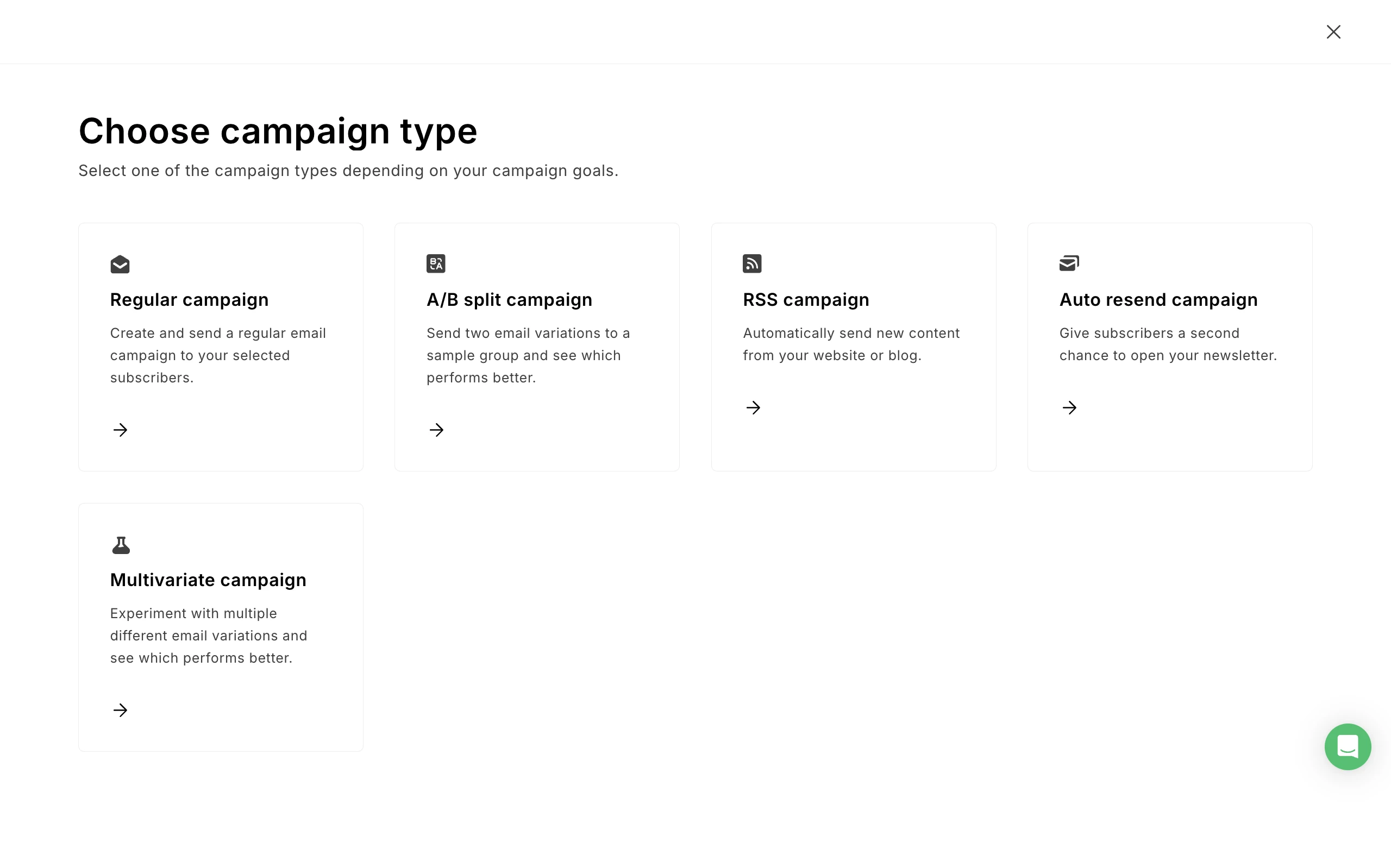
Click the Template gallery tab. Here you can choose from over 50 pre-designed email templates.
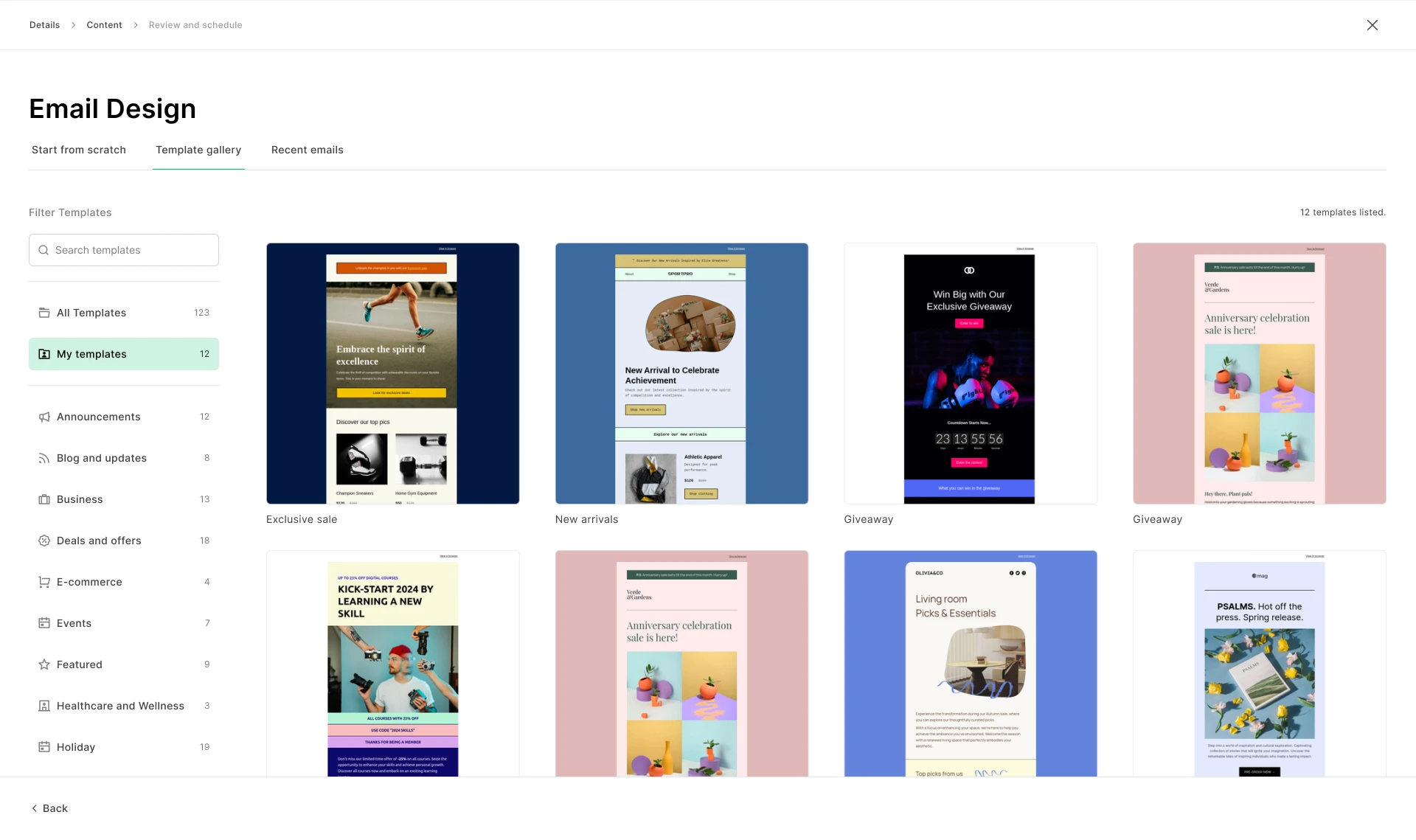
Looking for a particular type of campaign, such as a holiday or an event? Filter pre-designed templates by category to see templates relevant to your campaign.
💡 Apply your Brand styles to the pre-made template to match your personal branding.
How to change your selected template
The process of changing a template depends on whether it’s used for a campaign or an automation email.
Campaign templates: There’s no way to change the template once you’ve begun creating the content of your campaign. Instead, simply start fresh by creating a new campaign.
Automation email templates: You can change the template of Drag & drop and Simple editor emails from the automation editor. To do so:
Click on the email step.
Click the downward arrow next to Edit email.
Select Change template from the dropdown menu.
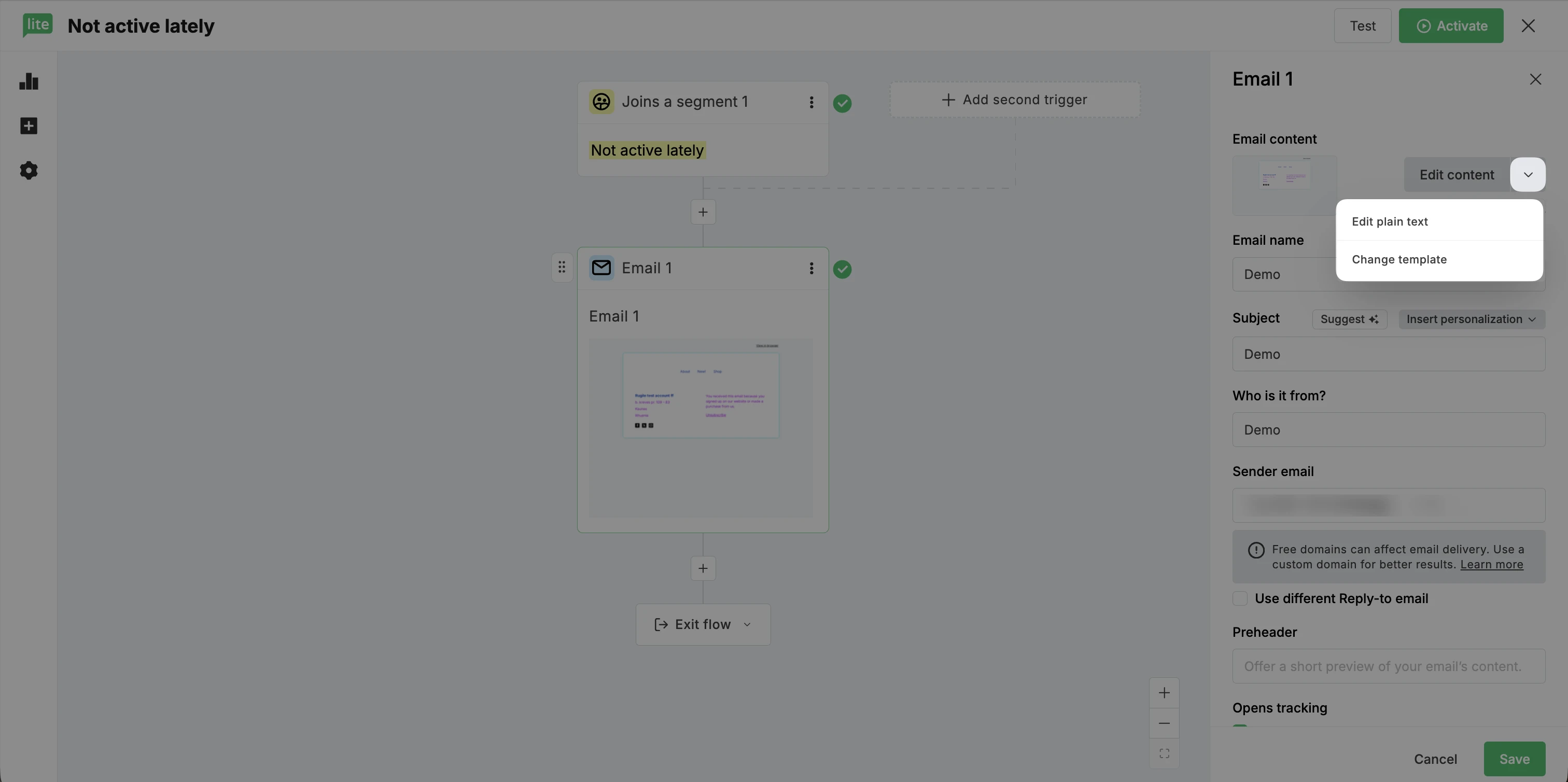
⚠️ Keep in mind: Changing the template will result in losing all the content and settings for it.
How to create your own template
To create your own custom email template from scratch:
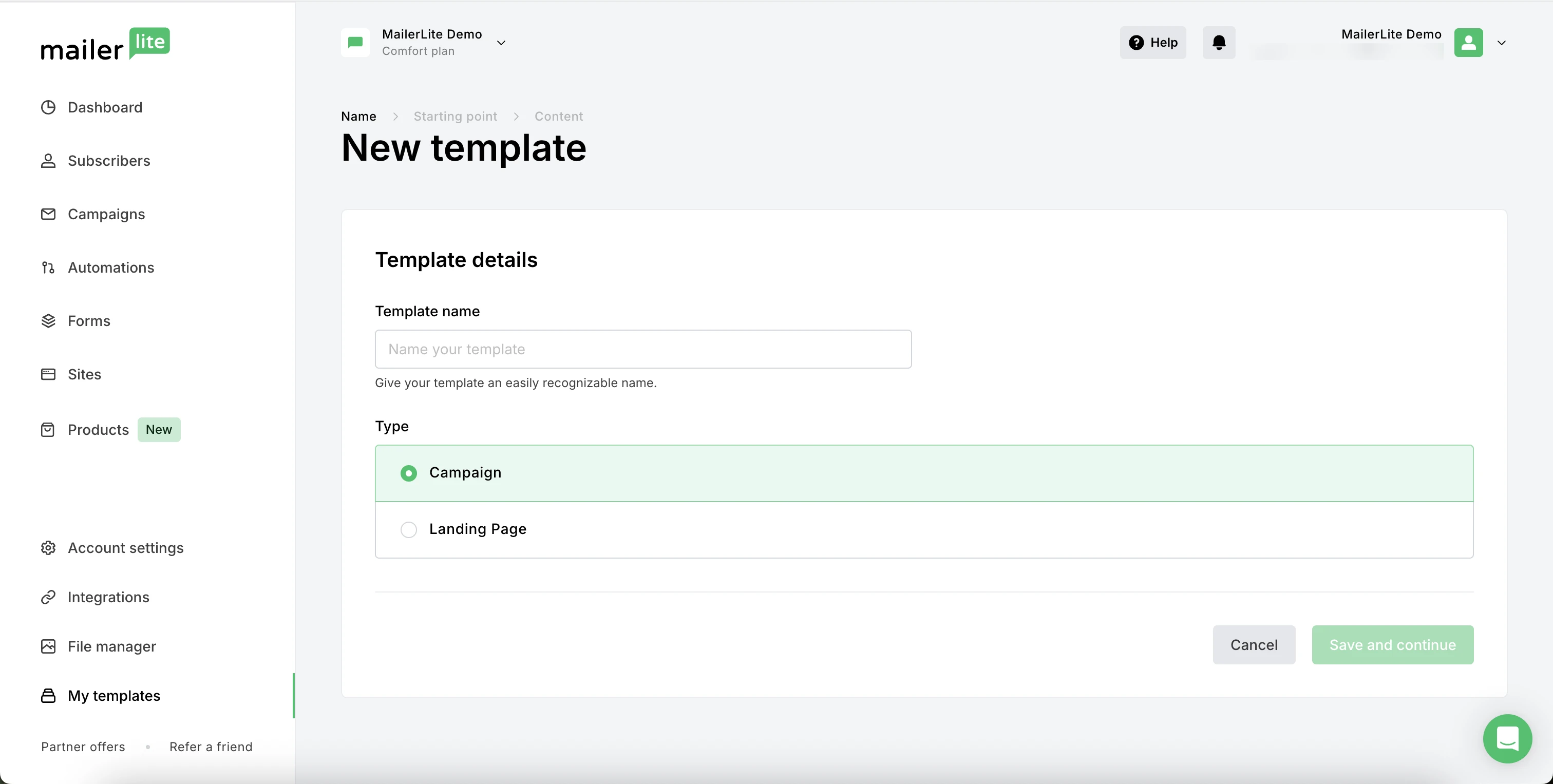
Navigate to My templates.
Click Create new template.
Name your new template and select the template type: Campaign.
Click Save and continue.
Select the Drag & drop editor to create your template from scratch or build from a pre-designed template in the Template gallery.
Once saved, your template can be found on the My templates page. When you've created at least one template, your templates will appear as a design option when you create new campaigns.
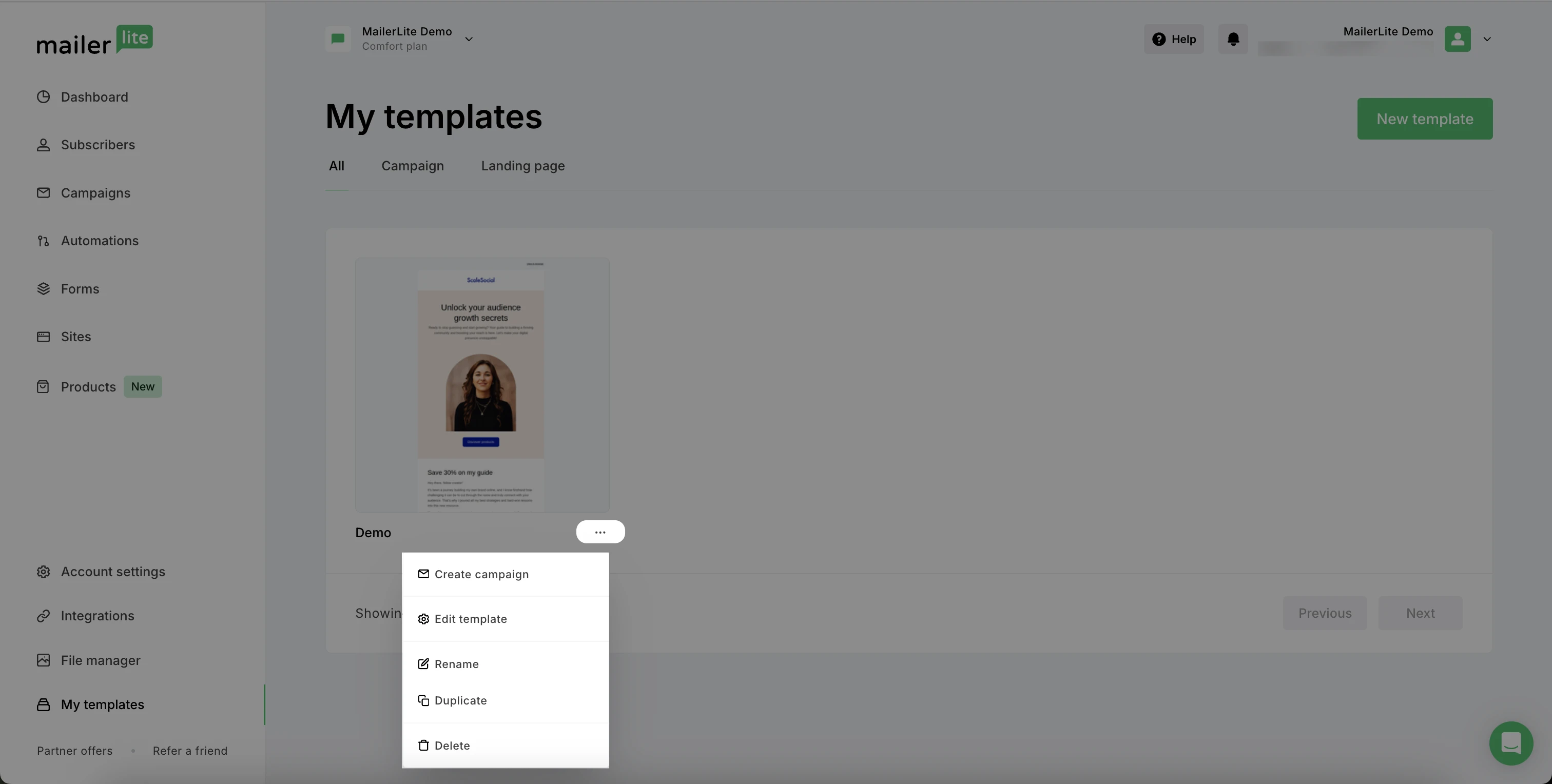
Click the more icon on your template to create a new campaign from it. You can also click the more icon to edit, rename, duplicate, or delete your template.
How to save your draft as a template
If you’re already working on a campaign or automation email and you decide you’d like to save it as a template, you can do so from within your campaign editor.
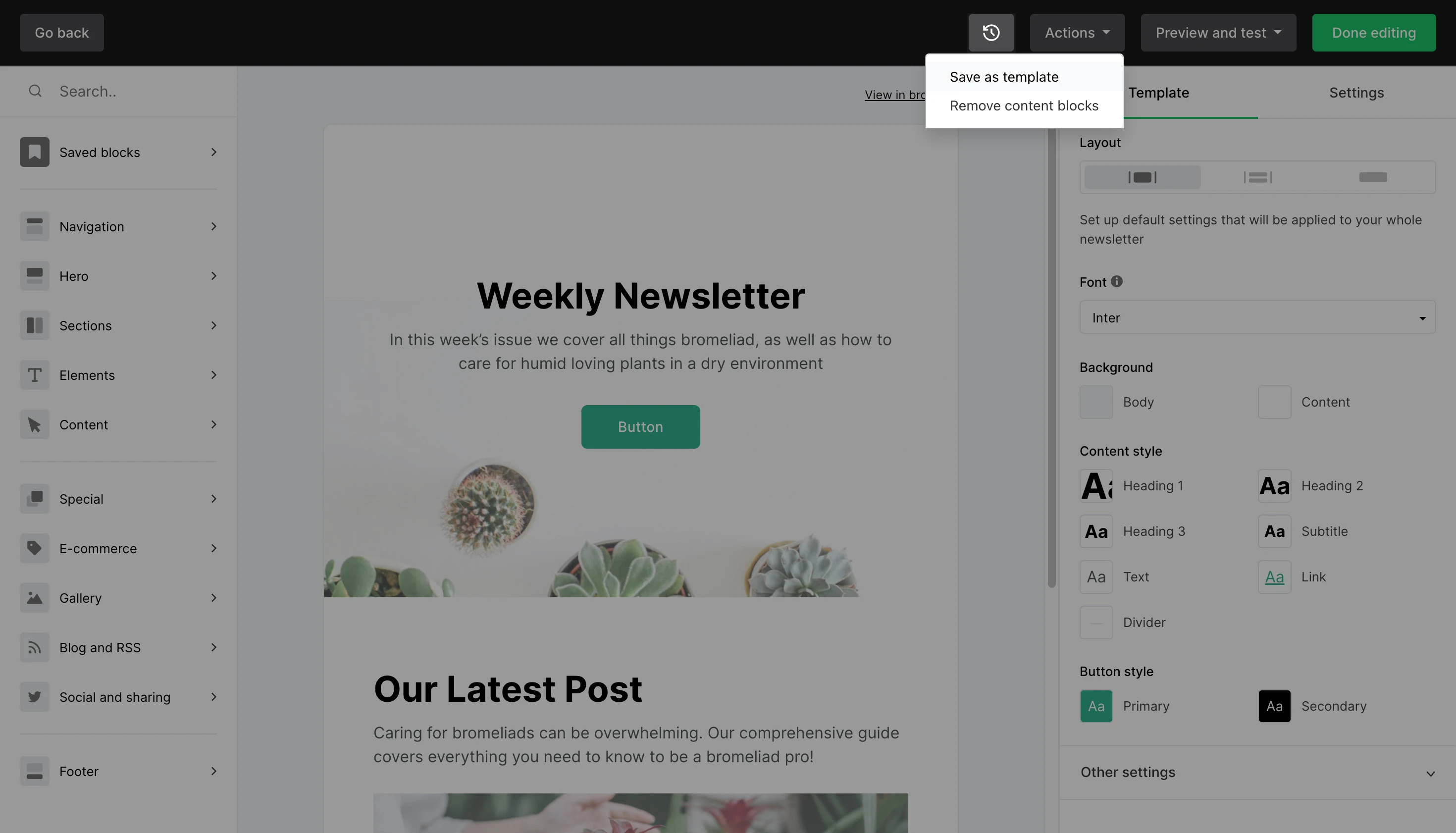
Simply click the Actions button along the top bar and select Save as template. Your template can then be found on your My templates page.
Need some inspiration before you get started building your own template? Check out our Email newsletter design gallery for real examples from other MailerLite users!