Note: If you're a Legacy (Classic) user, please log in to your account to access the dedicated Legacy (Classic) Help Center.
MailerLite’s Shopify integration syncs subscriber data in both directions and sends products and revenue information from Shopify to MailerLite.
Use it to set up e-commerce automations, track e-commerce revenue data associated with campaigns, subscribers, and automations, and use e-commerce blocks in your campaigns and sites.
How to set up the MailerLite integration for Shopify
To set up the MailerLite integration for Shopify:
In your Shopify admin panel, navigate to the Apps page.
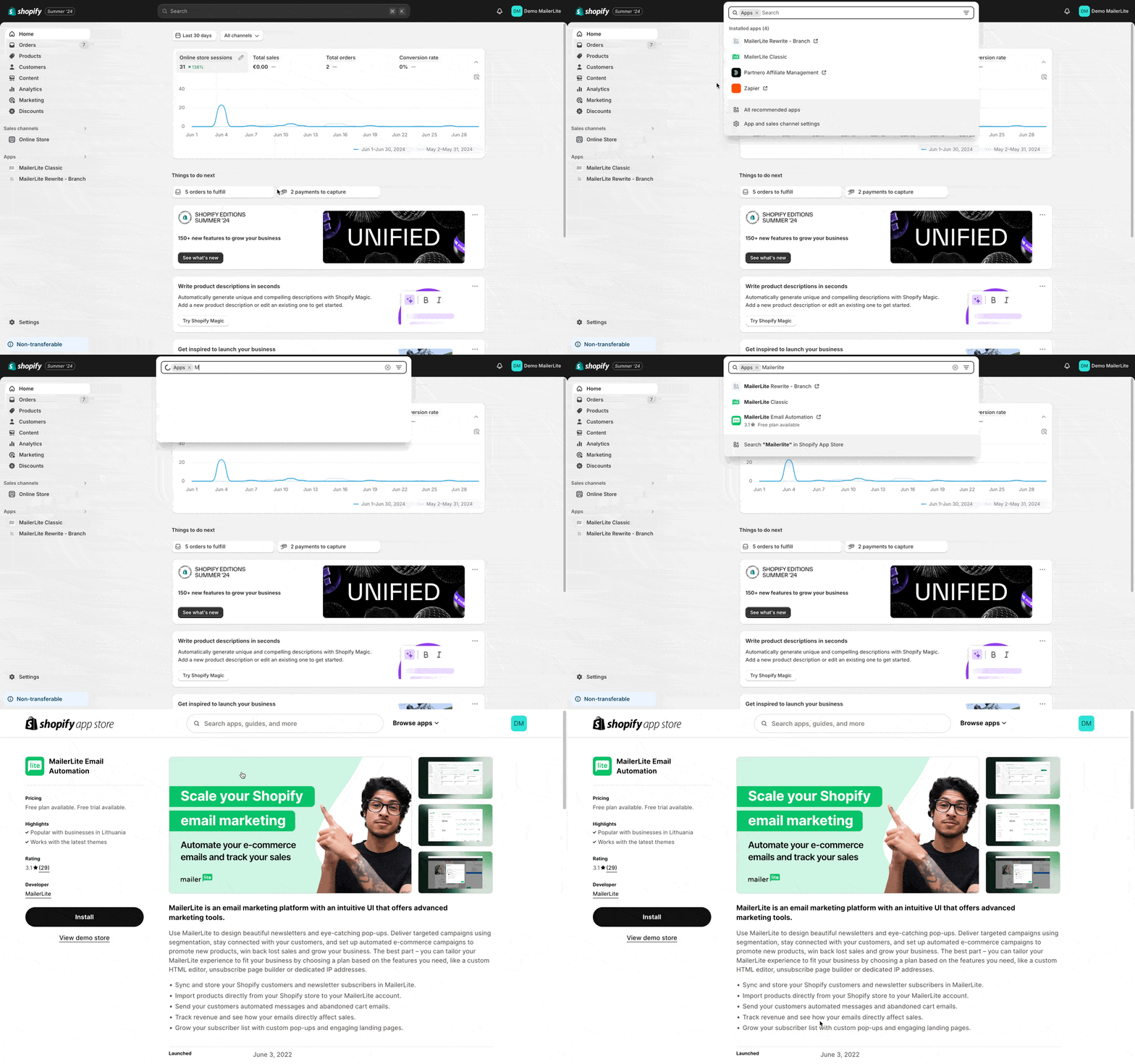
3. Locate MailerLite Email Automation by MailerLite.
4. Click Install.
5. This will redirect you back to your Shopify admin panel, where you’ll need to click Install.
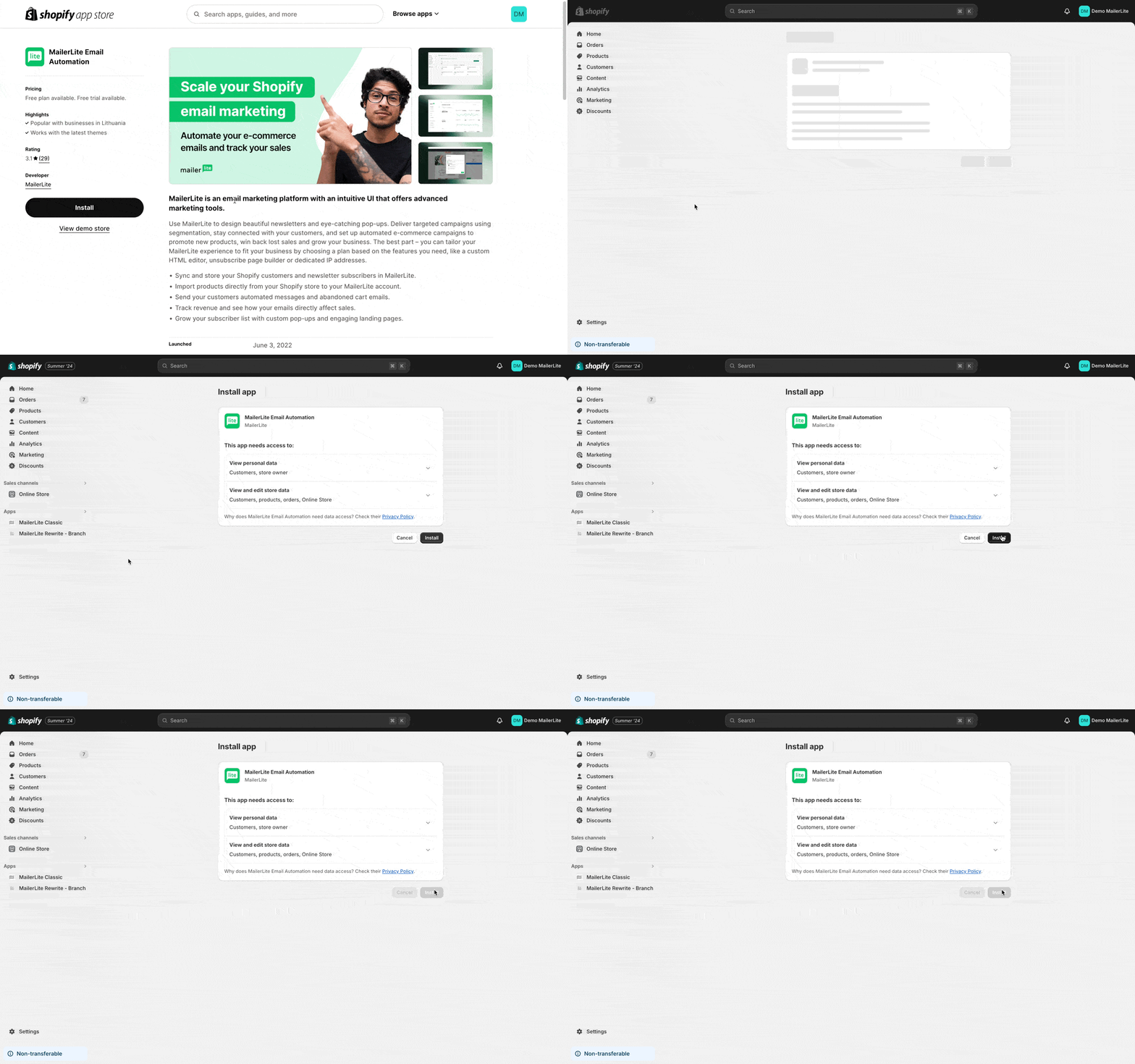
6. Here you will be asked to connect and authorize your MailerLite account. Click Connect to be taken to the login screen for your account.
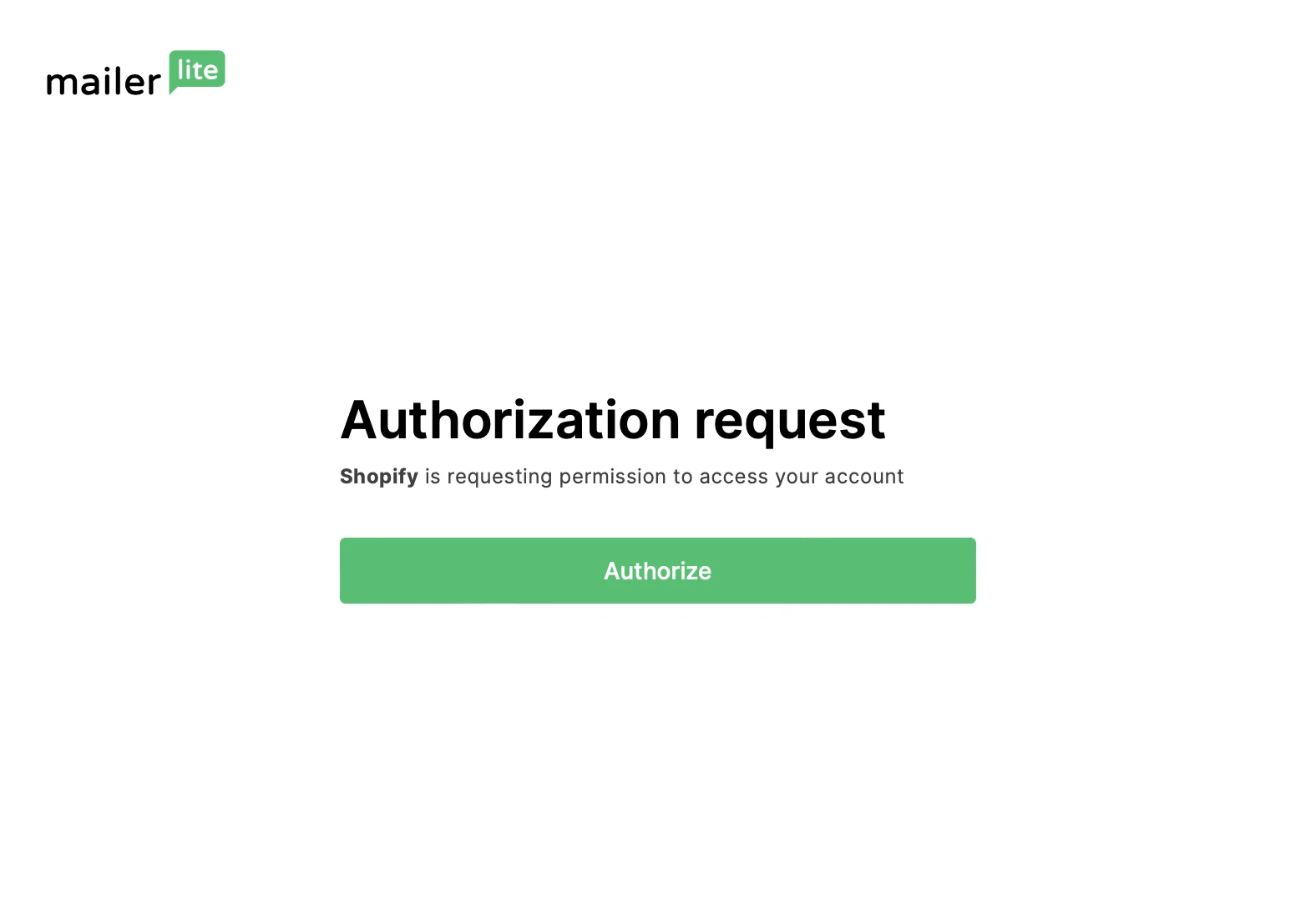
7. Once logged into the account, click Authorize.
How to sync Shopify customers with MailerLite
Once authorized, you will be asked to select the Subscriber group that you want your Shopify customers to be added to. You can also opt to create a new group.
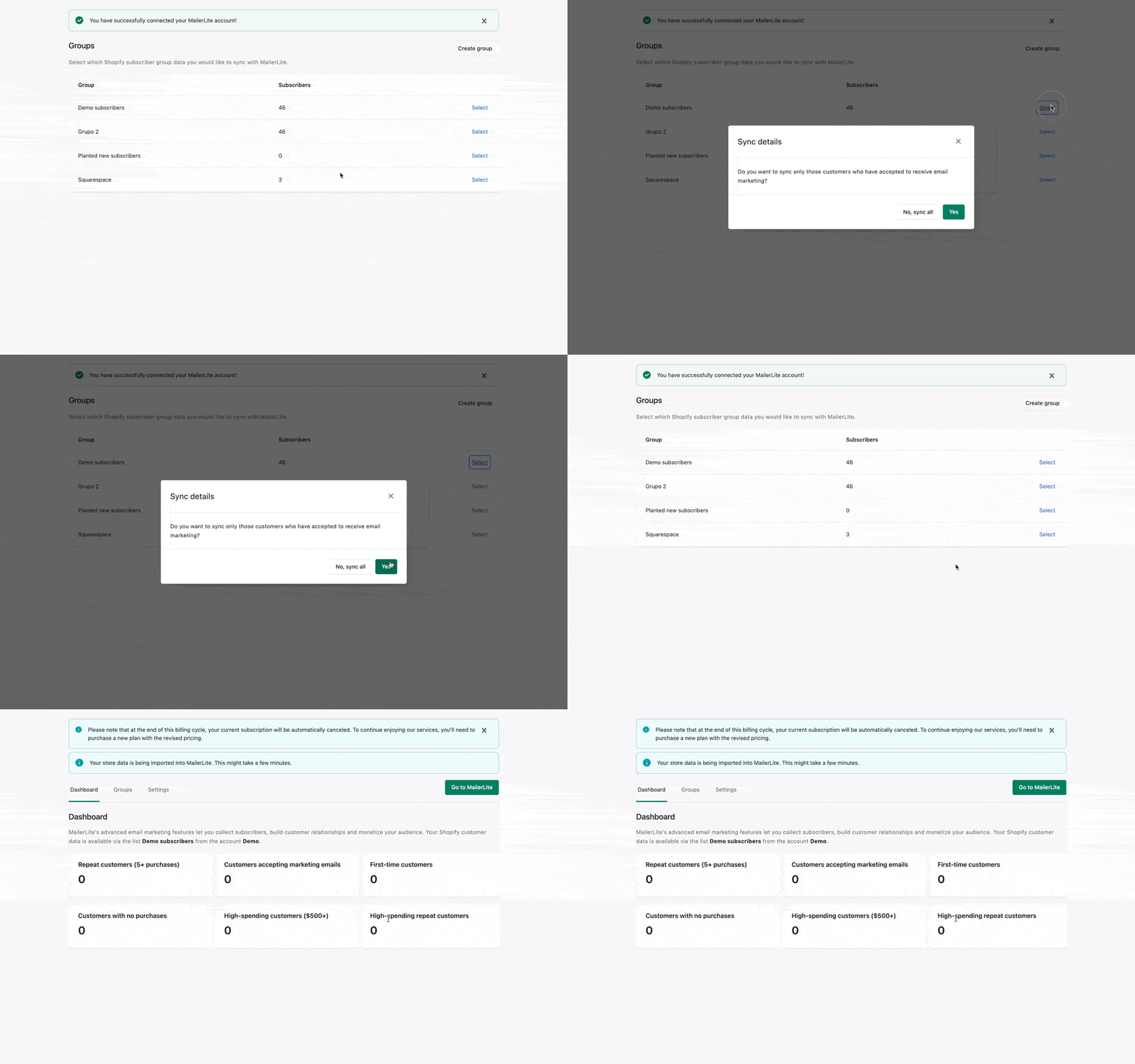
Once you select your subscriber group, a pop-up will appear in which you can select to sync all Shopify customers to that group or only the Shopify customers that have accepted marketing from you.
If you click Yes, only customers who accept marketing will be added to MailerLite. If you click No, sync all, then all of your customers will be added to MailerLite, regardless of whether or not they accept marketing.
⚠️ Important
Only customers who agree to receive marketing emails can trigger e-commerce automations. According to the MailerLite Terms of Use and anti-spam policy, it is not permitted to send marketing emails to customers who don’t provide explicit consent to receive marketing communication.
Next, you will be asked to enable an extension from MailerLite. This is important to ensure MailerLite has permission to track campaign e-commerce performance and display MailerLite pop-ups on your store.
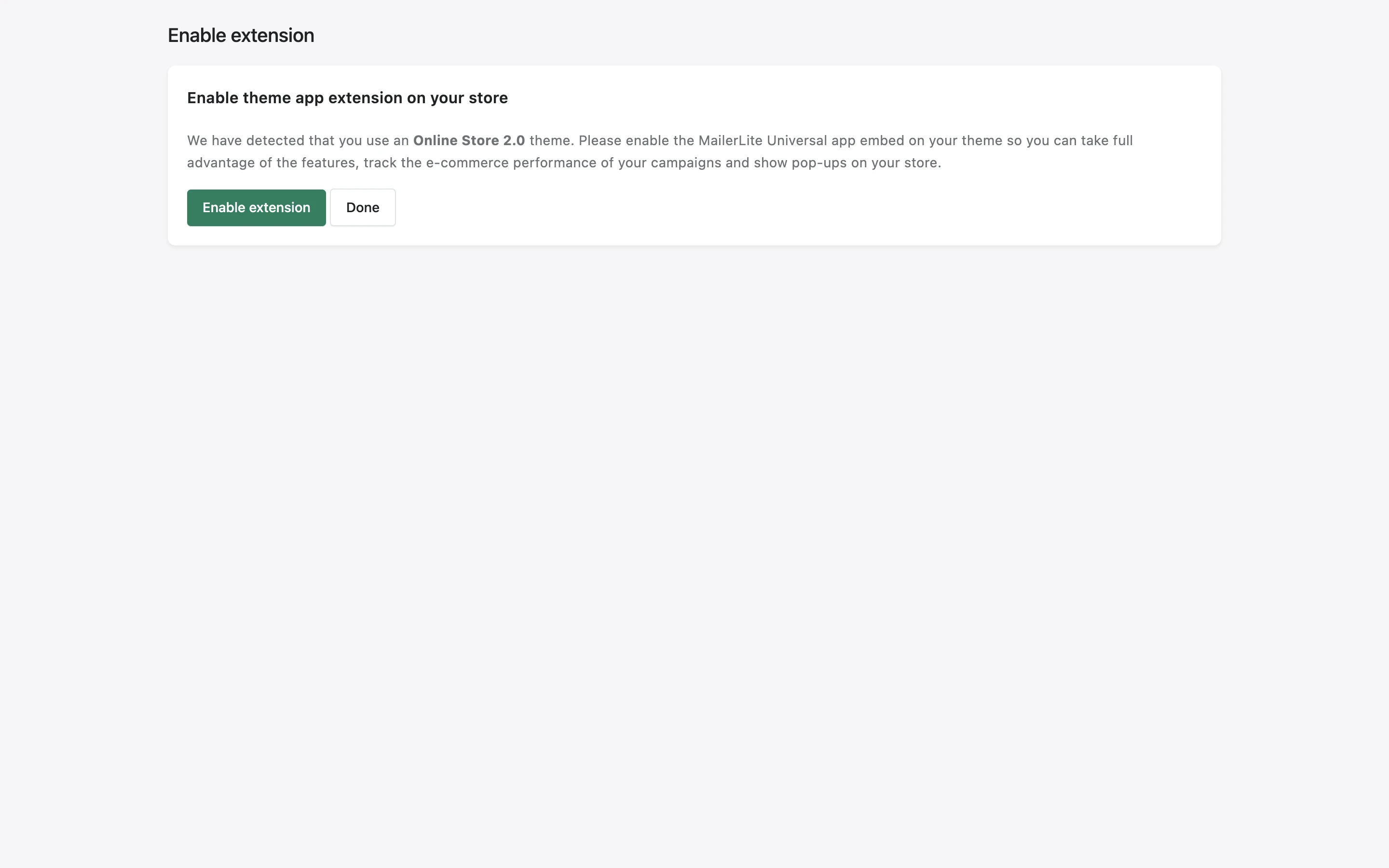
That’s it! Your data from Shopify will start importing to MailerLite. Once it is complete, you can find your Shopify customers in the group you selected, see your e-commerce data from the Dashboard in your MailerLite account and new automation options for your customers.
Two-way data sync
The Shopify integration syncs data in both directions. Changes you make to subscribers in MailerLite are automatically pushed back to Shopify in real time, so both platforms always stay in sync.
The following data is synced between both platforms:
First Name, Last Name, Email, and Accepts Marketing fields.
Subscriber statuses. If a subscriber becomes Unsubscribed or Forgotten on MailerLite, their status changes to Unsubscribed on Shopify.
New subscribers. Subscribers added to the connected group in MailerLite are created in Shopify as well.
How to add MailerLite forms to your Shopify store
Adding pop-up forms
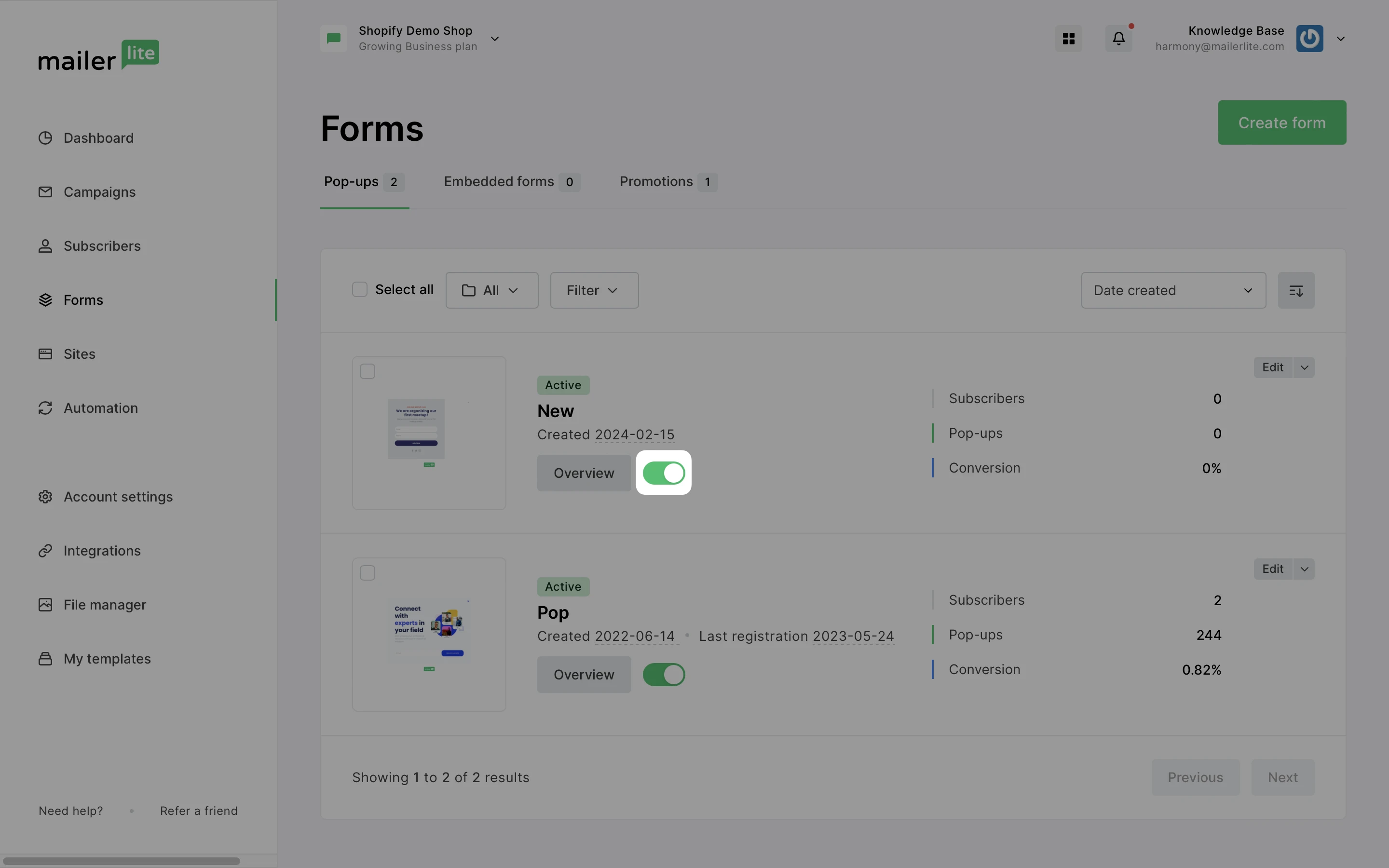
To add a MailerLite pop-up form to your Shopify site, be sure to create the form in your MailerLite account and toggle it ON.
Then in Shopify, navigate to the MailerLite plugin settings to enable pop-up forms.
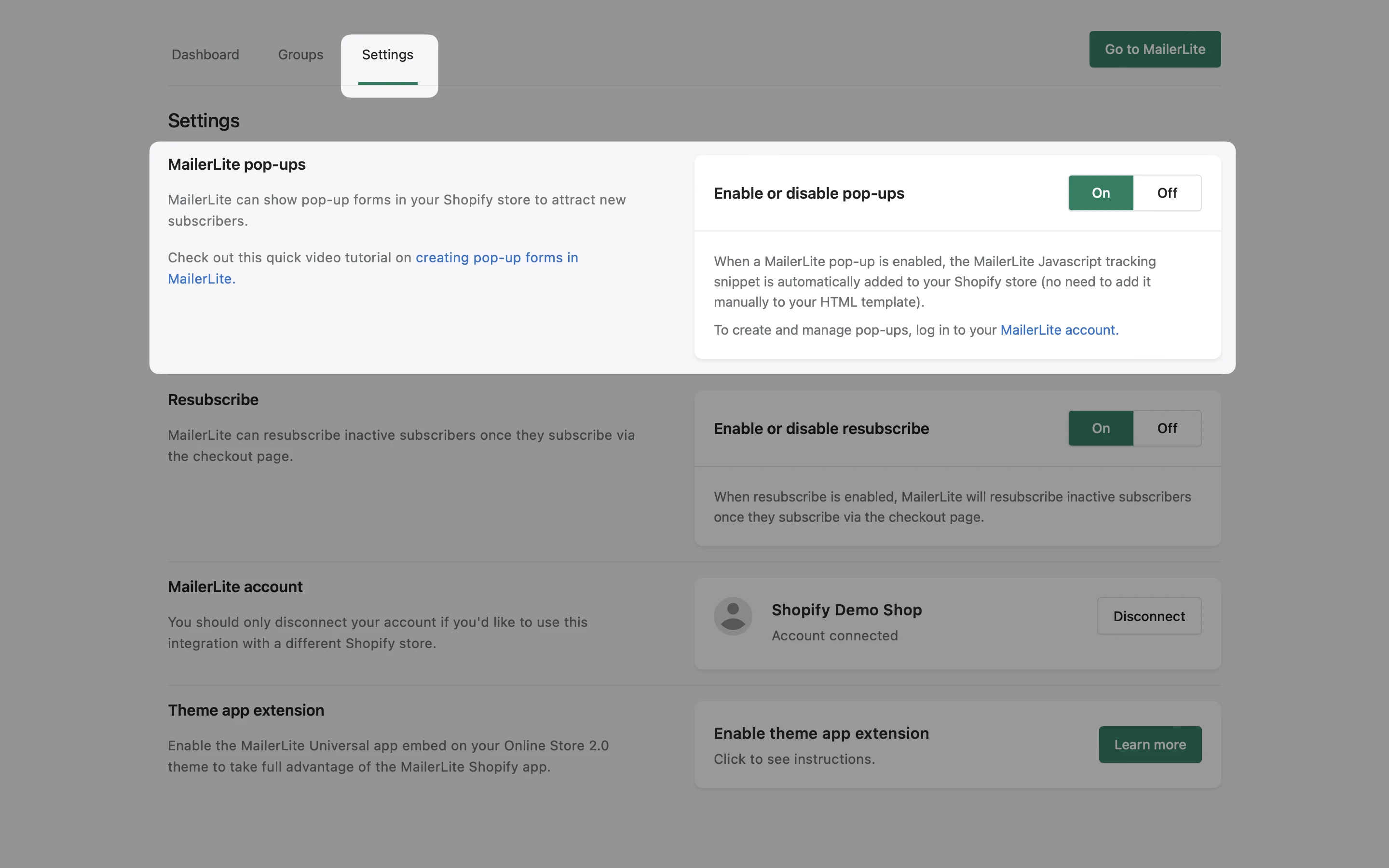
That's it! Your pop-up form will appear on your Shopify site according to the form's Visibility settings you have set in your MailerLite account.
Adding embedded forms
To add a MailerLite embedded form to your Shopify site, you will need to install it the same way embedded forms are installed to any website.
For instructions, check our guide on How to add a form to your website.
Shopify subscriber fields
When you sync your Shopify customers with MailerLite, their status and data, including first and last name, email, marketing acceptance, and order information, are synced with them. This information is added to your subscriber Fields. You can then create segments using your subscriber fields.
Shopify order-related fields include:
Shopify Store Orders count - The number of orders that the subscriber has made
Shopify Store Total spent - The total amount of money that the subscriber has spent on your Shopify store
Place your products in a newsletter
Need help creating a newsletter? Learn more here ➡️ How to create and schedule a campaign
Our Products element in the Drag & drop editor allows you to add your product directly into your MailerLite campaigns.
This will automatically import images, descriptions, and prices of your products and link directly to your Shopify store.
To add a product to your newsletters:
Open your campaign in the Drag & drop editor.
Under the Products section, you will find Import from stores. Simply drag and drop the element into your email.
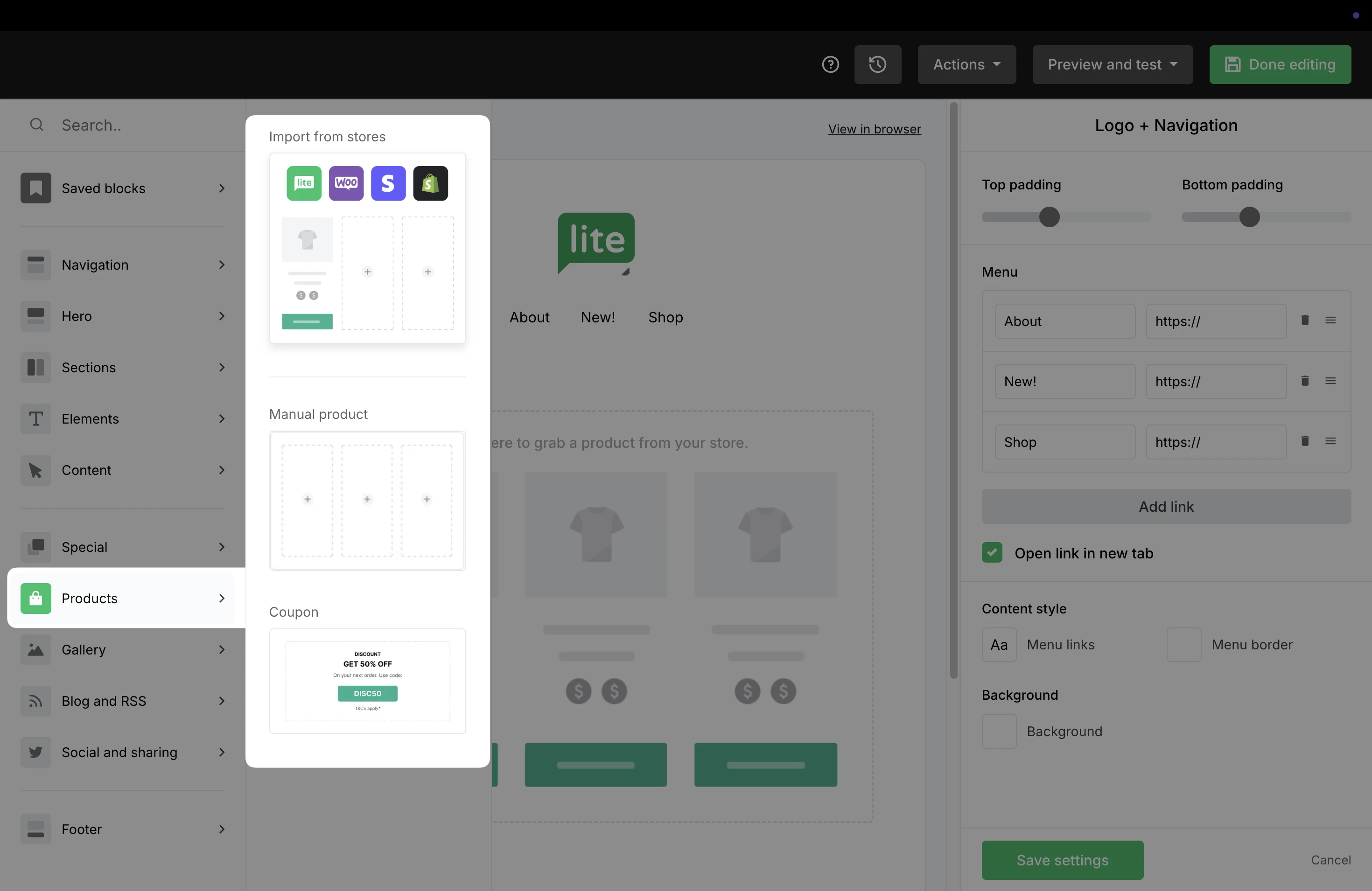
3. Click into the block to open the settings on the right. Use the Add products from your store button to add products from Shopify.
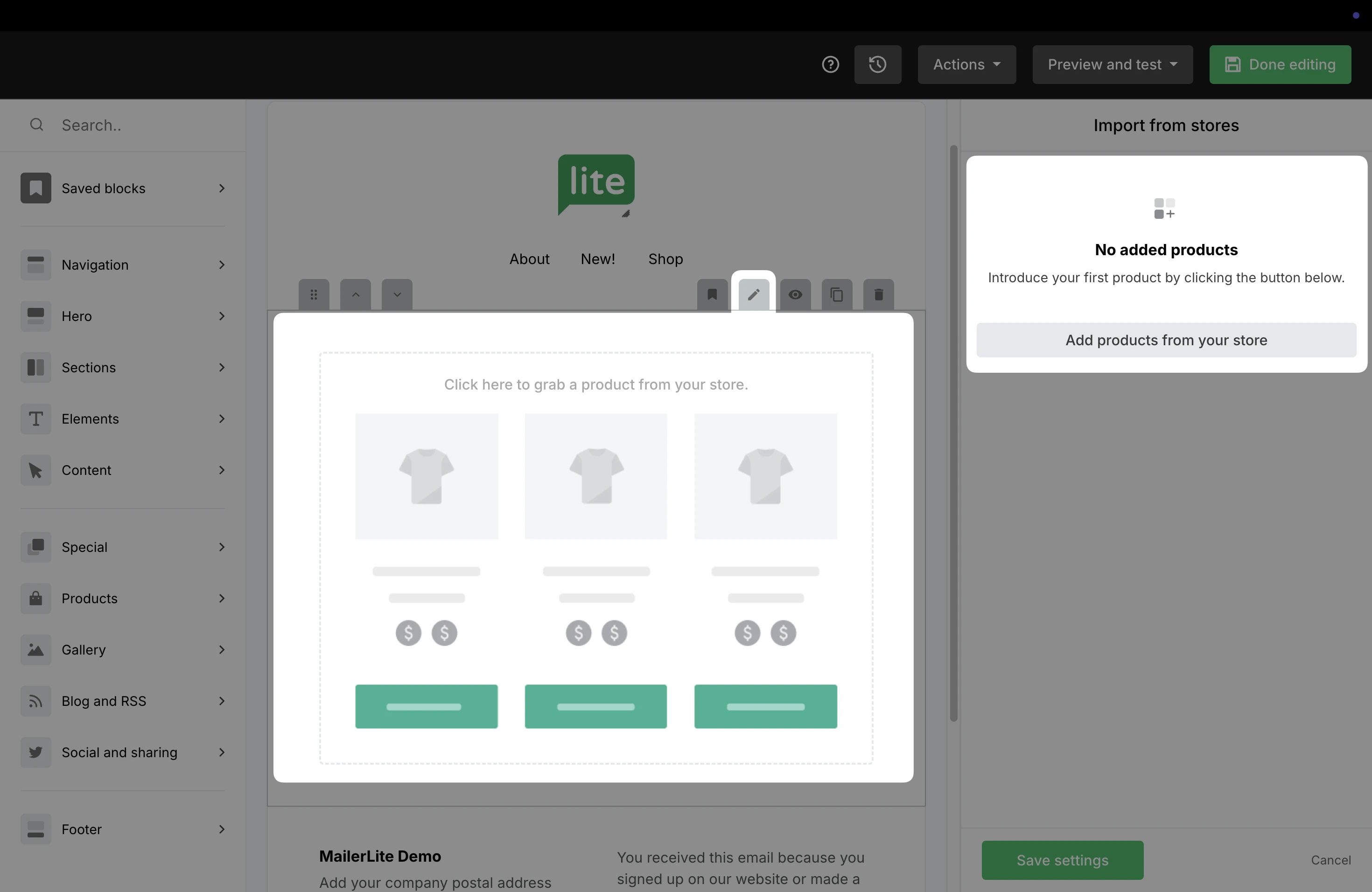
4. If your account has multiple stores connected, be sure to select your Shopify store from the drop-down list.
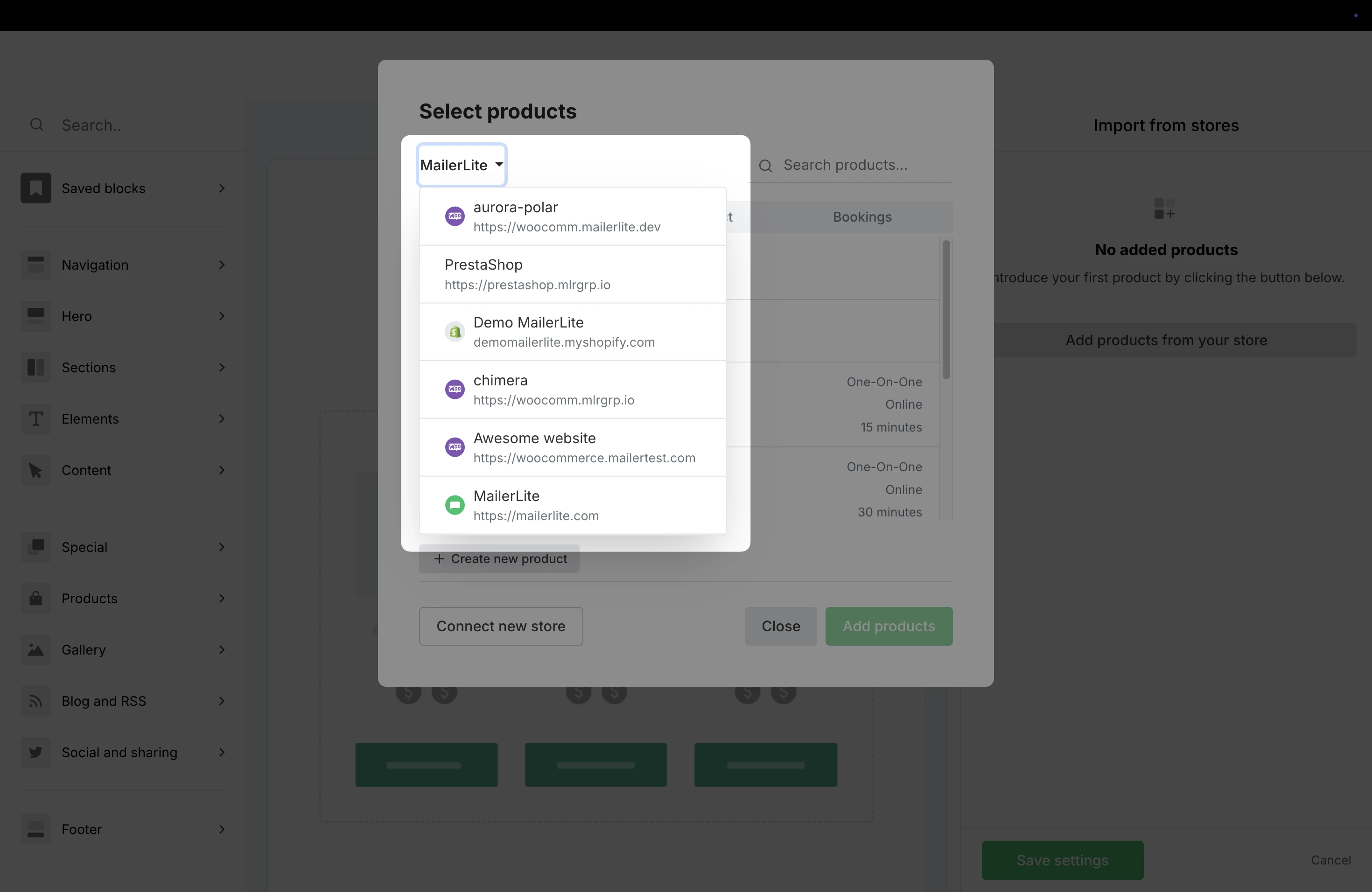
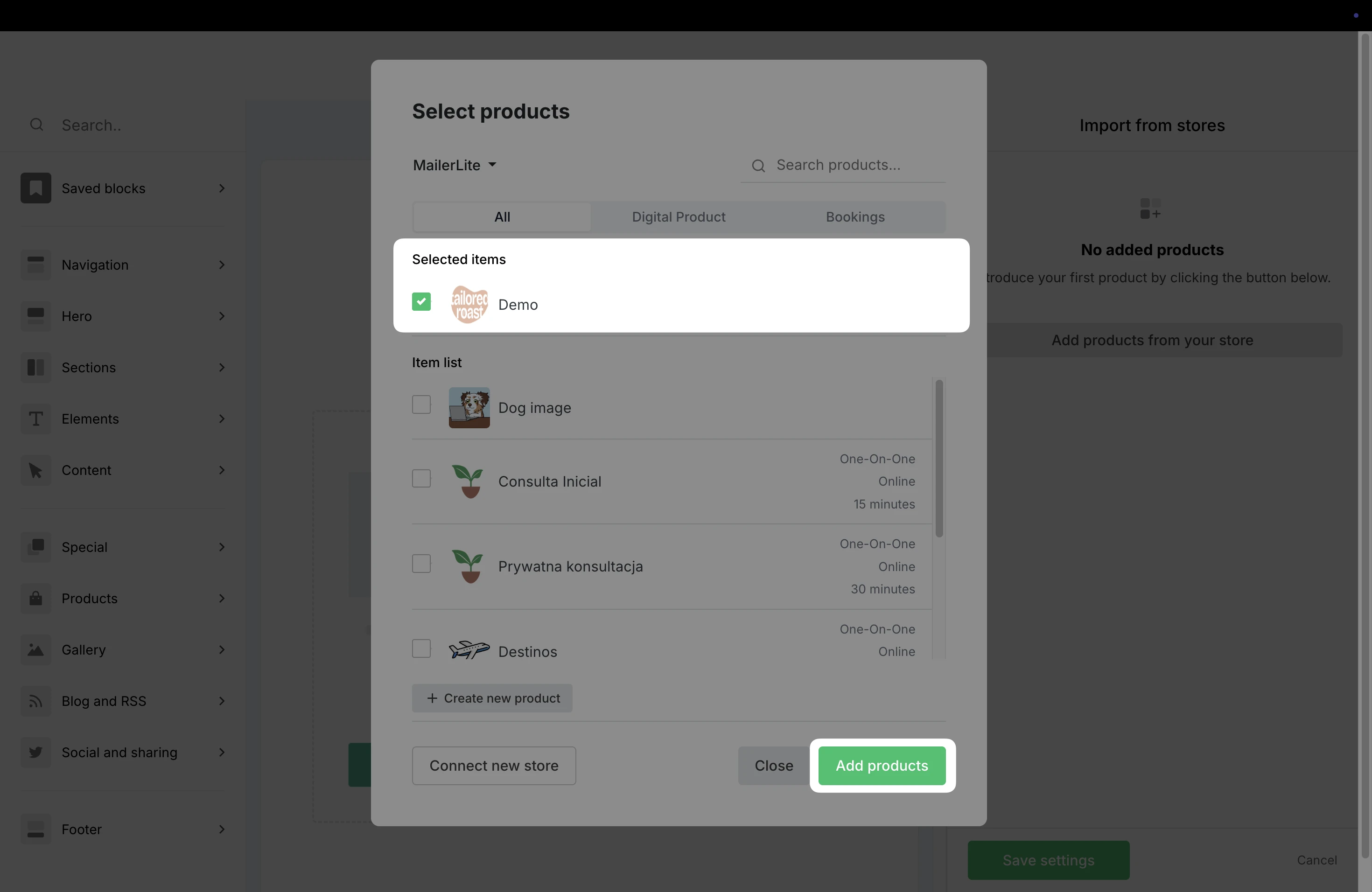
5. You can choose to display one product or multiple. Once the product is selected, click Add products.
6. Click into the block to open the Settings on the right. From here, you can adjust elements like image positioning, alignment, and choose which details, such as Price and Description, are displayed.
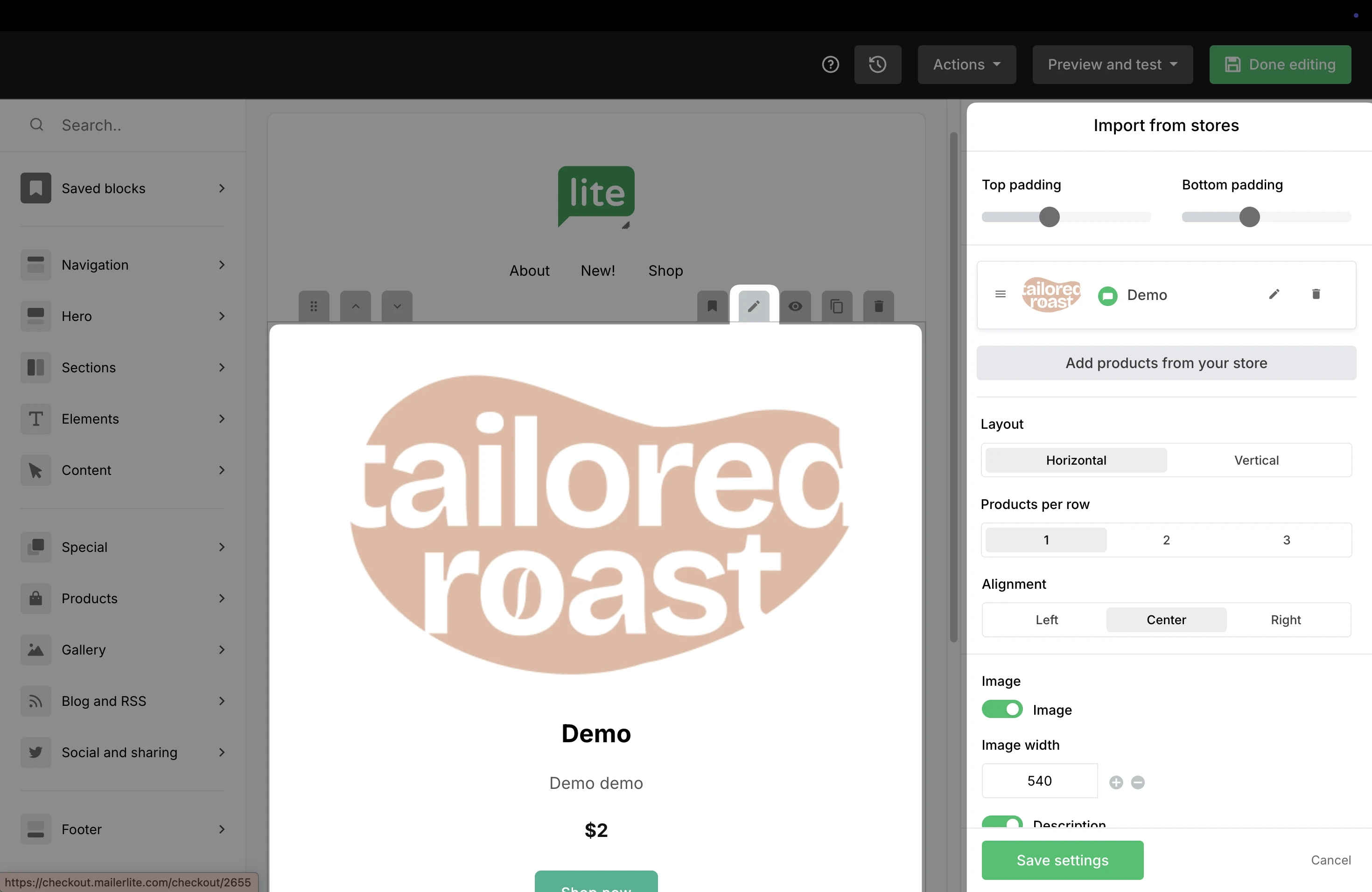
7. Click Save settings to save your edits.
8. When you are done editing your campaign, click Done editing.
9. On the Campaign details page, fill out the Subject line, Preheader, and choose the Recipients to send your campaign.
⚠️ Important: To make sure that any Shopify products through your campaign are tracked in MailerLite, toggle ON the option to Track links.

When a subscriber purchases your Shopify product through the newsletter and completes the transaction, the order will be tracked in the campaign’s report in the Orders tab.
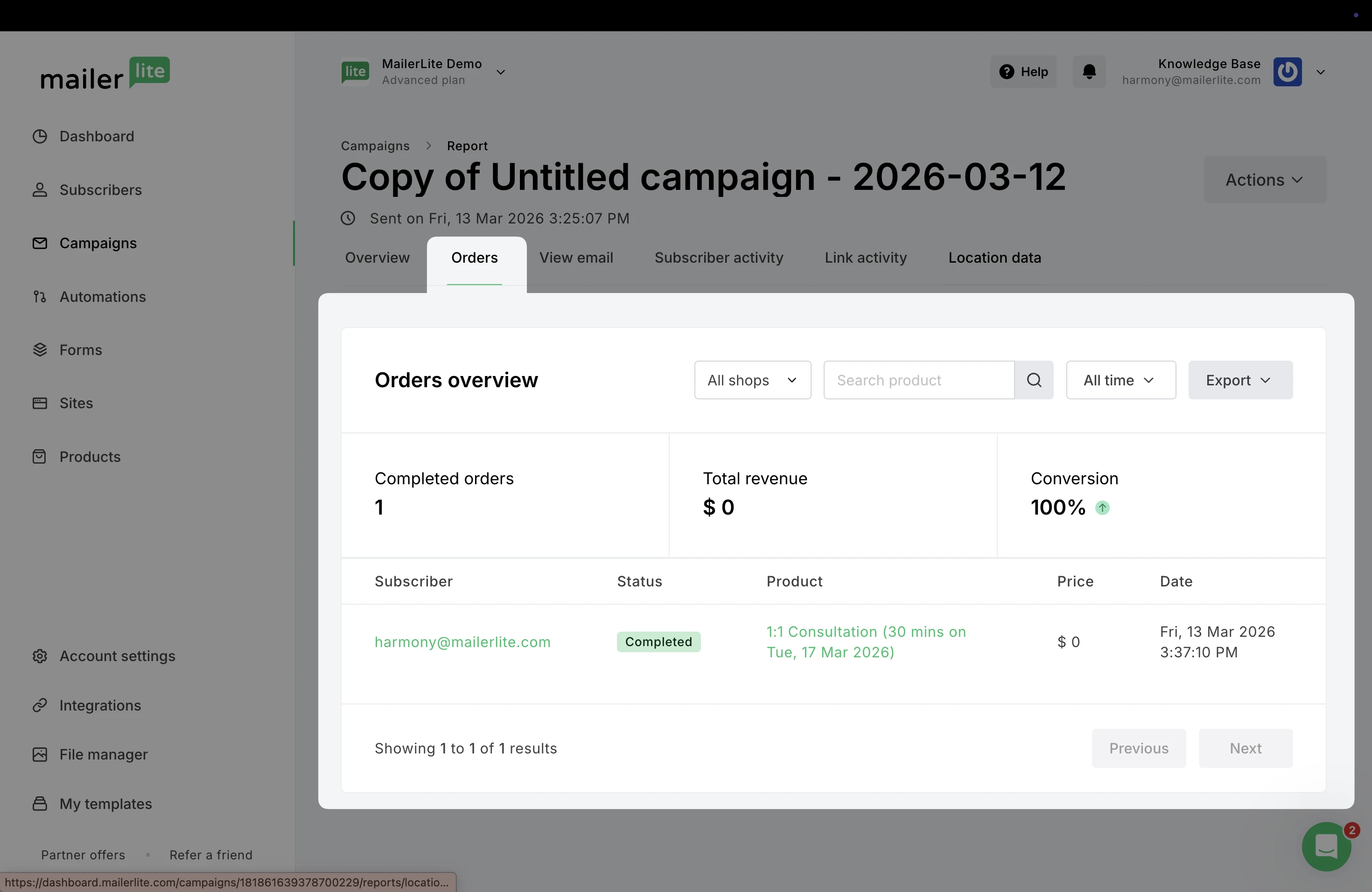
Note: You may find that the Total revenue does not match the number in your Shopify total spent field.
This is because Total revenue only refers to the revenue generated from your MailerLite campaigns. Any orders placed in your shop within 30 days of a link to your shop clicked from any of your campaigns or automations will be considered as email revenue.
our Shopify total spent field includes all purchases, including those not made through MailerLite.
Add Shopify products to a landing page
Need help creating a landing page? Learn more here ➡️ How to create a landing page
To promote your Shopify products in a landing page:
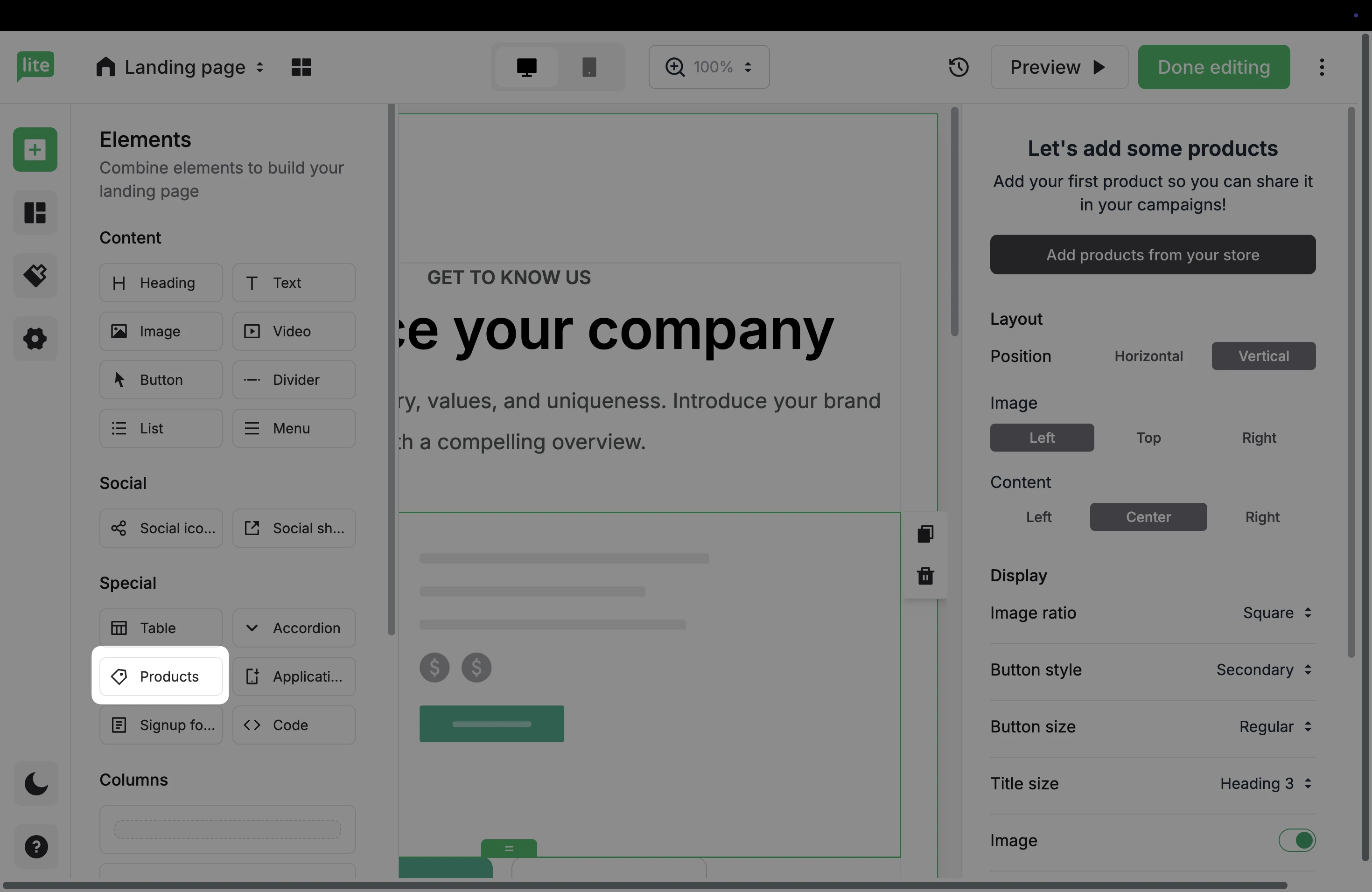
In the landing page editor under Elements, check the Special category to locate the Products element.
2. Or, under Sections, you can find Multiple product sections in the Pricing & Purchase category.
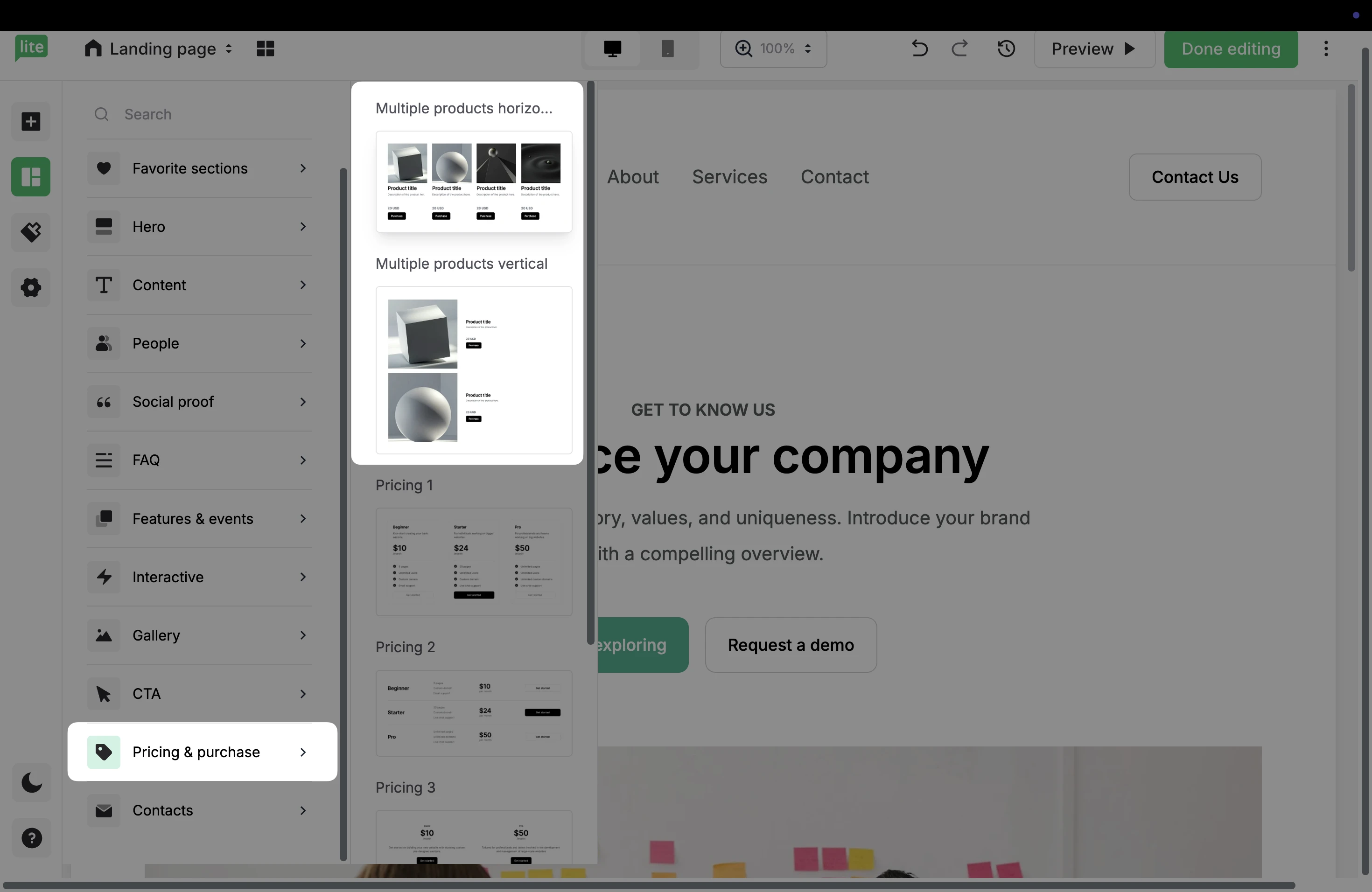
3. Drag and drop either of these elements into your landing page to add your Shopify products.
4. Click the Settings icon to open the panel on the right.
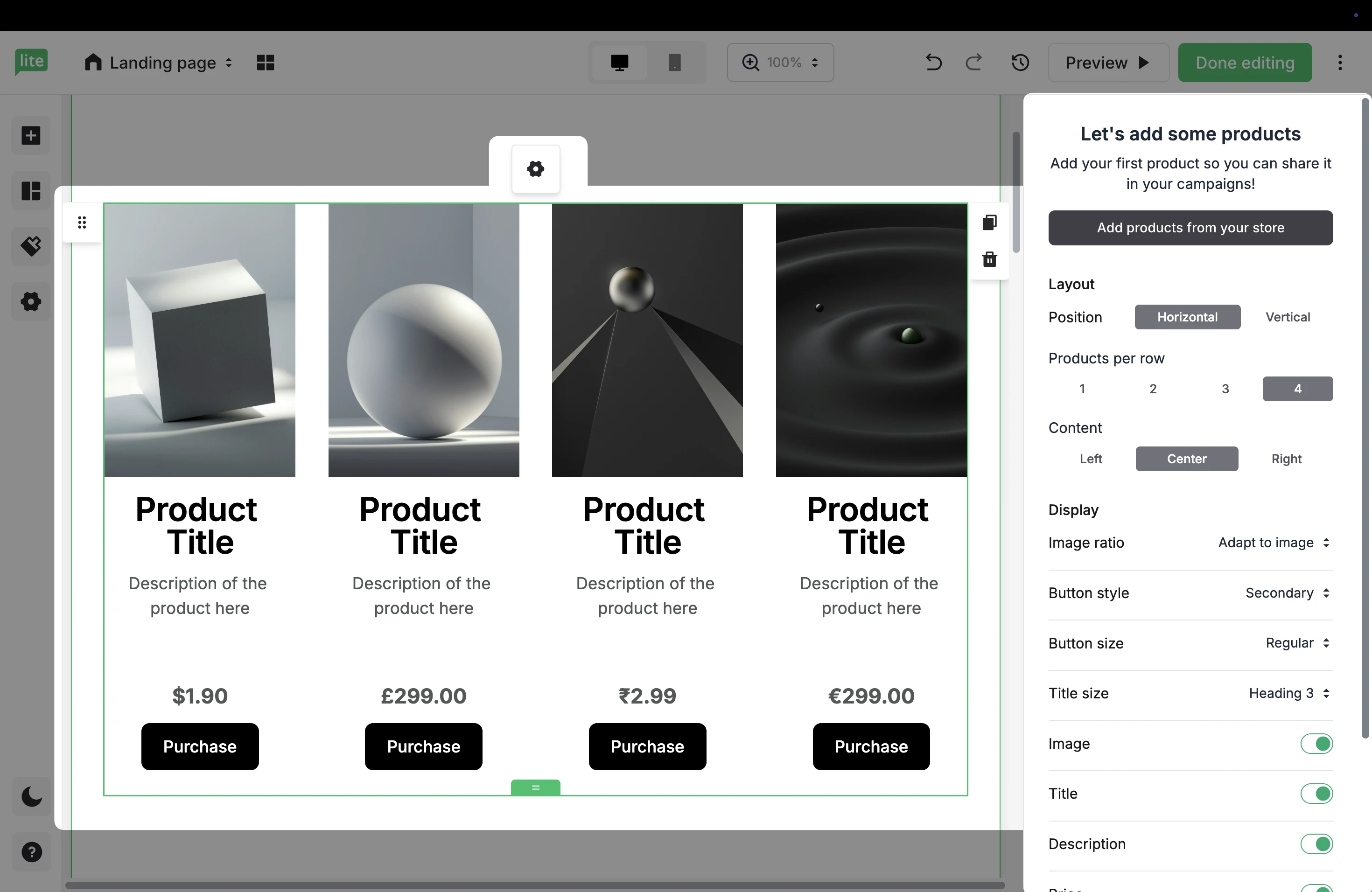
5. Choose Add products from your store to select the products to add to this site.
6. If you have multiple e-commerce stores connected to your MailerLite account, choose your Shopify store.
Once you have selected your Shopify products, click Add products.
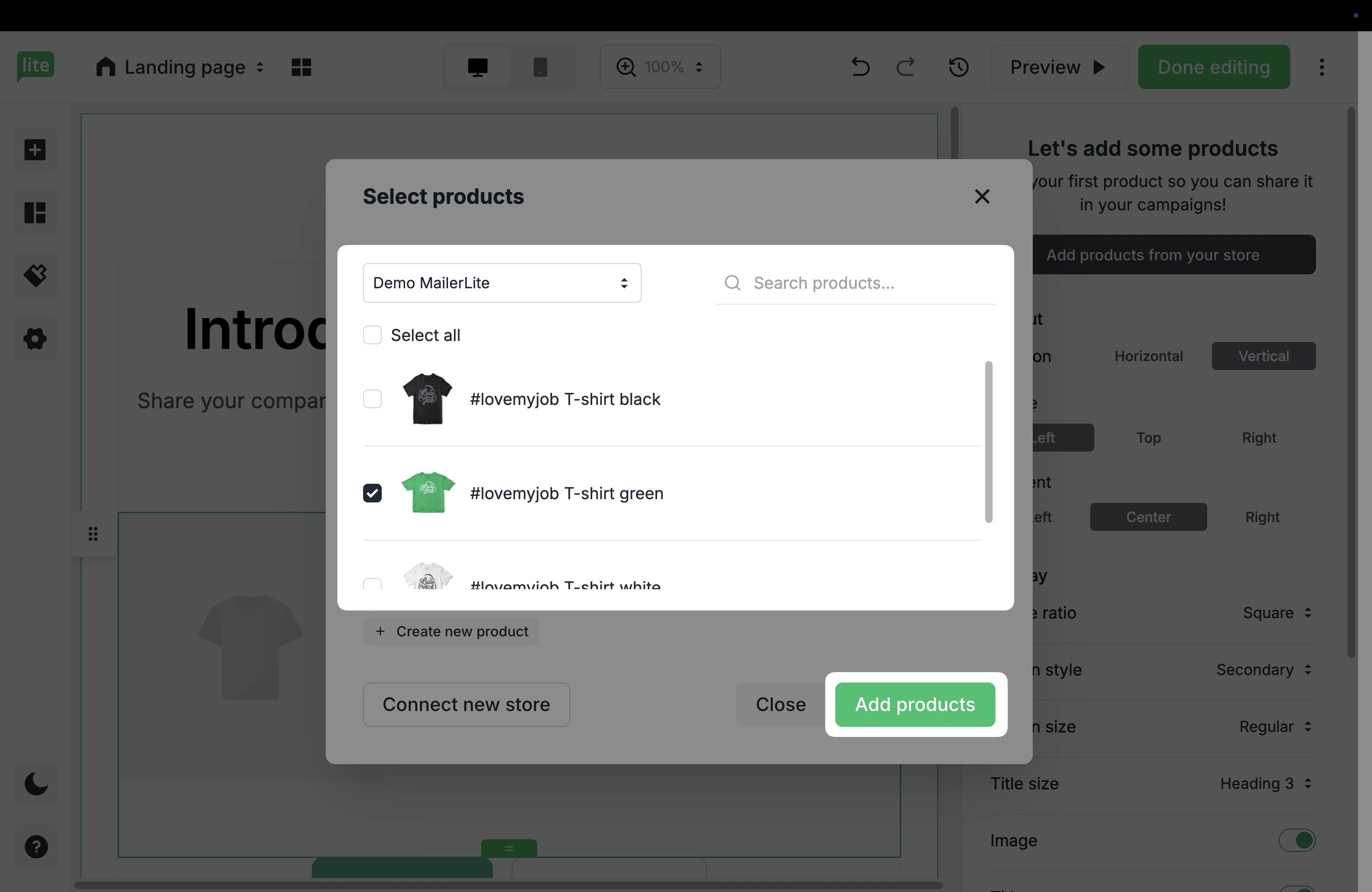
7. Once you have added your products, click the Settings button to open the configurations on the right. Here, you can edit the Product and Success view, as well as choose Layout, Content, and Button settings.
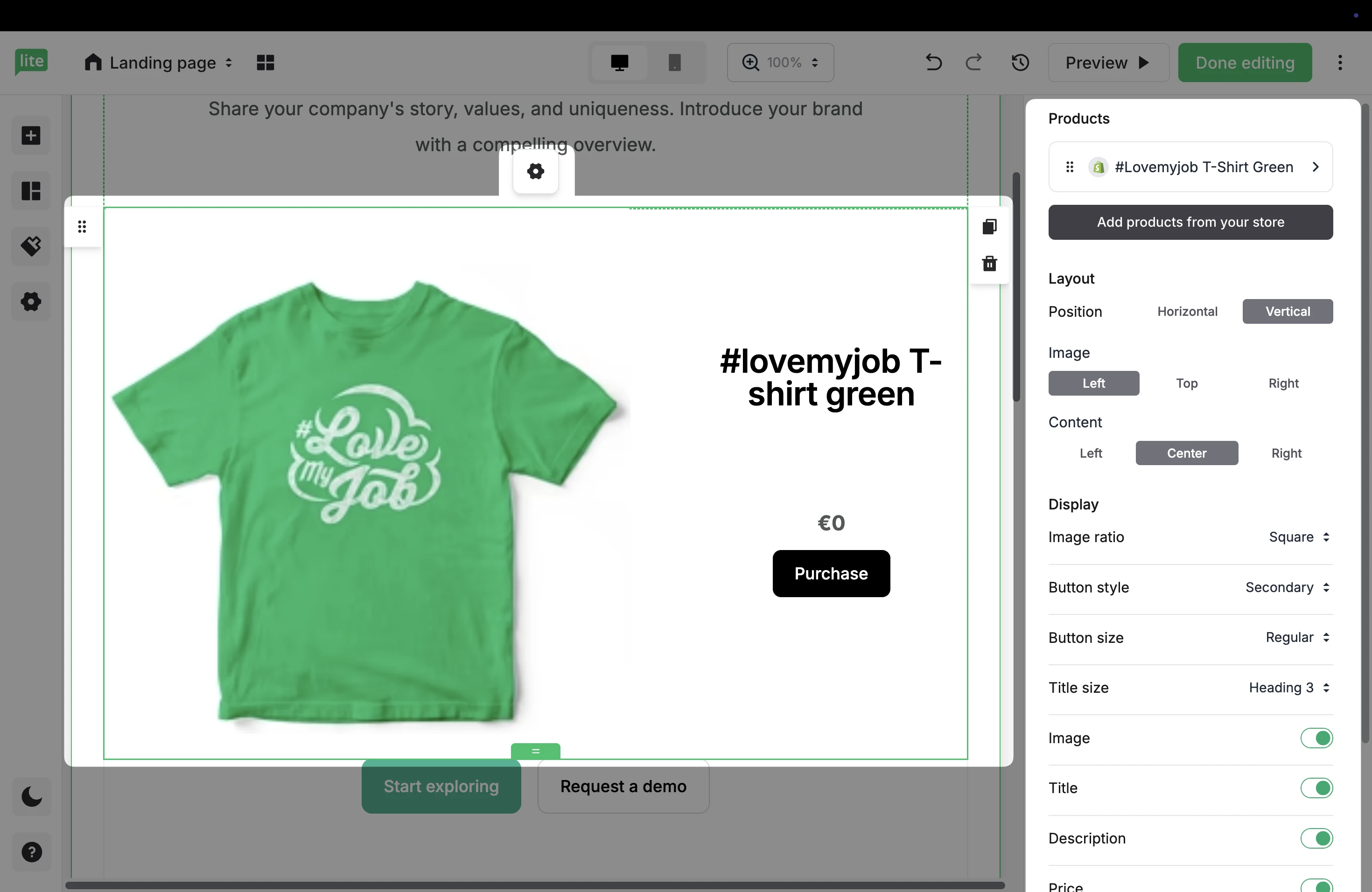
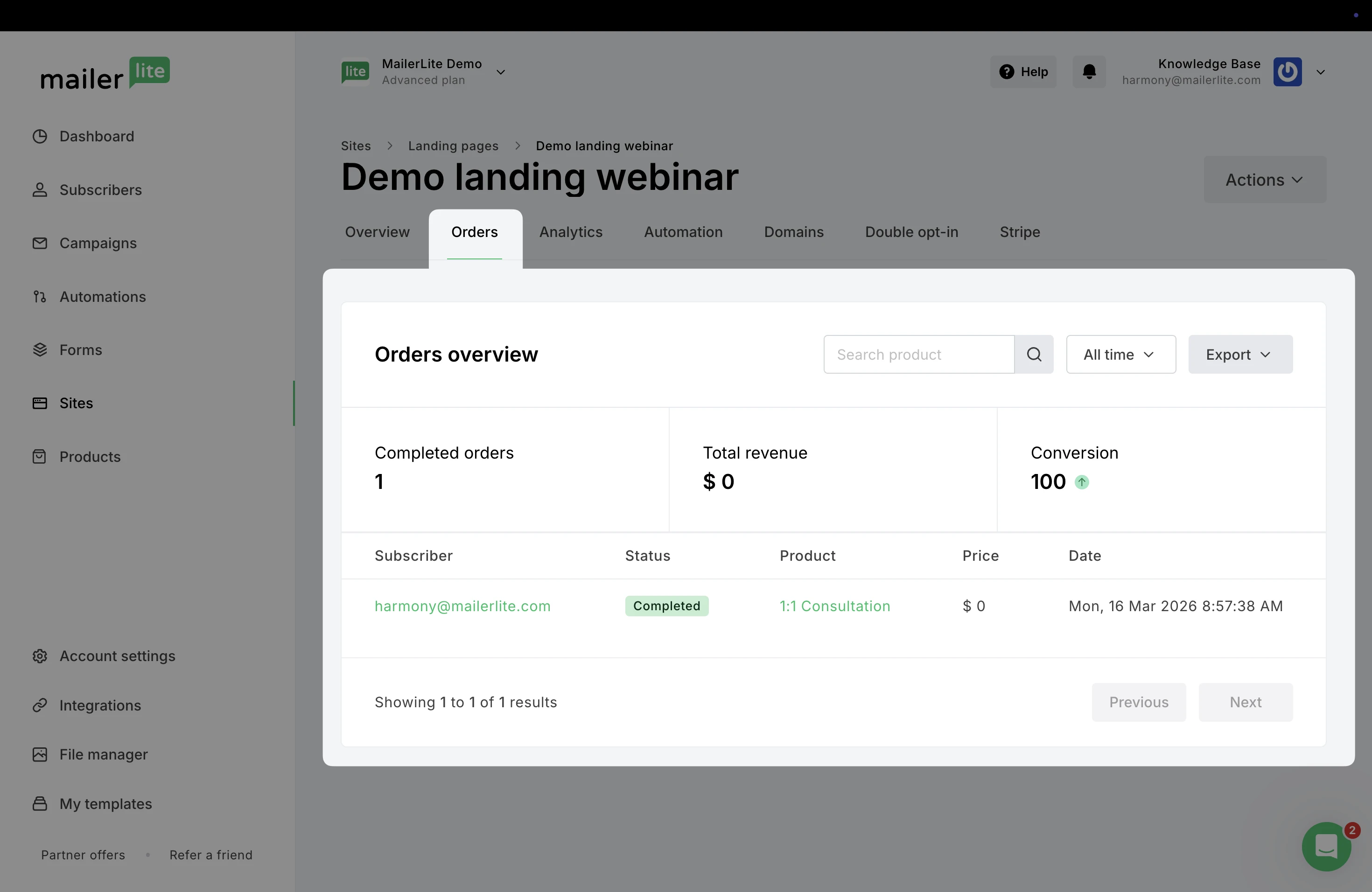
8. When a subscriber purchases your Shopify product via the landing page and completes the transaction, the order will be tracked in the site’s report in the Orders tab.
E-commerce automation triggers
Need help creating automations? Check our guide ➡️ How to create an automation workflow
When you connect your Shopify store, it sends customer and order data to your account in real time.
MailerLite automations (e-commerce triggers specifically) use this data to automatically start workflows based on customer actions, such as when someone places an order or abandons their cart.
The Shopify integration supports these e-commerce triggers:
Abandoned checkout
Purchases any product
Purchases specific product
Purchases from category
Purchase frequency
🔔 Important
The Shopify integration currently does not support Abandoned cart email automations.
Abandoned checkout workflows only trigger for returning customers who have placed at least one previous order. Shopify’s system limits guest and first-time buyers from entering these automations.
In order to trigger an automation that uses an e-commerce trigger, customers of your store must also be newsletter subscribers and agree to receive marketing from you. This can be by completing any of your sign-up forms, or by checking the box to accept marketing at checkout.
💡 Curious how these triggers work?
Learn how to use them in our E-commerce automation triggers article.