Note: If you're a Legacy (Classic) user, please log in to your account to access the dedicated Legacy (Classic) Help Center.
This article is meant for those who manage their domain on Kinsta.
How to add a domain to MailerLite
Head to the Account settings page and click the Domains tab.
Under Sending domains, click Add domain.
Enter an email address that includes your domain, which will be used to send campaigns.
Click Save.
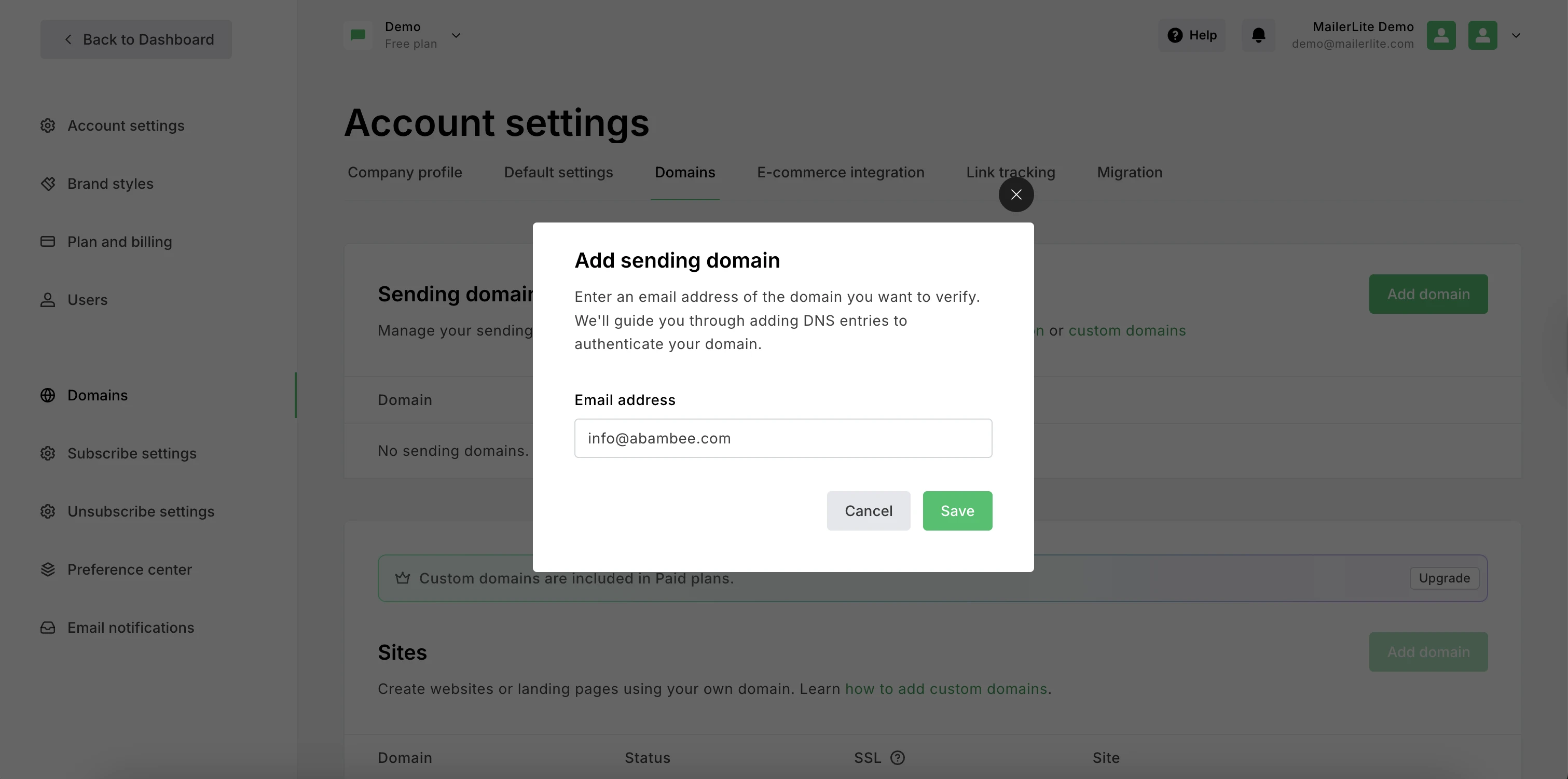
Once the domain has been added, click Authenticate.
Manual authentication
Choose the manual authentication option to add your DNS records.
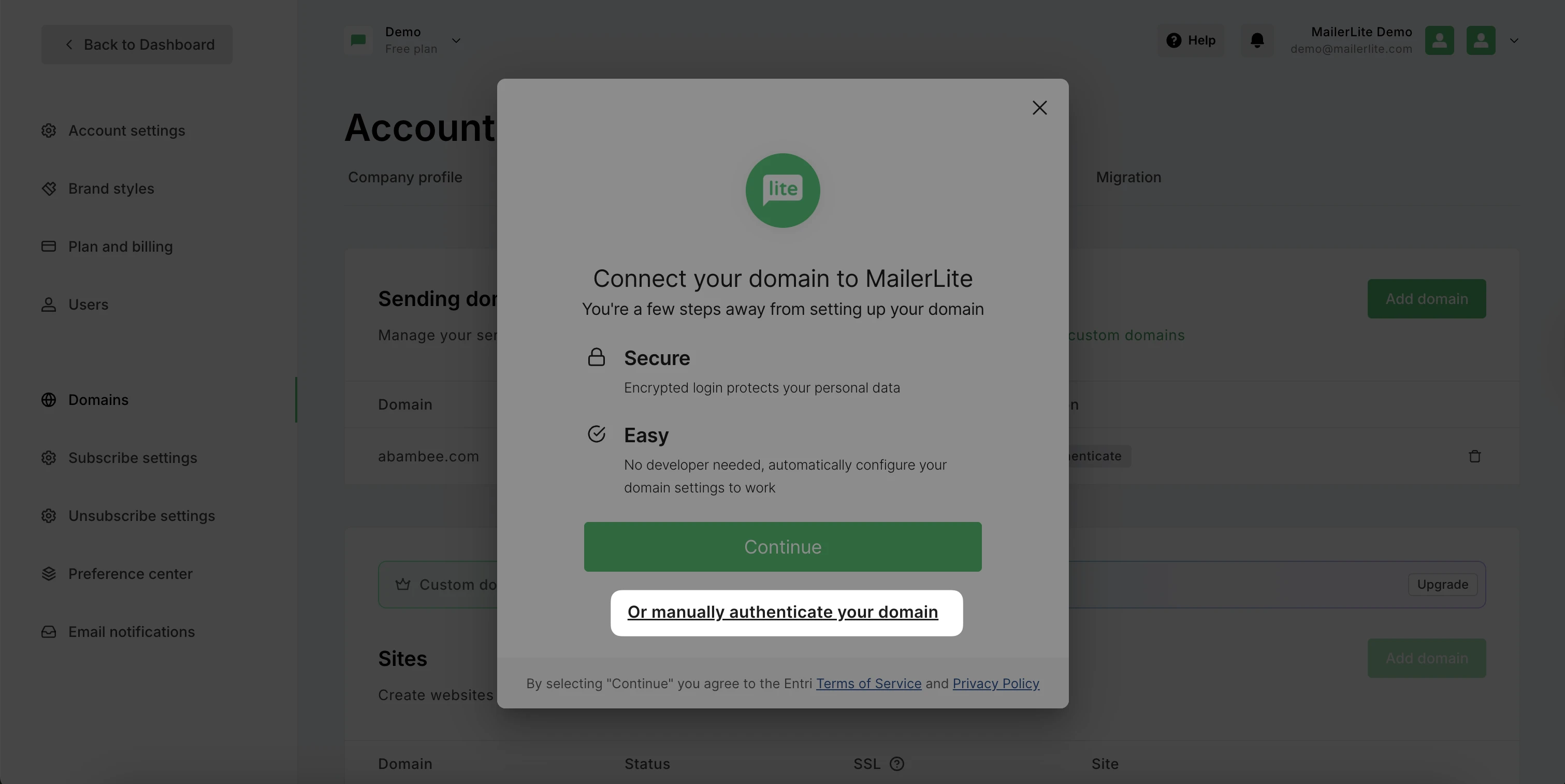
Note: Kinsta’s DNS service is powered by Amazon Route 53. While automatic authentication with this platform is available, if you manage your DNS records at Kinsta, opt for manual authentication.
Head over to Kinsta and log in to your account. To access the DNS zone page:
Select DNS management from the left-side menu and click on the domain you'd like to authenticate.
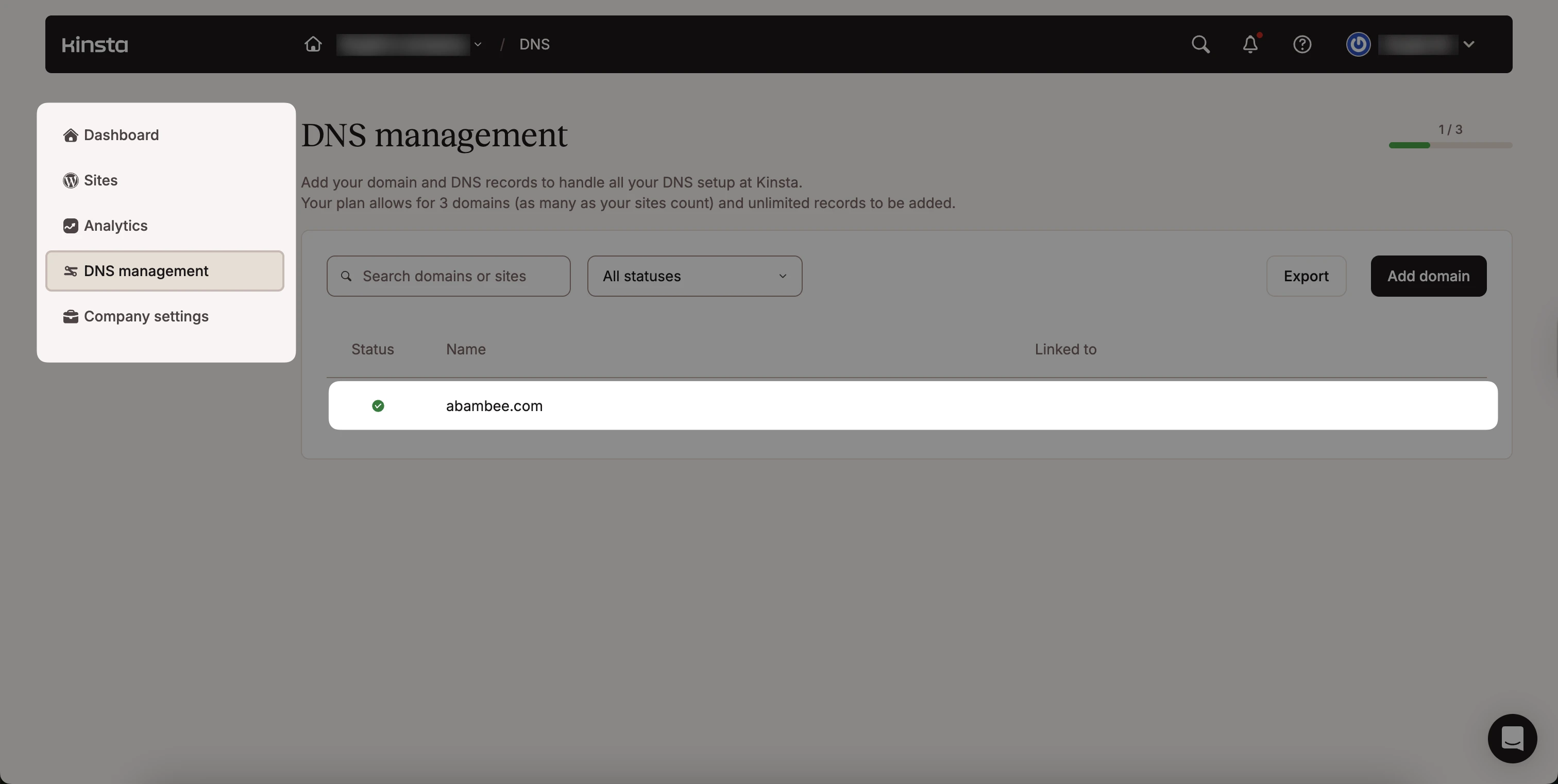
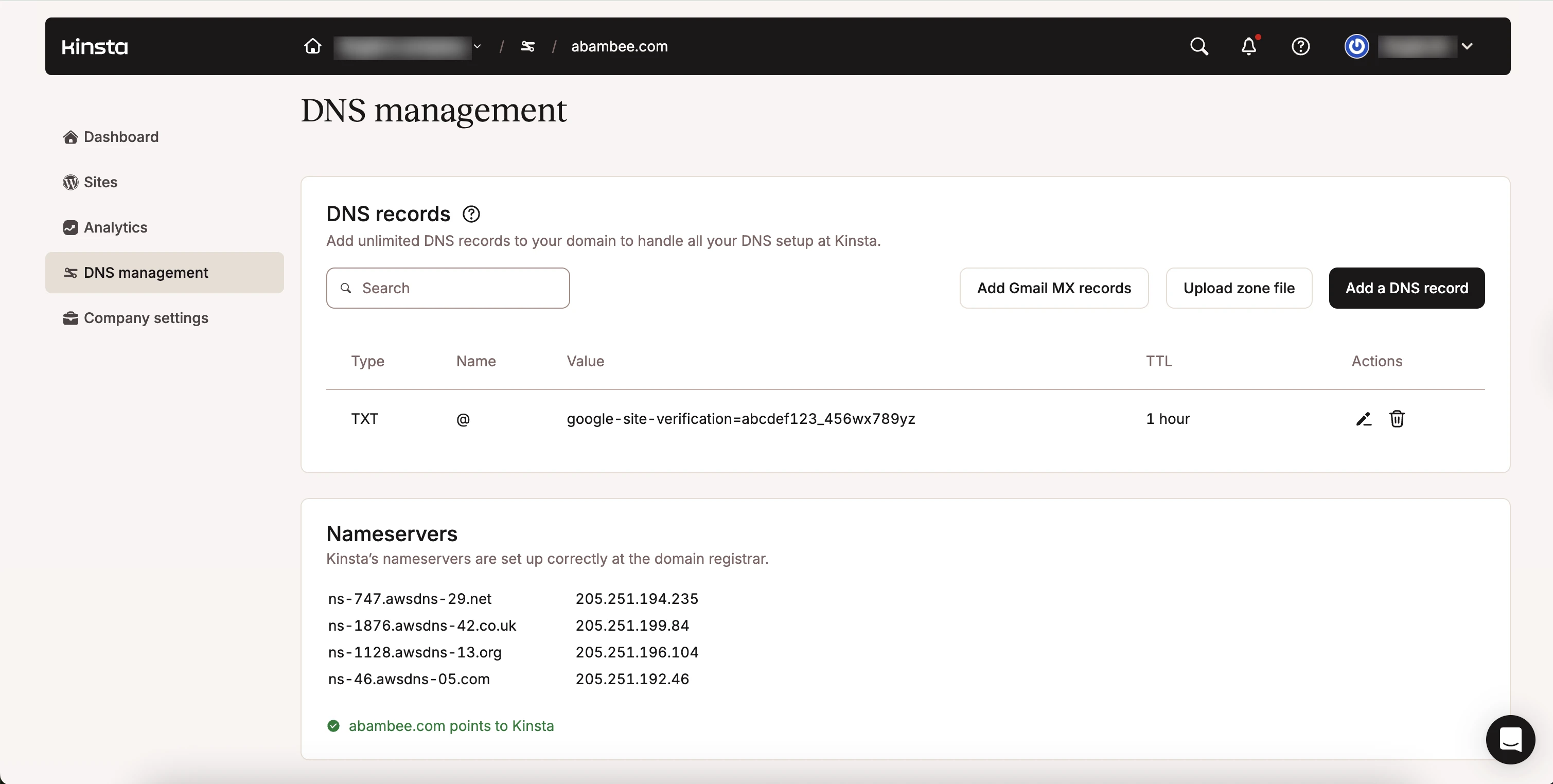
This will take you to the DNS management page.
How to add the DKIM record
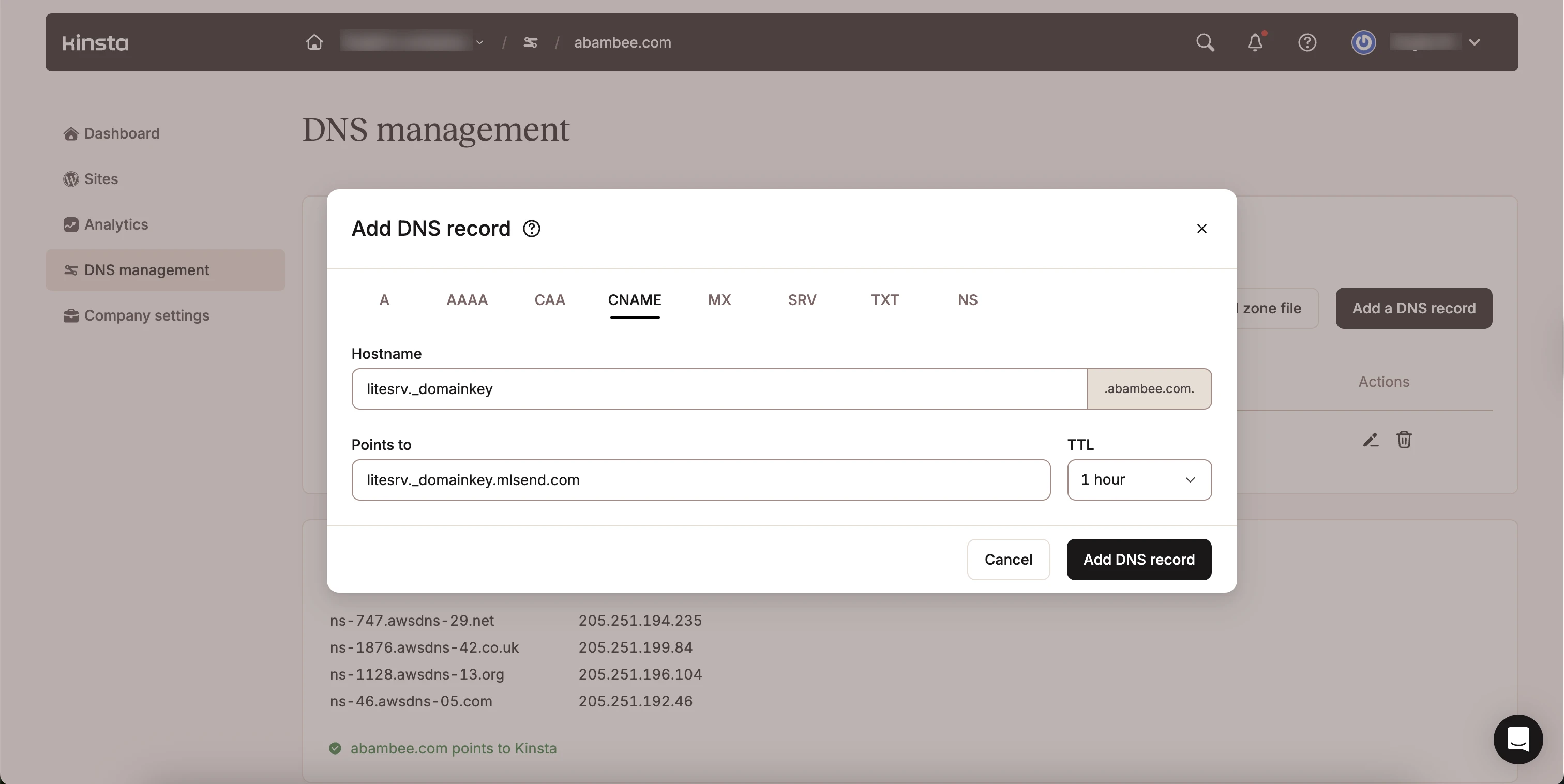
Click Add a DNS record.
Select CNAME as the record type.
In the Hostname field, enter
litesrv._domainkey.In the Points to field, enter
litesrv._domainkey.mlsend.com.Leave the TTL as 1 hour.
Click Add DNS record.
How to add the SPF record
Click Add a DNS record again.
Select TXT as the record type.
Leave the Hostname field blank.
Leave TTL as 1 hour.
In Content, enter the SPF value from your MailerLite account.
Click Add DNS record.
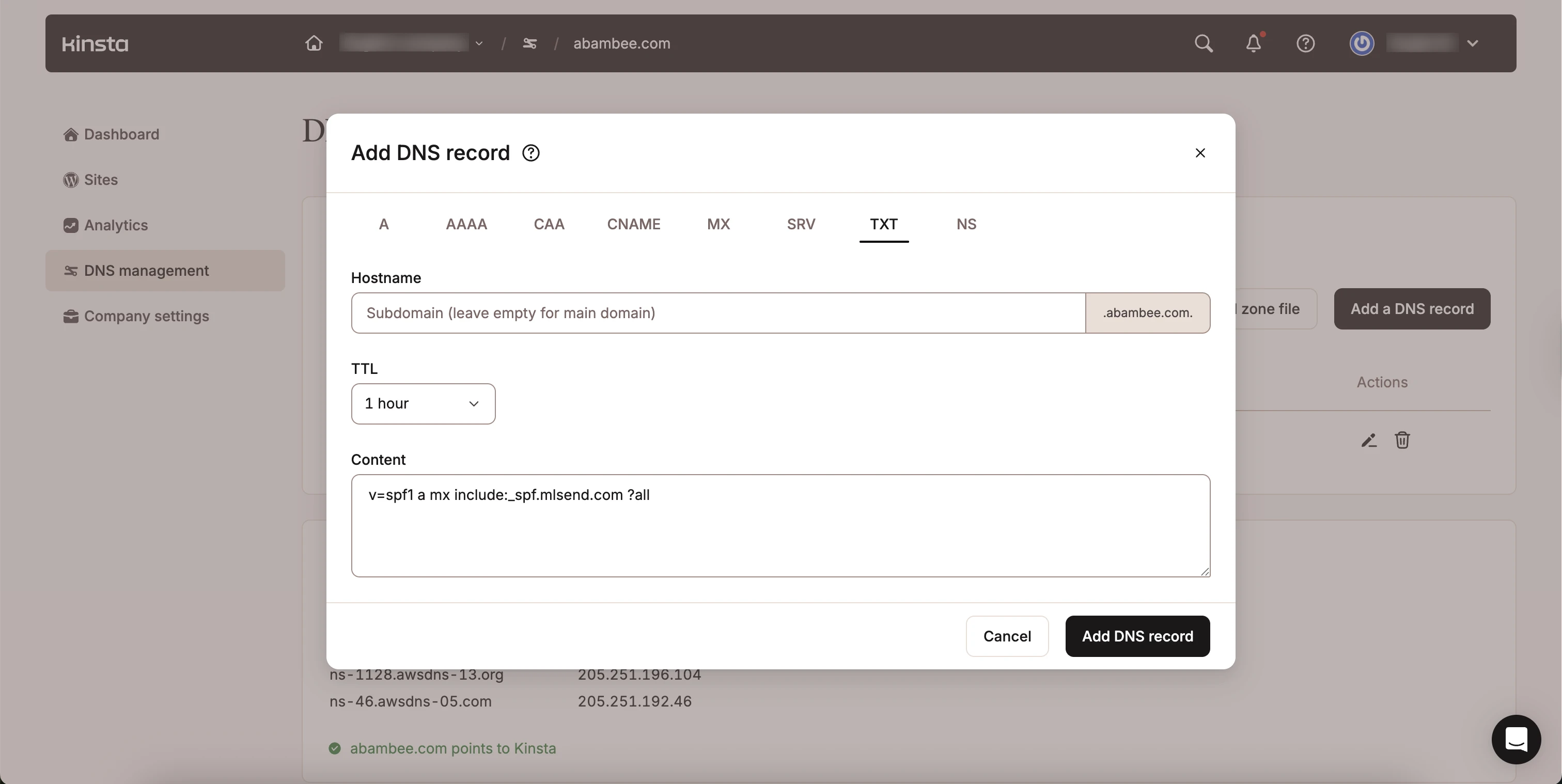
Note: There should be only one SPF record added at a time. If you have another SPF record in your DNS zone (value starts with v=spf1…), make sure to delete it. The record provided by MailerLite will cover all of your services.
How to add the Domain verification record
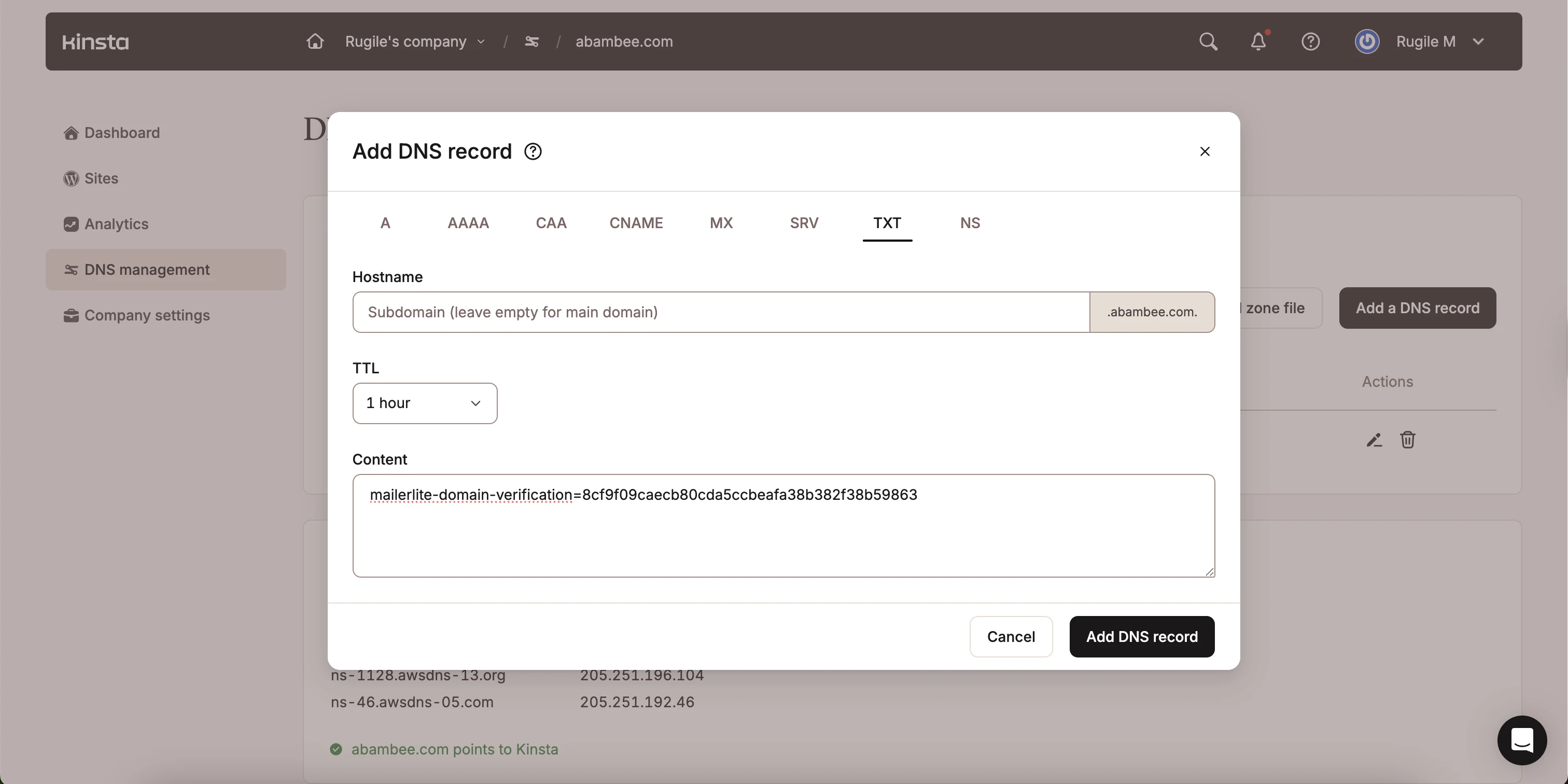
Click Add a DNS record.
Select TXT as the record type.
Leave the Hostname field blank.
Leave TTL as 1 hour.
In Content, enter the verification value from your MailerLite account.
Click Add DNS record.
💡 If you’d like to add a DMARC record as well, check out: The basics of DMARC
How to get the DNS records approved
Head back to your MailerLite Domains page and click on the green Check DNS records button on the domain authentication window. Once the records are approved, your new domain will be displayed as Authenticated ✅.
In some cases, it may appear that the records were not approved even if all of the information was correctly submitted.
There are 2 reasons why this happens:
It can take the servers up to 24 hours to completely update this information. Most of the time, however, it is approved and updated in a matter of minutes.
Some information has to be re-checked and updated.
🛠️ Need help? For solutions to common issues, check our guide Troubleshooting: Domain authentication.
If you have any questions, contact our friendly support team, and we will gladly assist you.
Please note: While we’re happy to help with any issues taking place on our end, our expertise may be limited when it comes to third-party apps since we cannot access your accounts with those tools, even if they are connected to your MailerLite account. This limits the support we can offer, so we encourage reaching out directly to the support team of those third-party tools for better assistance.
In this case, the Kinsta support page can be found here.