Note: If you're a Legacy (Classic) user, please log in to your account to access the dedicated Legacy (Classic) Help Center.
Over time, some subscribers stop opening your emails and become inactive. Continuously emailing inactive subscribers can damage your sender reputation and future deliverability.
Before cleaning your list, try running a re-engagement campaign. It's an easy way to remind subscribers why they joined and win back potential customers.
What is a re-engagement campaign?
A re-engagement campaign is a series of emails sent to inactive subscribers. These subscribers have not opened or clicked any of your emails over an extended period. Sending them a discount, a highlight of features they may have missed, or a simple reminder of why they signed up can boost their interest.
Subscribers who open or click any email in the sequence return to your active list. Subscribers who ignore emails can be automatically unsubscribed or grouped separately, helping keep your email list clean.
How to create a segment for inactive subscribers
You can create an inactive subscriber segment to identify your unengaged subscribers and target them later on. Segments are dynamic, so as subscriber activity changes, they will automatically join or leave the segment.
To create a segment:
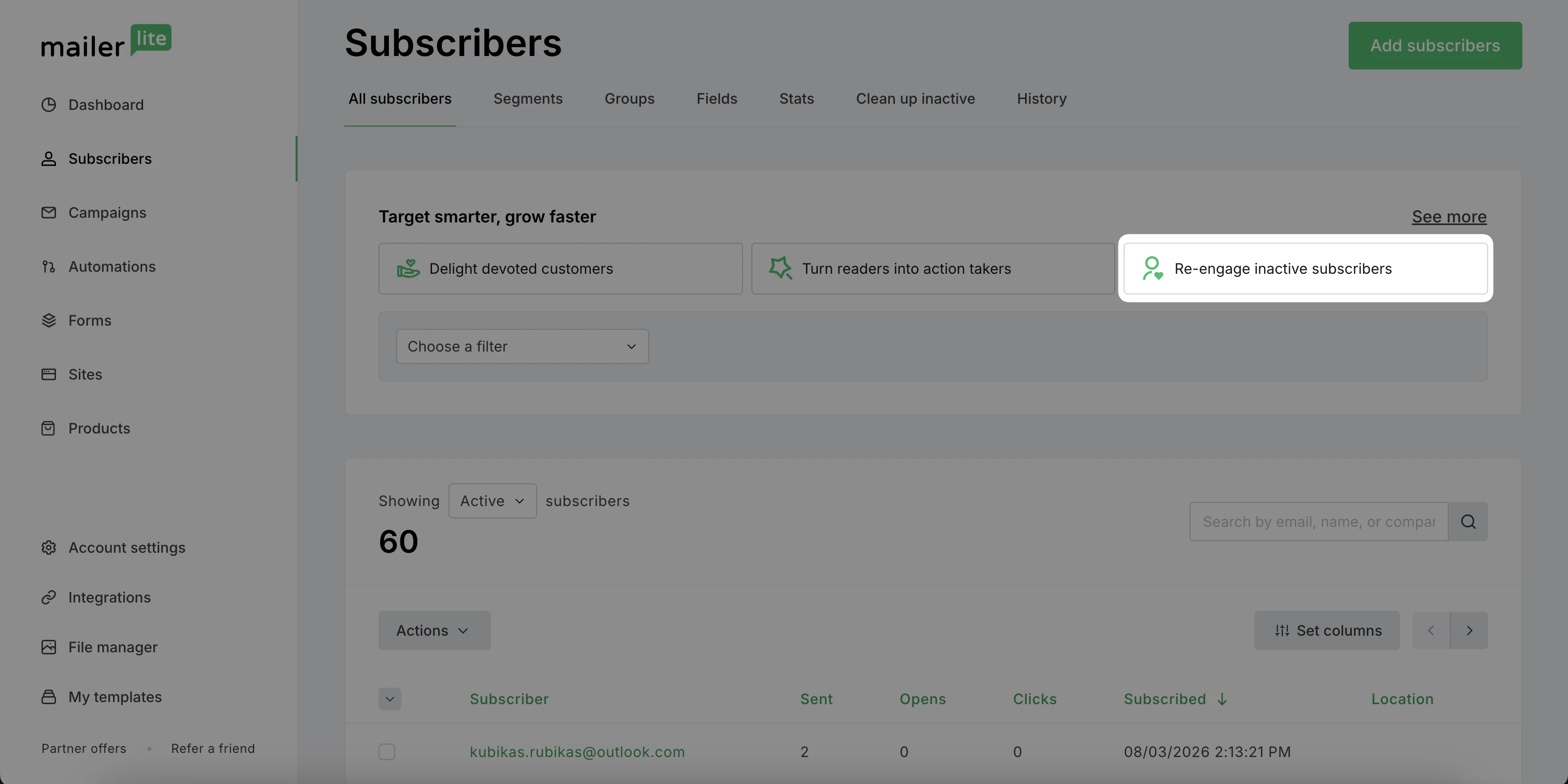
Navigate to the Subscribers page.
Click Re-engage inactive subscribers to use the pre-built segment template.
Set the Email actions filter to define how many days of inactivity count as "inactive." By default, this is set to 90 days without an open or click.
Set the Signup date filter to the same number of days you used for the Email actions filter.
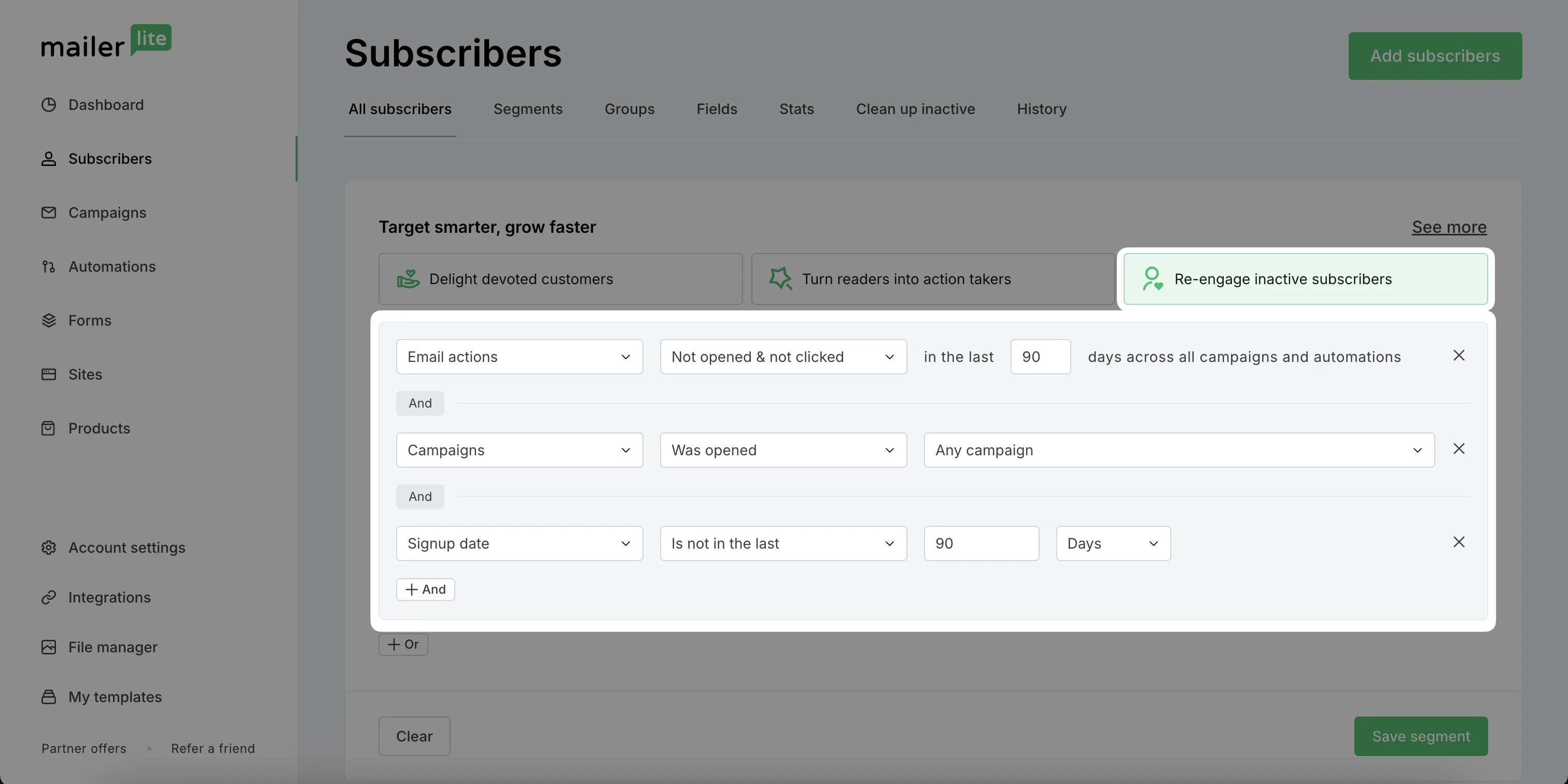
Click Save segment.
Name the segment and click Create.
Note: You can also use this segment outside of the re-engagement workflow. To send a one-off email, create a campaign and choose this segment as your recipients.
How to build a re-engagement automation
Once you have your segment ready, you can use it as your automation trigger and set up the workflow:
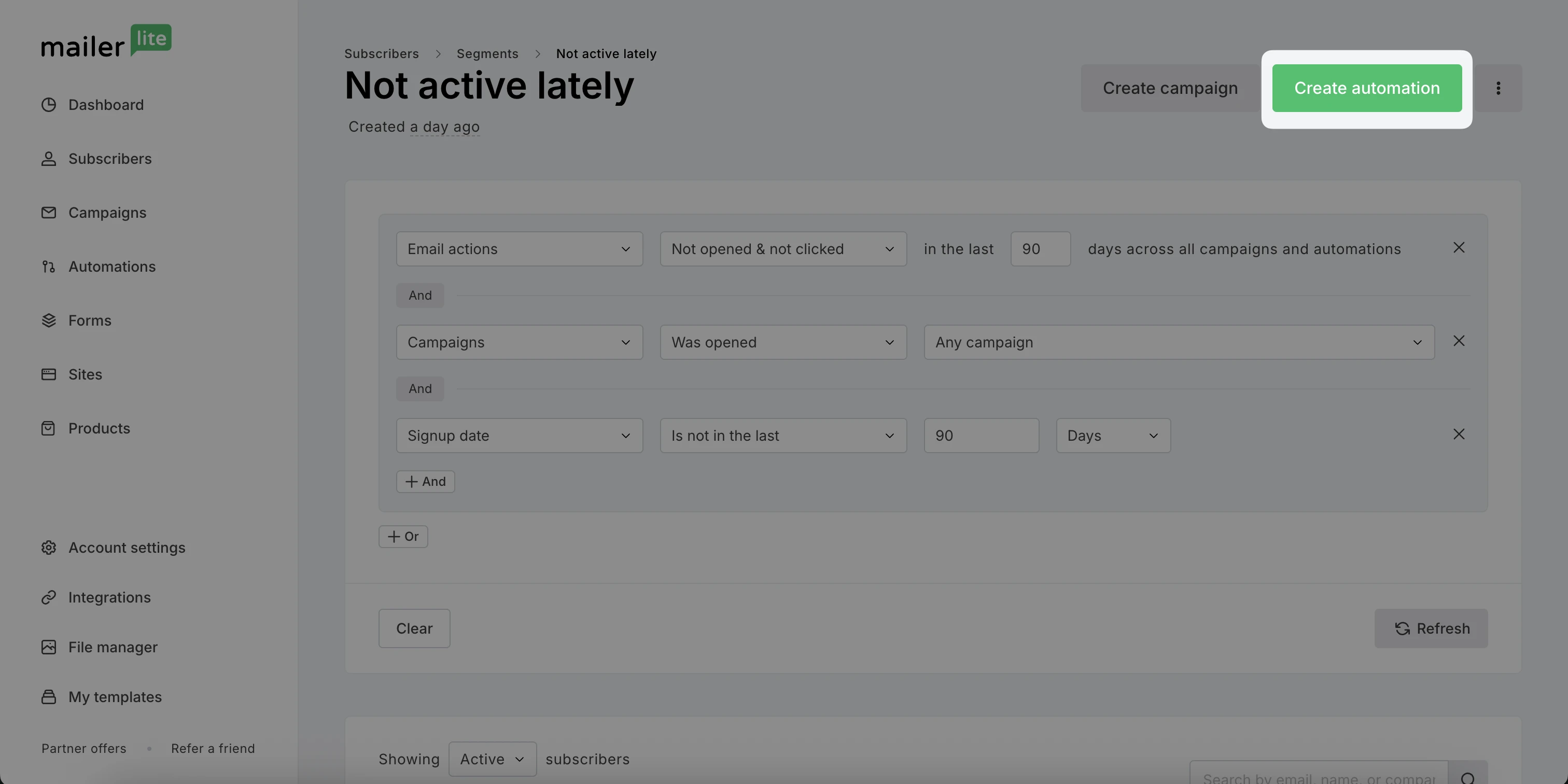
Go to view your newly created segment.
Click the Create automation button.
You’ll be taken to the automation builder with the Joins a segment trigger already added. Check the trigger setting Exit subscribers from automation when they no longer match the segment filters to stop the automation for engaged subscribers.
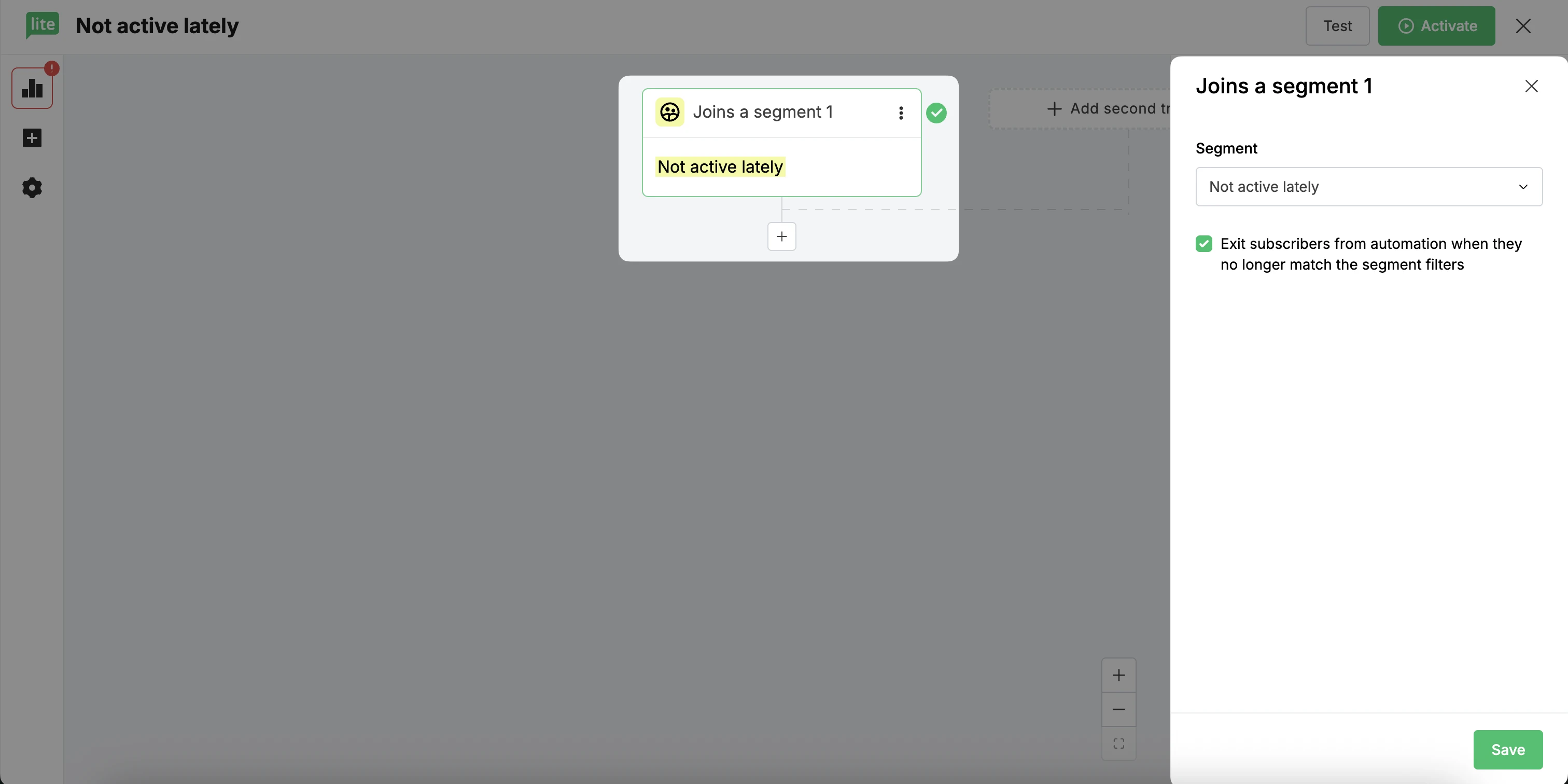
Click the plus icon to add a Send email step.
Design your email. Stand out from your regular campaigns by adding a discount, a value reminder, etc.
Add a Delay step after the email. A delay of 3 days is a common choice, giving subscribers time to see and act on the message.
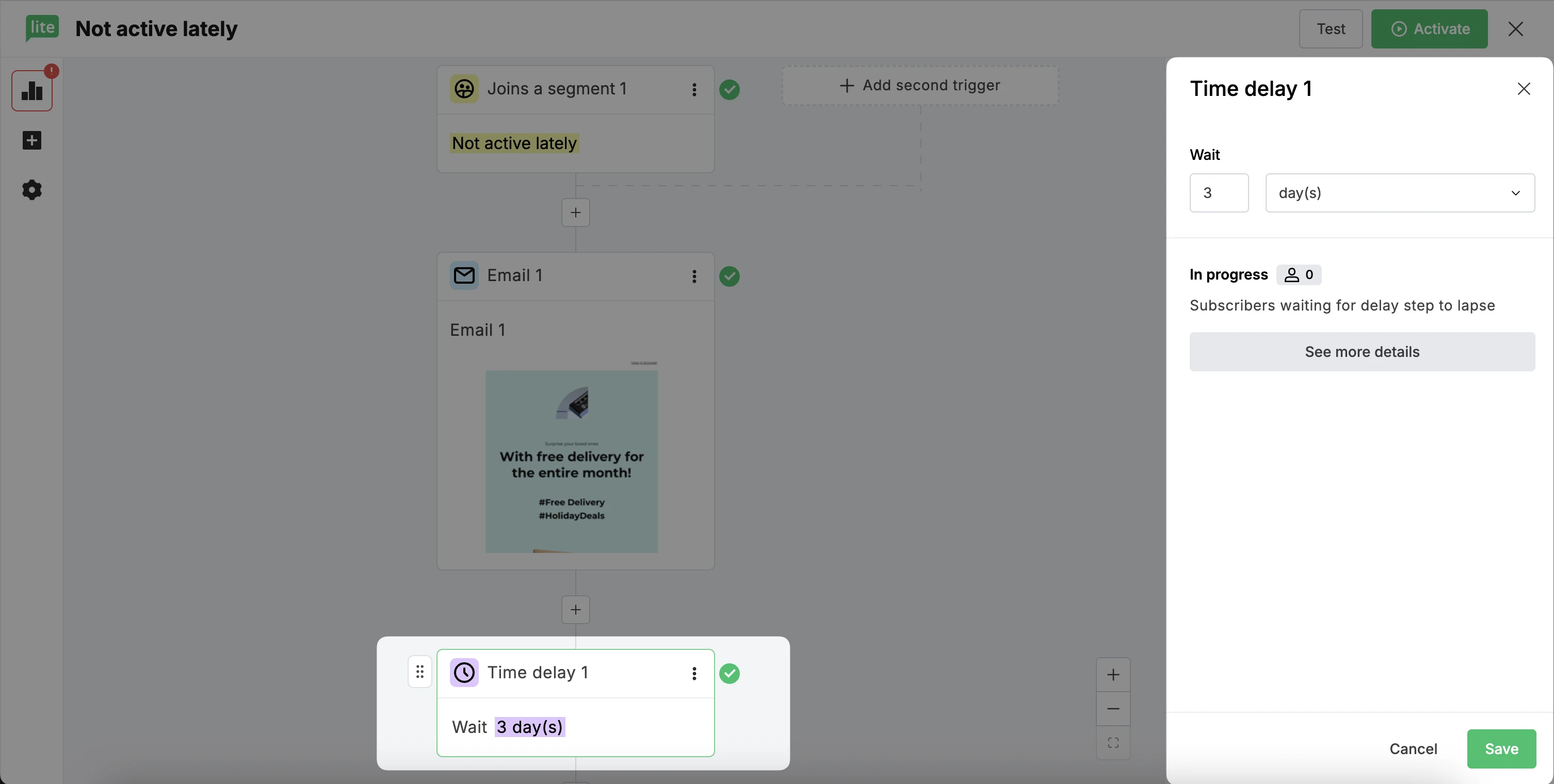
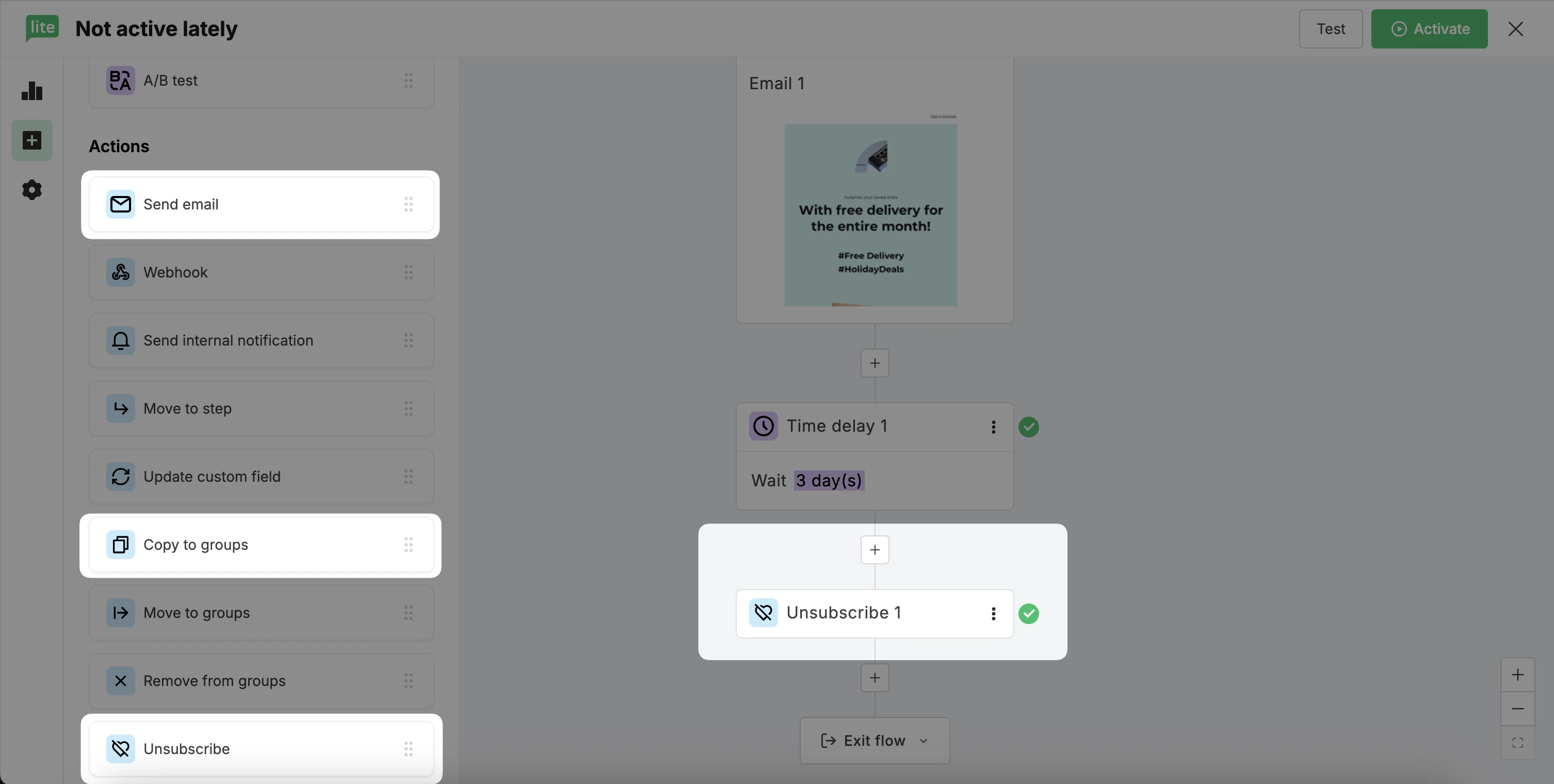
Decide how unengaged subscribers should be handled. You can add an Unsubscribe step, Copy to group, or include more Emails and Delays so subscribers get several chances to engage.
💡 Find more ideas for your re-engagement campaign on our blog: Win back inactive subscribers with a re-engagement email campaign
How to use a win-back automation template
Instead of building a re-engagement automation from scratch, you can start from a pre-built automation template:
Navigate to the Automations page and click New automation.
Select the Win back inactive subscribers template.
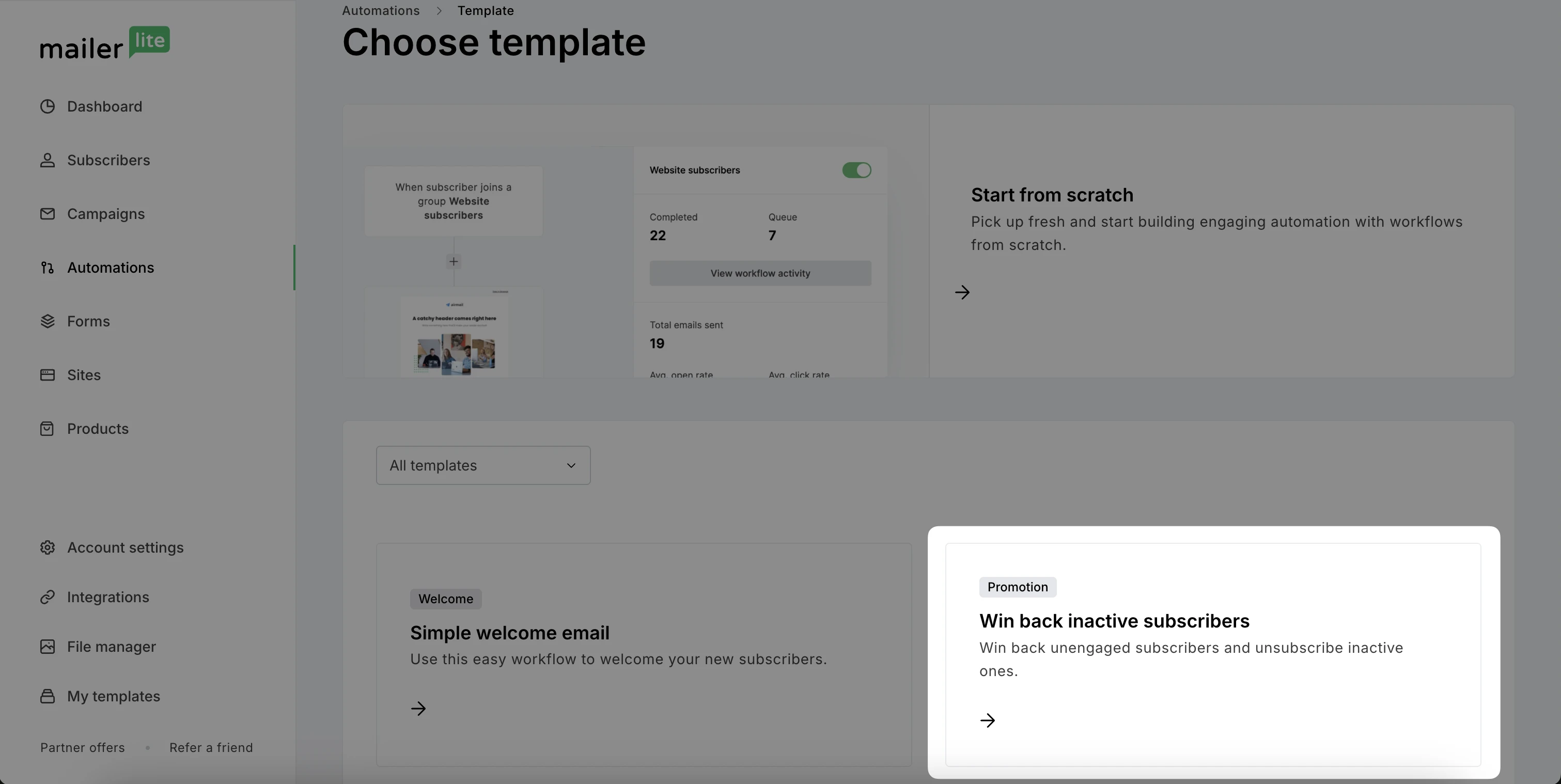
Fill in the missing details and design the emails to complete the automation.
For more details on this template, check out Win back inactive subscribers workflow.
Note: The Win back inactive subscribers template is set up to be triggered manually by updating a subscriber field, rather than by joining a dynamic segment. This makes it a good option for sending a one-off re-engagement workflow to a specific list of subscribers, rather than an ongoing segment-based workflow.