Note: If you're a Legacy (Classic) user, please log in to your account to access the dedicated Legacy (Classic) Help Center.
Brand styles let you save your key design elements (logo, brand colors, fonts, and social links) in one place and automatically apply them across your emails, forms, and other content. This ensures your brand identity stays consistent everywhere without having to manually set it up each time!
Setting up Brand styles
To customize your Brand styles:
Navigate to Account settings.
Click Brand styles.
Input your website’s URL and our system will extract your assets within seconds. Alternatively, choose to set up your brand's design essentials manually.
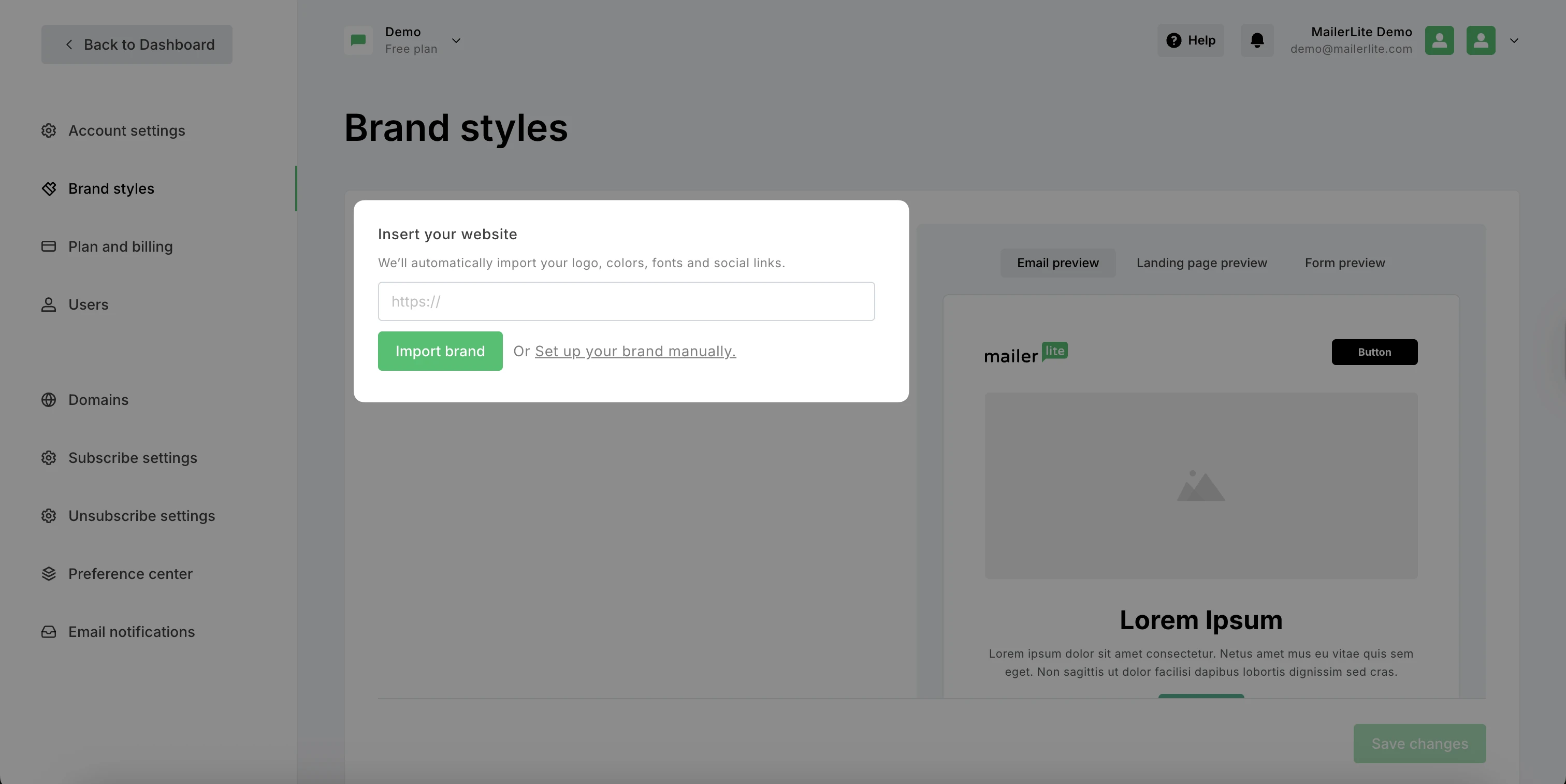
If needed, make edits to your logo, brand colors, fonts, and social links.
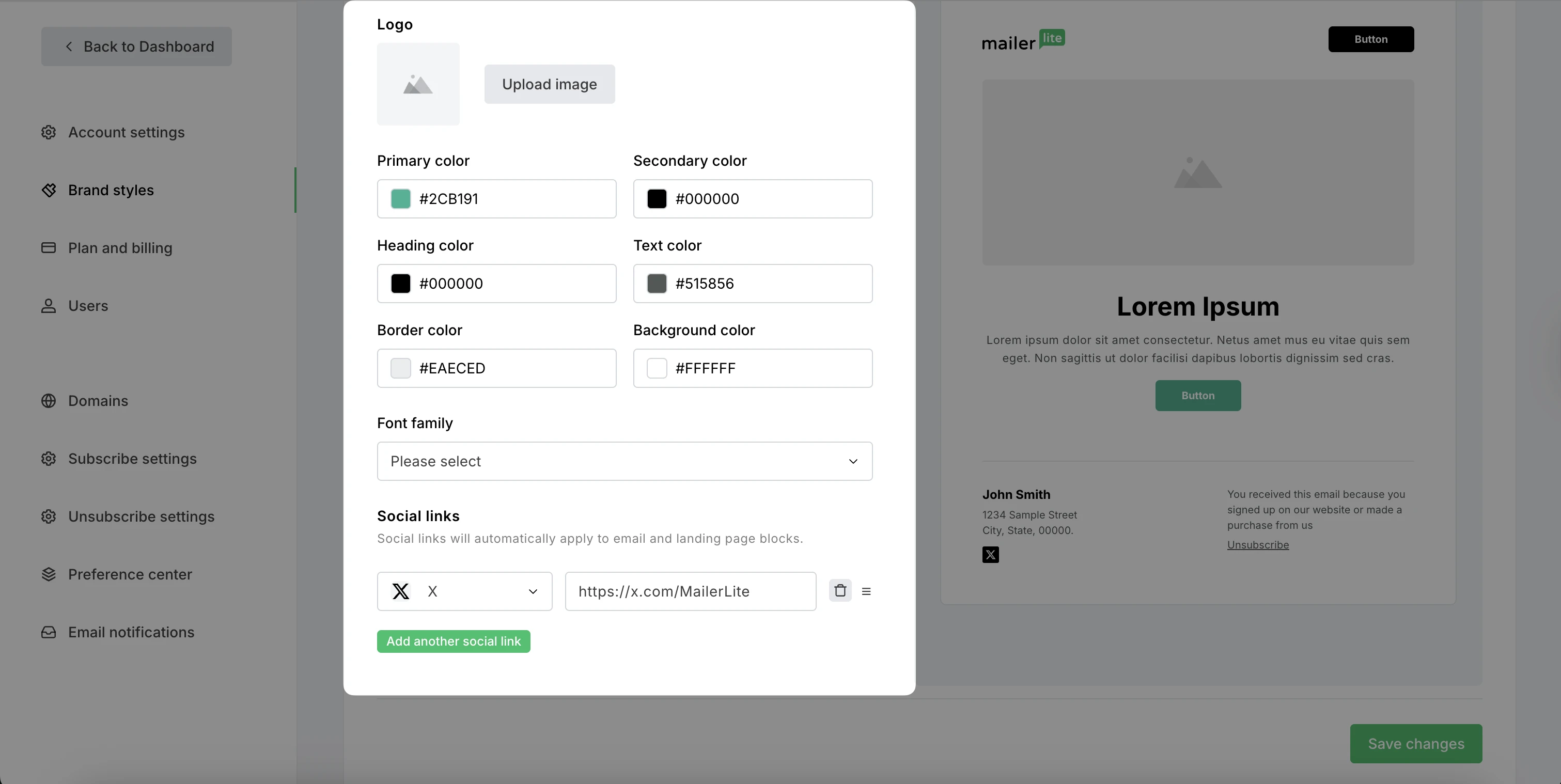
Review how your content would look using the email, landing page, and form previews.
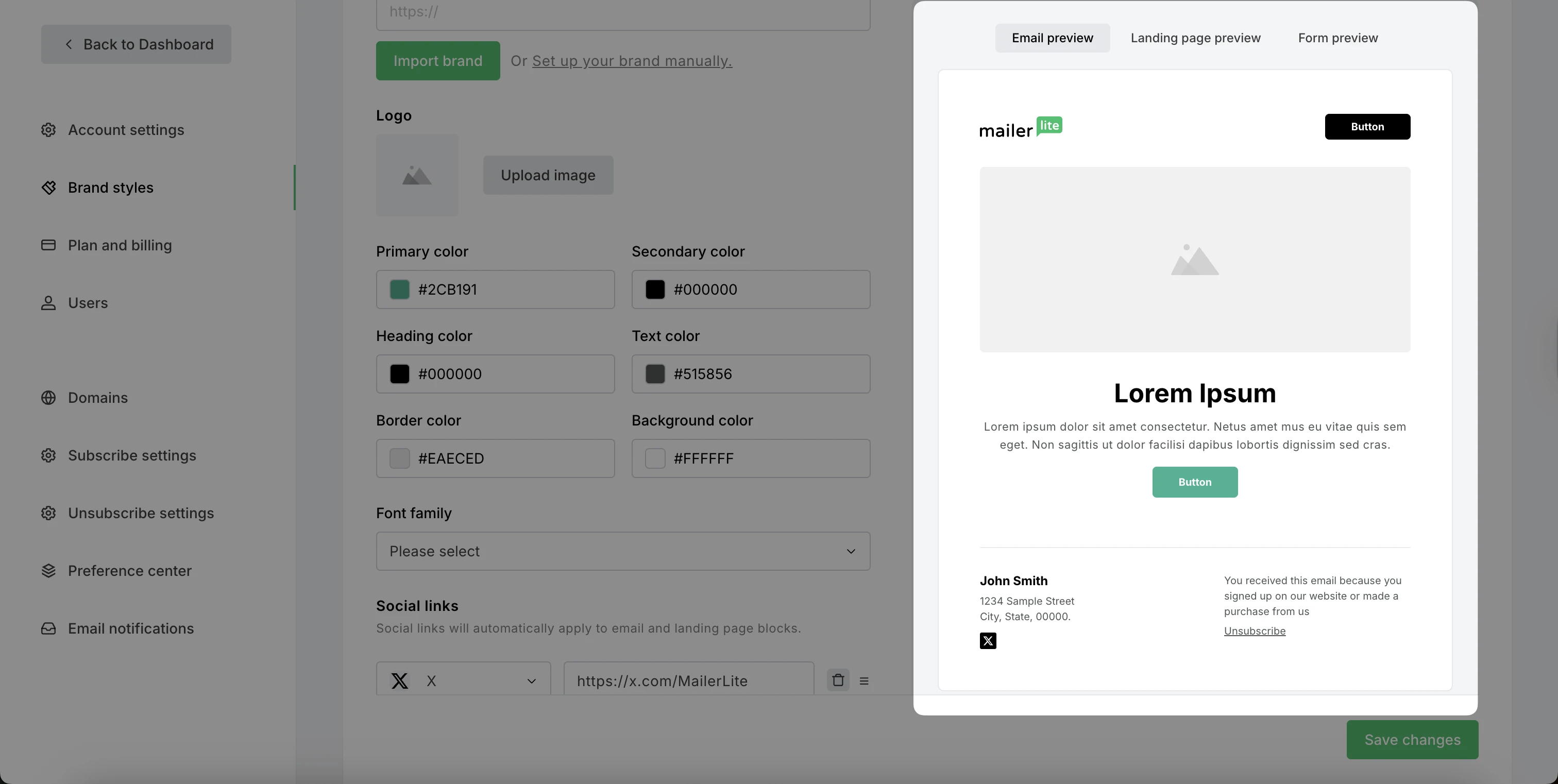
Click Save changes.
Applying Brand styles
Drag & drop email editor
Once Brand styles have been saved, they will automatically apply to new emails created from scratch using the Drag & drop editor. Previously created campaigns will need to be updated manually.
You can make changes to your Brand styles directly in the editor, via the Style tab.
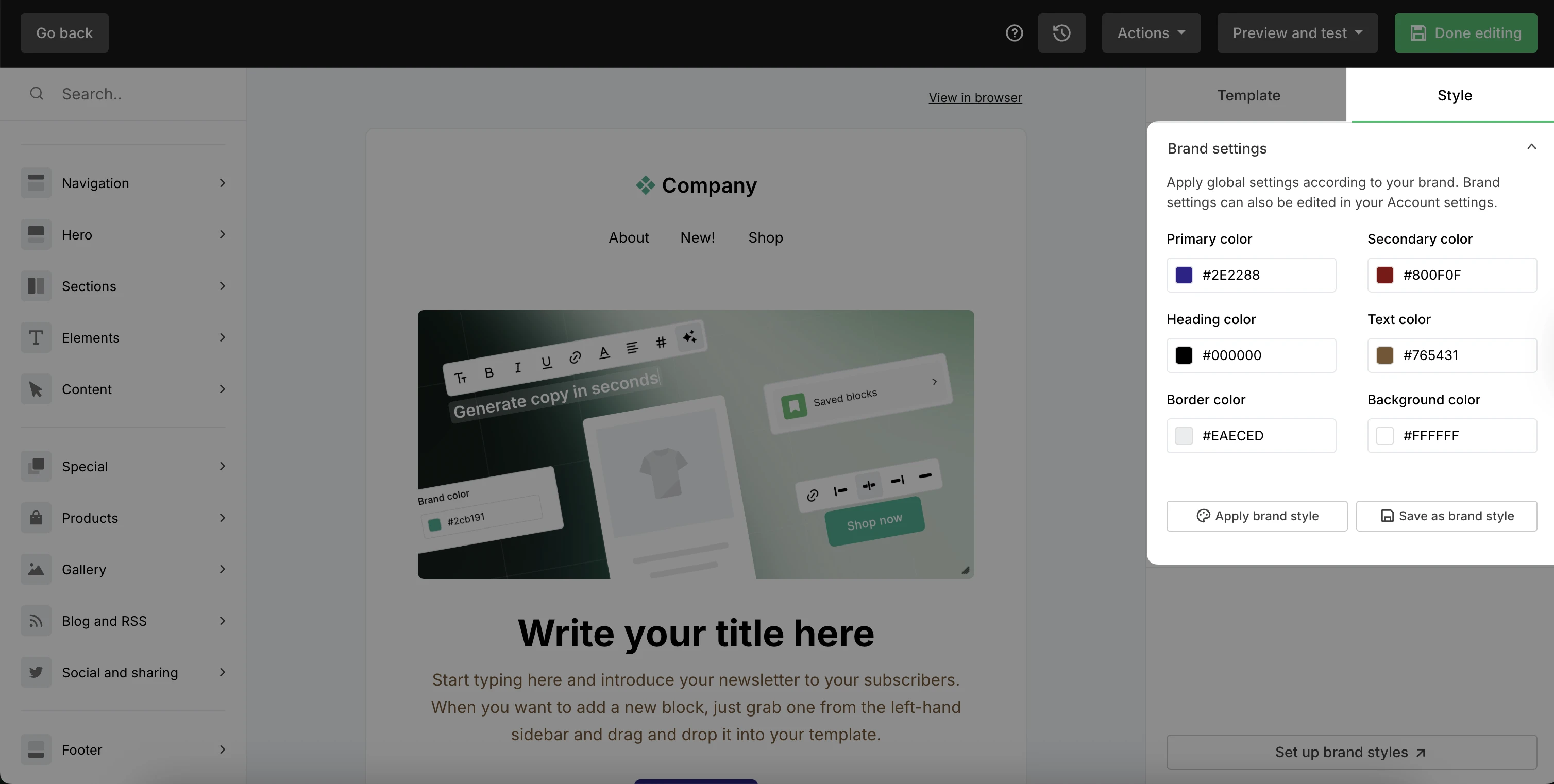
Customize your colors and use:
Apply brand style to re-apply the colors you’ve set in your Account settings.
Reset to default (available when no Style changes are made via the editor) to go back to MailerLite's default brand styles.
Save as a brand style to save your changes to your Account settings.
Pop-up form and landing page editor
Once Brand styles have been saved, they will also automatically apply to your pop-up forms and landing pages created from scratch. Previously created content will need to be updated manually.
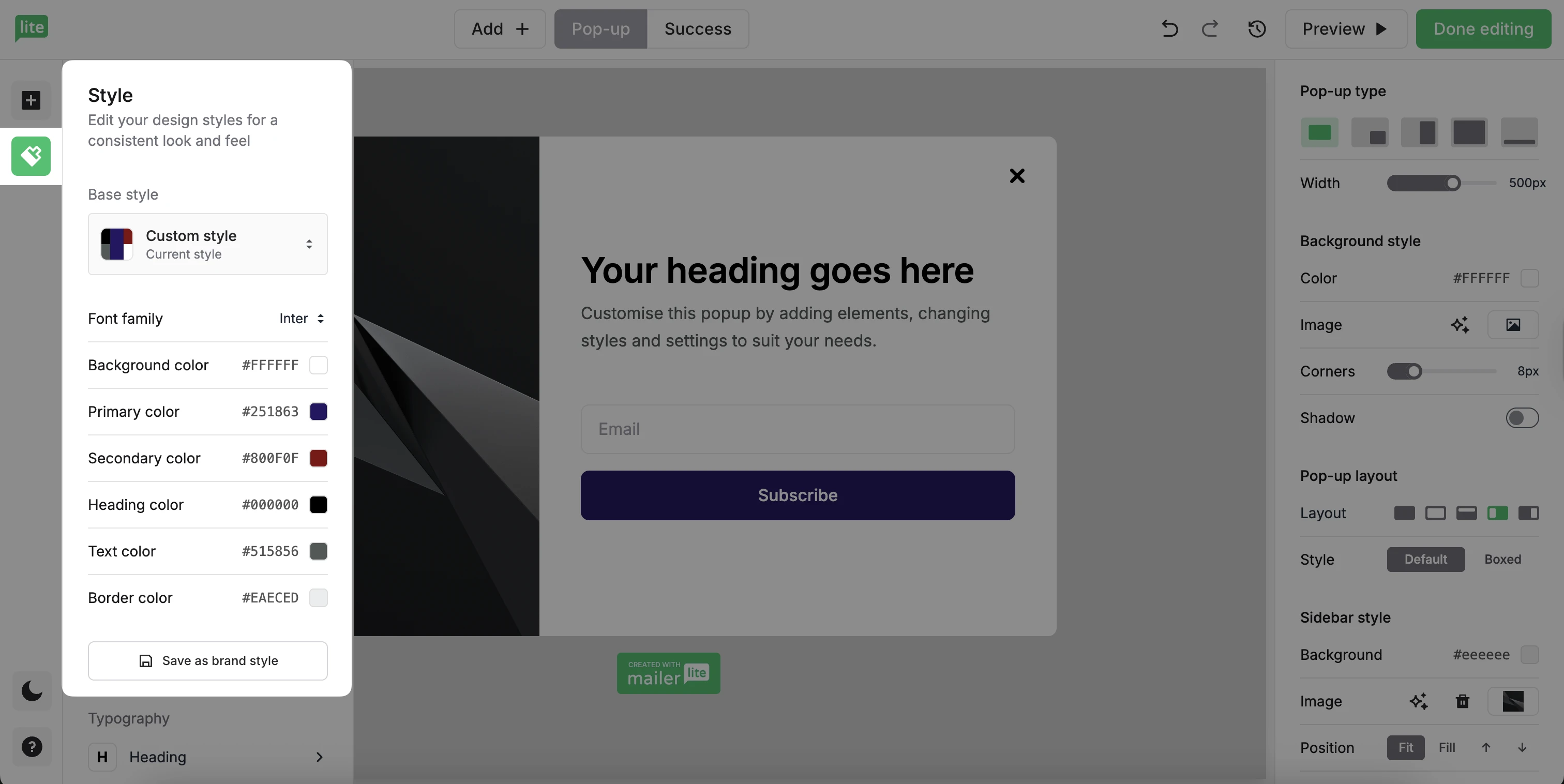
To make further changes via these editors, navigate to the Style tab in the left-side menu.
💡 Curious about building a brand identity? Check out 8 simple steps to build a brand identity that turns heads