Should you send emails with HTML generated by AI? We tested 3 tools to find out

 MailerLite team members brainstorming ideas.
You may know that AI tools like ChatGPT and Claude are excellent coders. And they’re pretty good designers too.
Since you can send coded emails using MailerLite’s HTML email editor, there’s a real temptation to build an email with a quick prompt and then send the output as an HTML email.
But should you actually do it? We tested HTML emails generated with Gemini, Claude and ChatGPT to find out.
TLDR: You should not send email HTML generated by AI
The results of our testing started off promising; the designs looked good, and there were no obvious visual errors in the previews.
But after further testing across multiple inboxes, we can't recommend that people who aren't familiar with email HTML standards use AI chatbots to generate their email code.
There were 2 main reasons why. First, is that all the messages we generated had errors that meant they weren’t displayed as expected in all inboxes.
This points to the biggest problem with generating email HTML, which is that each inbox renders emails differently. One of our developers, Mantas, explained the problem and how drag-and-drop builders get around it:
Some email inboxes were created decades ago and render HTML very differently. AI tools tend to miss tiny things in HTML code, which can result in emails being displayed inconsistently. But email builders like MailerLite have been polished throughout the years to account for these rendering differences.
The second reason is that without extensive testing, you never quite know exactly what is, and isn't, included in the code that is generated. We discovered phantom preheaders, emails generated without addresses, and non-HTTPS email links. While these problems may not always result in big issues, not being sure what is included in the email is a risk that we think is best to avoid.
The only exception to this advice is if you know about email HTML standards. Then, of course, you can generate your designs with AI and then fix the errors that were included in the generated code.
How we tested the ability of AI tools to code emails
We built HTML emails with the three main AI tools: Gemini, ChatGPT and Claude. For each email, we provided the text, links and the same prompt.
This wasn’t a test of the AI tool's ability to one-shot a perfect email. We wanted to give them the best possible chance of success, so we tested multiple prompts until we were happy with the output.
The final prompt had a ton of context: it included link URLs, design directions for each section of the email, unsubscribe variables, compliance details, brand styles, and copy. It was everything that the AI tool would need to succeed (when we didn’t include this information in earlier testing, the output was nowhere near as usable).
Once the AI tool created the email, we previewed it to find visual issues that a marketer without coding knowledge could reasonably be expected to spot. If there were any, we asked the AI to fix the issues.
We then tested the email in 3 ways:
Adding it to the MailerLite HTML email editor and checking the preview
Viewing it in Gmail and Outlook on both desktop and mobile.
Asking our experts to check the email HTML to see if there were any other issues.
Here are the results.
The generated emails looked good in previews
Each of the AI tools created an email that looked good. They successfully added all the text and content that we asked them to include, and they followed the included brand style instructions.
There were some minor issues: one of the emails used dark icons on a black background, but this was easily fixed with a follow-up prompt.
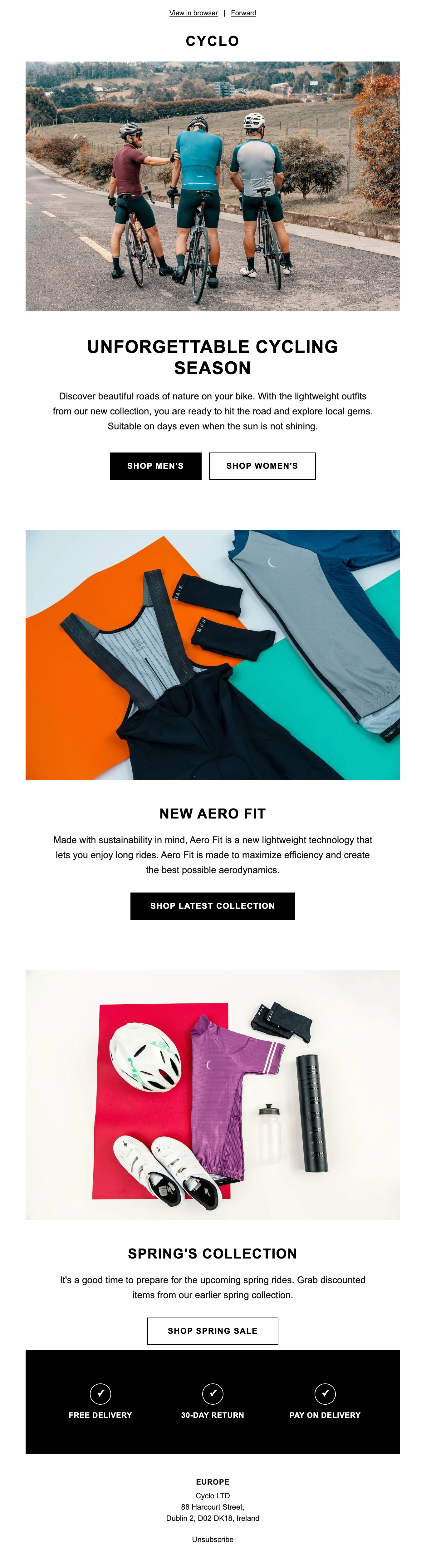
Here is the email generated by Claude. It successfully used the images, copy and styles we suggested.
And here is the email template it was based on.
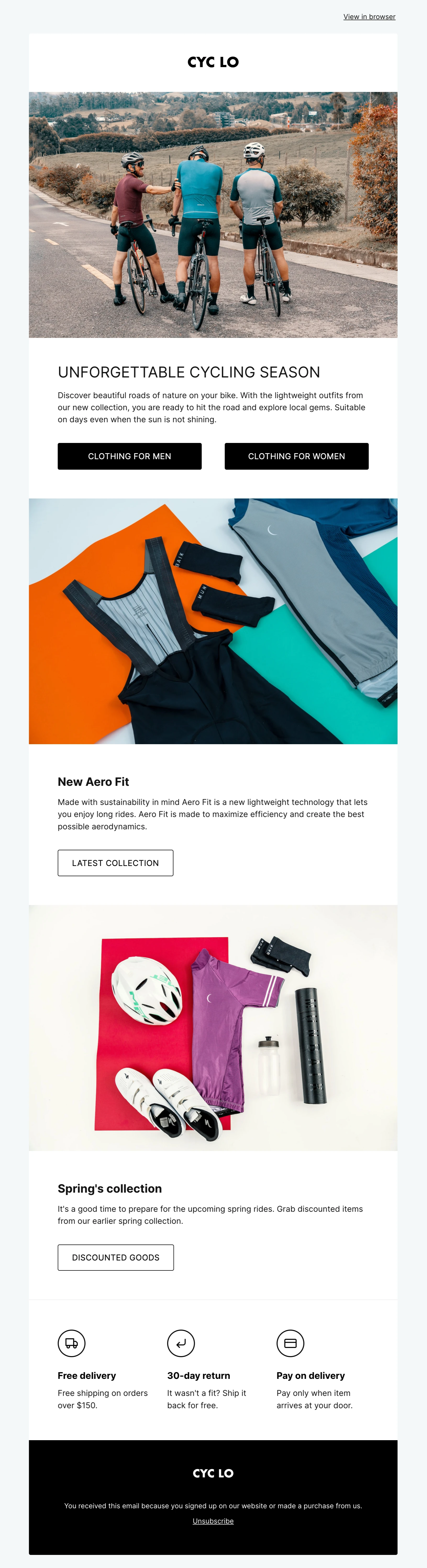
While the generated email is good, there was one place where the drag-and-drop email clearly stood out.
The Claude email used Unicode characters in the benefits section at the end, presumably because the AI tools don’t have access to an icon library.
These don’t look as good as the image icons in the template email and can result in inconsistencies when displayed in different email clients.
All the links and variables were successfully added, with one exception
An email that looks good is not useful if it doesn’t actually work. Fortunately, all the emails included all the links, as well as the unsubscribe, forward and view in browser variables that we had included in the prompt.
There was one issue with the Claude email, though. When it added the link, it used the http:// version of the URL, not the https:// version.
This might not sound like much, but the http:// version is the insecure version of the URL. Using it can increase the risk of the email triggering security warnings.
The fix is easy: making sure that you always include the full https:// URL, rather than just the domain.
The ChatGPT email had alignment issues on mobile
The ChatGPT email we tested looked great in the MailerLite preview and on desktop but it had an issue on mobile.
The benefits block at the bottom of the email was slightly off-center when viewed in the Outlook mobile app, and totally misaligned when viewed on the Gmail mobile app. The separator also appeared next to the block, when it should have either been below the block or hidden entirely.
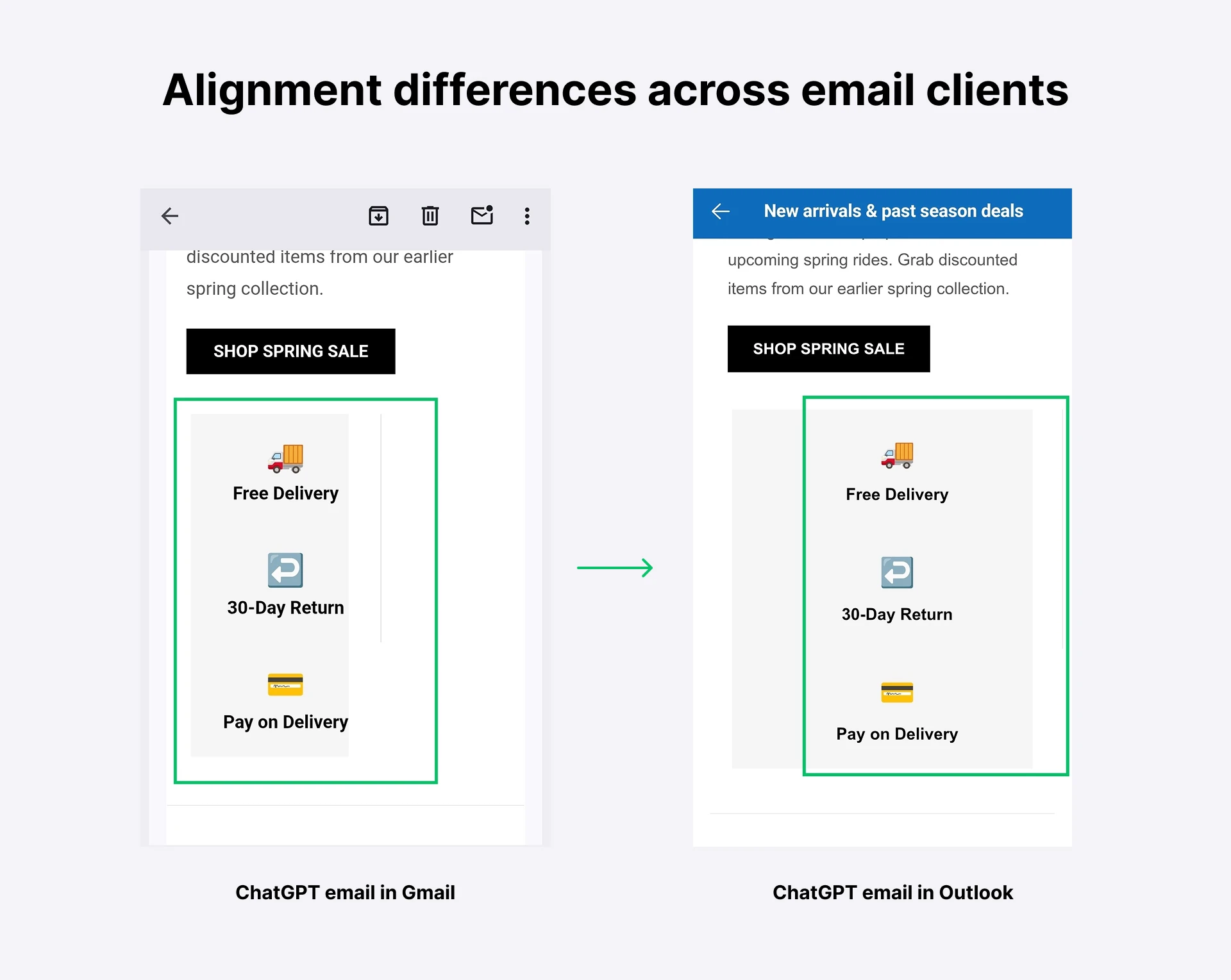
This suggests that there was an issue with the way the width on the table was configured.
The Claude email had some misalignment issues on Outlook
The Claude email also had some misalignment issues, although nothing quite as bad as the ChatGPT one.
The problem was that the first set of buttons and the benefits block at the bottom of the email were slightly misaligned when viewed on Outlook mobile app. Both of these sections were off-center, resulting in an email that didn’t look professional.
The Gemini email didn't show the background correctly
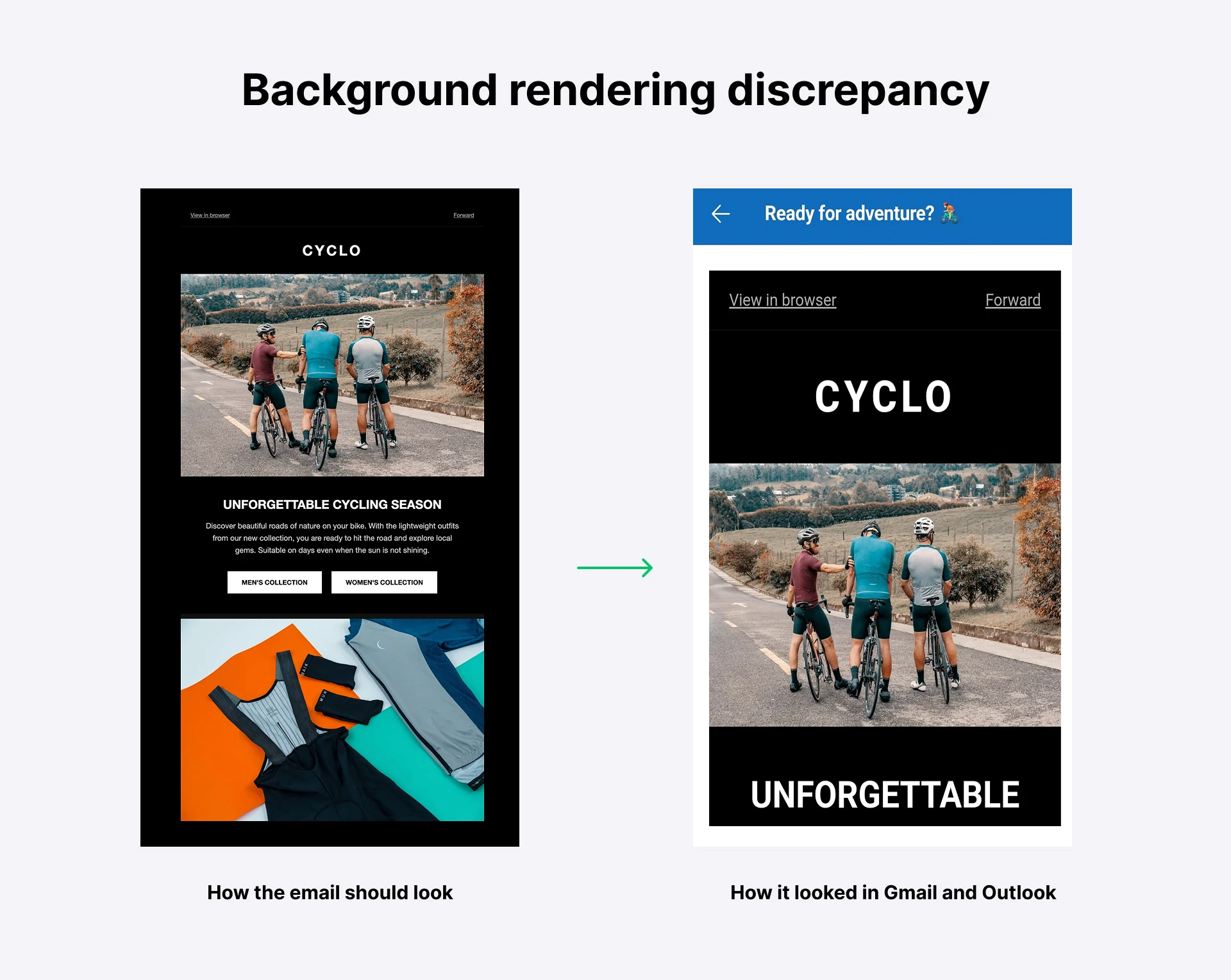
The Gemini email included a dark background. Unfortunately, Outlook and Gmail on mobile ignored this and instead used a plain white background.
Fortunately, this didn’t cause a major issue, as the white background looked fine. But it does mean that the email wasn’t consistent across browsers. If you made an important design choice in your background, it wouldn’t have been shown.
The preheaders weren’t optimized
The first time we ran the test, we didn’t include any preheader text in the prompt. The result was that Claude and Gemini both made up their own text to include.
This wasn’t a huge issue, as the text suited the email well. But it does highlight the fact that you never know exactly what the AI tool is doing, especially as you wouldn’t see the preheader text (or lack of) until the email actually landed in your inbox during testing.
In the second set of emails, we included preheader text in the prompt. All three AI agents successfully included it, although neither ChatGPT nor Gemini isolated the text. This meant that the inbox client pulled in the opening text from the email to fill the space.
Again, this isn’t a huge issue, but a cleaner option is to add instructions to the code so that nothing is shown after the specified preheader text.

ChatGPT and Claude used emojis and special characters as icons
Since the AI tools don’t have access to an icon library, they all used workarounds to add a visual flourish to the benefits section. While Gemini came up with the elegant solution of all-capping the text, Claude used Unicode icons and ChatGPT used emojis.
These latter two workarounds could cause the emails to be rendered inconsistently in rare cases. While there were no problems in any of the email clients that we tested, using an icon image would make consistent rendering across inboxes more likely.
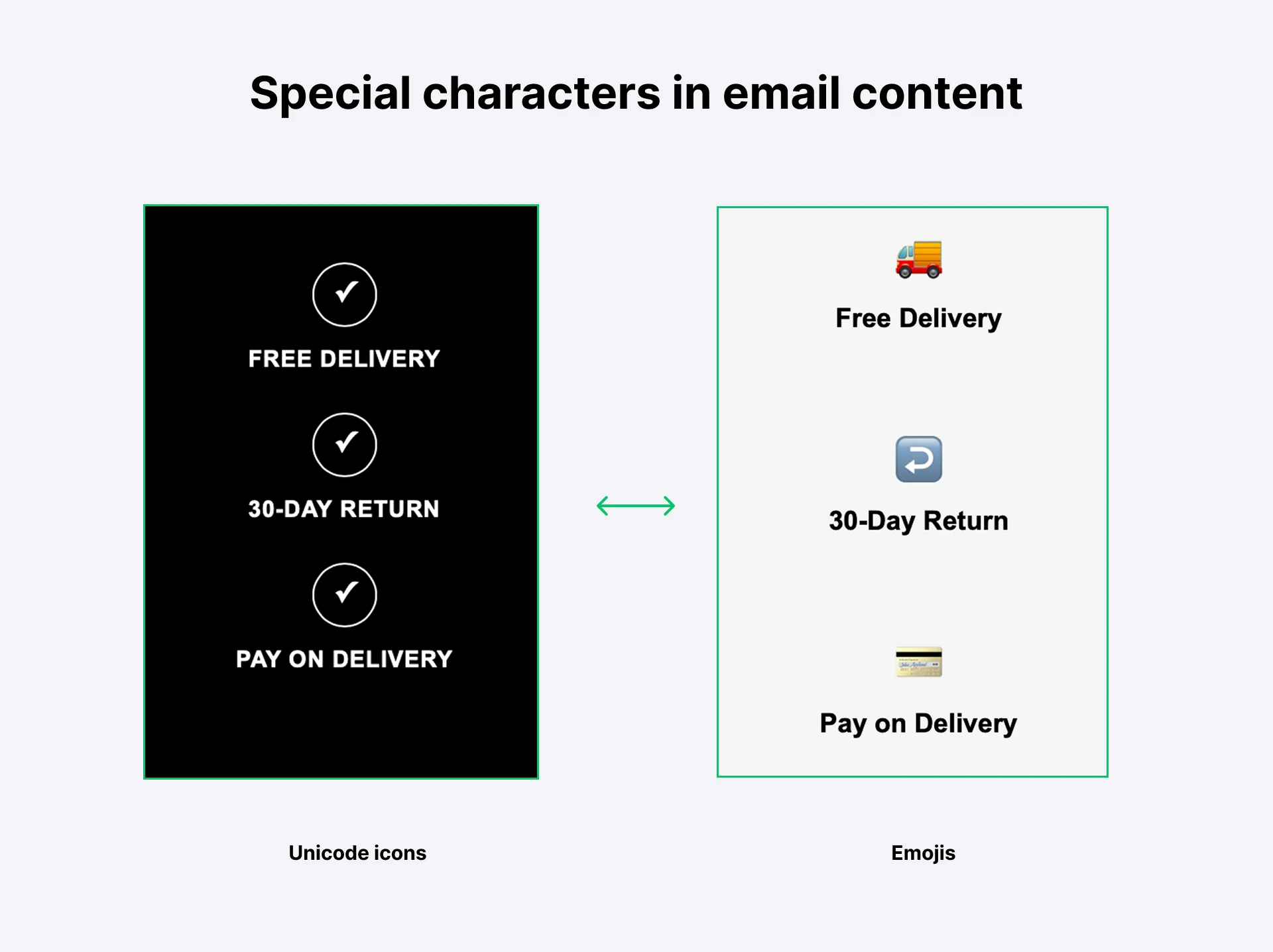
To make the icons show up, you’d need to host the image or use an icon image that is already live, and then link to the image from the email. This is another place where using a drag-and-drop editor can help, since MailerLite gives you direct access to the Iconfinder gallery, making it easy to add these images to your emails.
So, should you use AI tools to generate email HTML?
Even though the AI tools generated decent-looking HTML emails, all of the emails had issues when displayed in the inbox. With that in mind, we think you should think twice before sending emails built with these tools.
Here’s why:
1. You don’t know exactly what you’re sending
This is the big one. Even with lots of testing, you can never be 100% sure of the quality of the email you’re sending if you can’t understand the code.
There’s simply no way to be sure that what you’re sending is good. And even small issues can result in big problems, like important content not displaying properly or even bad HTML increasing the chances that your emails go to spam.
Sending an AI-generated email is an unnecessary risk that can negatively impact the effectiveness of your email marketing and potentially even your business reputation.
We highly recommend that you stick with visual editors like our drag-and-drop and simple builders. Our tool is used by hundreds of thousands of businesses to send emails every year, and has been adapted by experts over time to reduce inconsistencies to a minimum.
2. AI won't flag non-compliance gaps
In our initial experiments for this article, we asked the AI tools to create the emails with a shorter prompt.
All three AI tools produced emails without an address, which is a huge issue since you must include an address to comply with the anti-spam regulation CAN-SPAM. Not including one means your message is more likely to land in the spam folder, and you could also end up on the wrong side of regulators.
To be fair, we didn’t include an address in the prompt, so it’s understandable why the AI tool didn’t include one. And when we did, it was always included.
But the AI tool also didn’t highlight that not including an address was an issue. Instead, it confidently provided us with the HTML, ready to send. If we weren’t aware of the rule, we would have sent it without thinking.
Contrast this to what happens when you use a drag-and-drop editor: the sections you need to stay compliant, such as your address and unsubscribe links, are automatically included, so you stay compliant whether or not you know the rule.
3. You have to spend a lot of time testing and prompting
If you want the HTML output to be semi-decent, you have to write an extremely detailed prompt. In ours, we included the copy, brand styles, image URLs, address, unsubscribe variables, offer URLs, preheader text, and general design instructions for each block of content.
Putting all this together took a lot of time. And once the email is created, you have to spend even more time testing the email across multiple inbox clients and devices.
With that in mind, the time savings you get from creating the email with AI vs with a drag-and-drop editor is minimal.
Here’s how to save time when sending emails
Just because you can’t vibe code your emails doesn’t mean that creating them has to be a time-consuming process.
Here are several tips you can follow to speed up creation.
Duplicate sent messages or use templates
Creating an email template or duplicating past emails means you start the email design process with a fully complete email that fits your brand. You can keep the header and footer the same, and just focus on editing the main content.
You can even choose a ready-made email template to start and then customize it to your needs.
Create templates for important sections
Another option is to create templates for the different sections you use in your emails. You can then drag them in whenever you need them.

At MailerLite, we use this feature a lot. For example, we created a block to promote our last sale. We could then easily drag it into any email where we wanted to mention the offer. We also have blocks for email signatures, blog post sharing, surveys, integrations and more.
Use pre-built blocks
The drag-and-drop builder has a ton of pre-built blocks for multiple use cases. MailerLite has blocks for products, CTAs, headers, footers, email signatures, countdown timers, galleries, coupons, social posts and more.
To include one of these in your email, all you have to do is drag it into place, add your content and customize the design.
Set brand styles
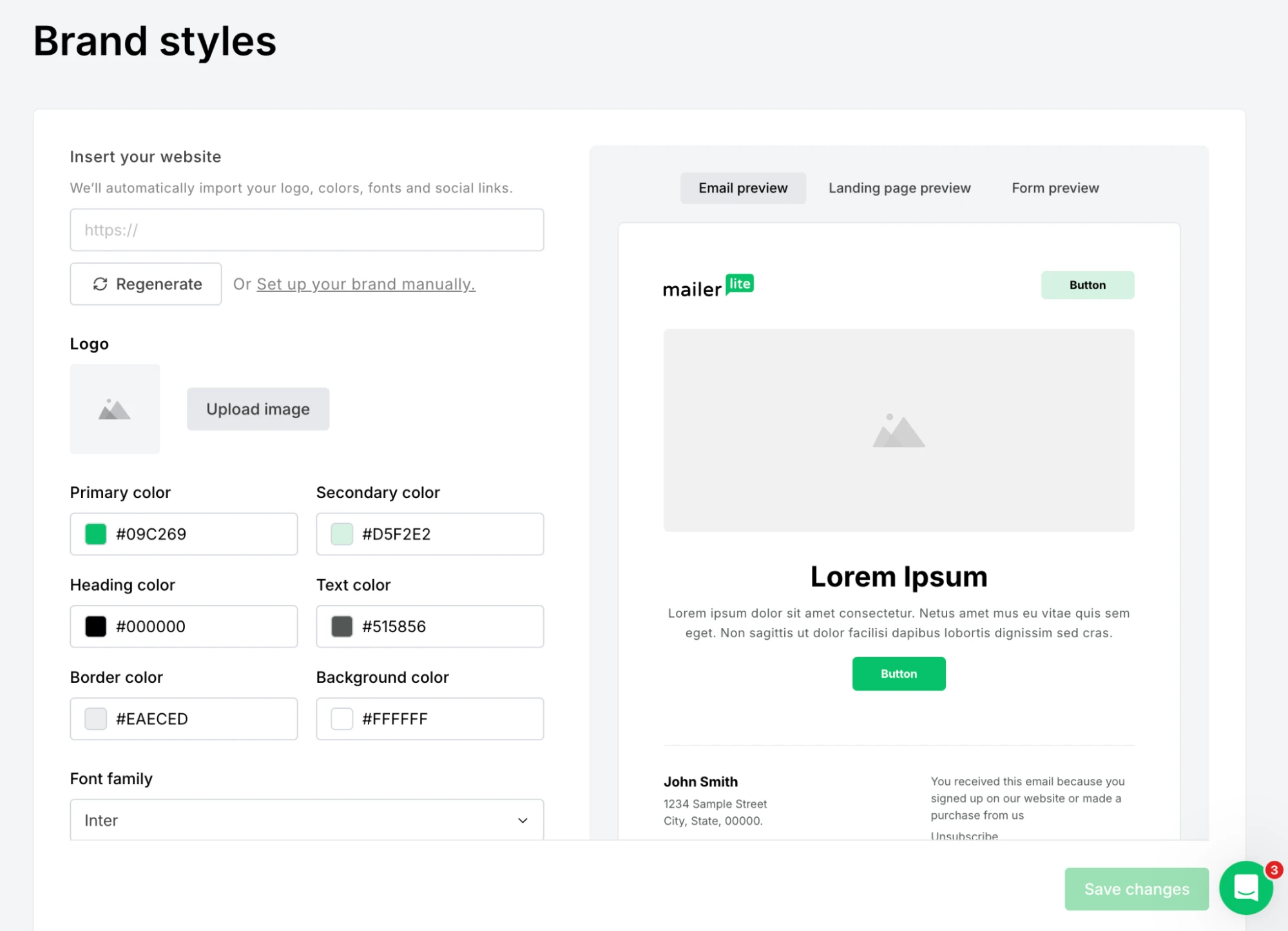
MailerLite lets you set brand styles within the drag-and-drop editor. This means that every block you add automatically uses your chosen brand colors, so you don’t have to spend long customizing blocks when you do have to add a new one.
What’s more, if you don’t have your brand styles set up yet, you can create them in seconds. Just add a link to your website and our tool will detect the colors and create a brand style guide.
Use built-in AI tools
MailerLite has AI tools for creating email content and subject lines. Our subject suggestions feature is particularly effective since it analyses the content of your email and then automatically suggests subject lines you can add to your emails in a click.
Build your email fast with drag and drop today
MailerLite’s drag-and-drop builder has all you need to create effective emails quickly. And this philosophy stretches into all our other tools, too. From our drag-and-drop automation builder to visual tools for landing pages, forms, pop-ups and more.