Note: If you're a Legacy (Classic) user, please log in to your account to access the dedicated Legacy (Classic) Help Center.
A one-to-one email is a single, personal email you send to one subscriber, without creating a campaign. Use it to follow up, answer a question, or send a quick personal note.
How to send a one-to-one email to a subscriber
To send a one-to-one email:
Navigate to the Subscribers page.
Open the Send email panel in one of these ways:
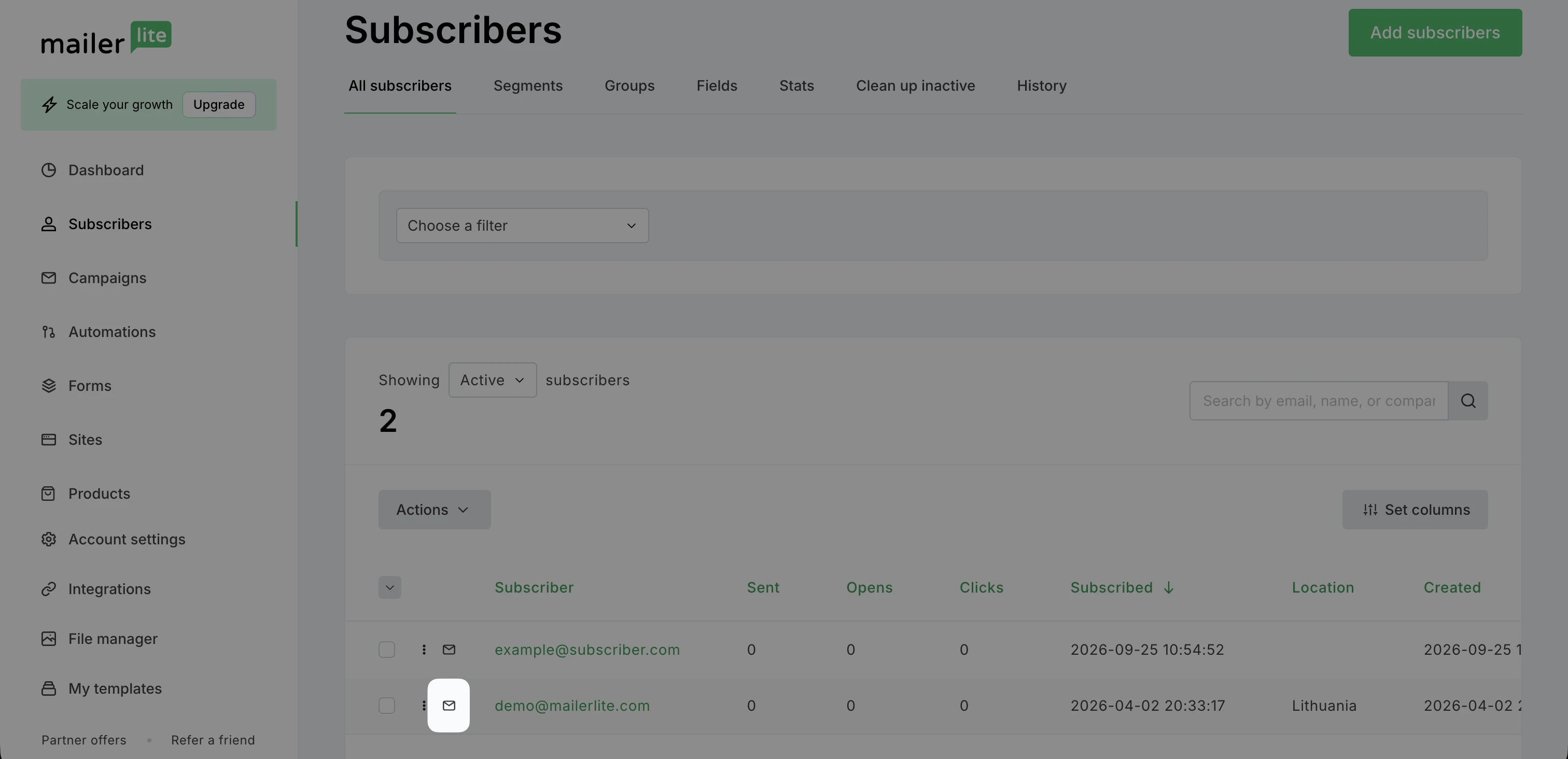
Click the send email icon on the subscriber’s row.
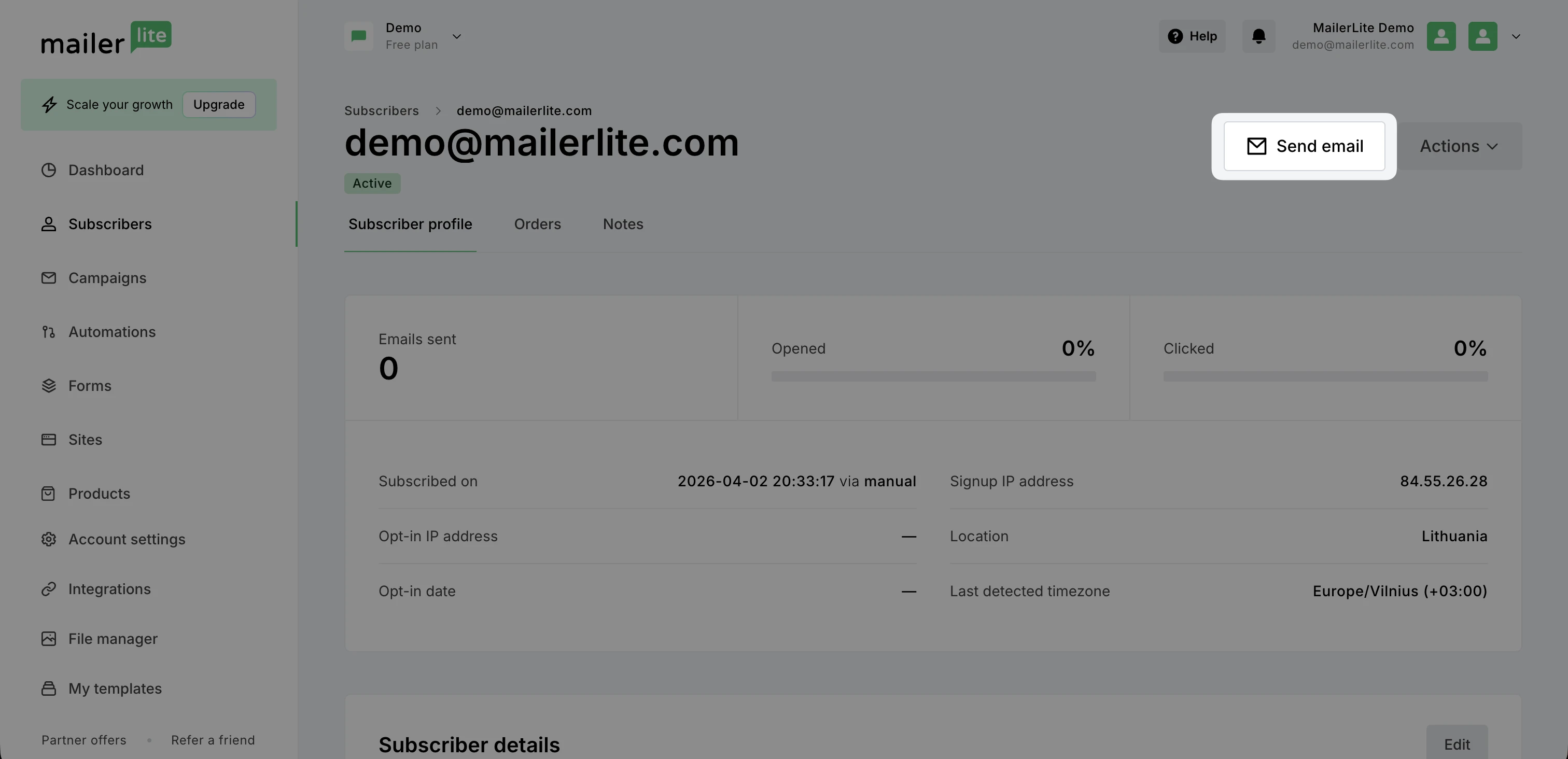
Click the subscriber’s email address to open their profile, then click Send email.
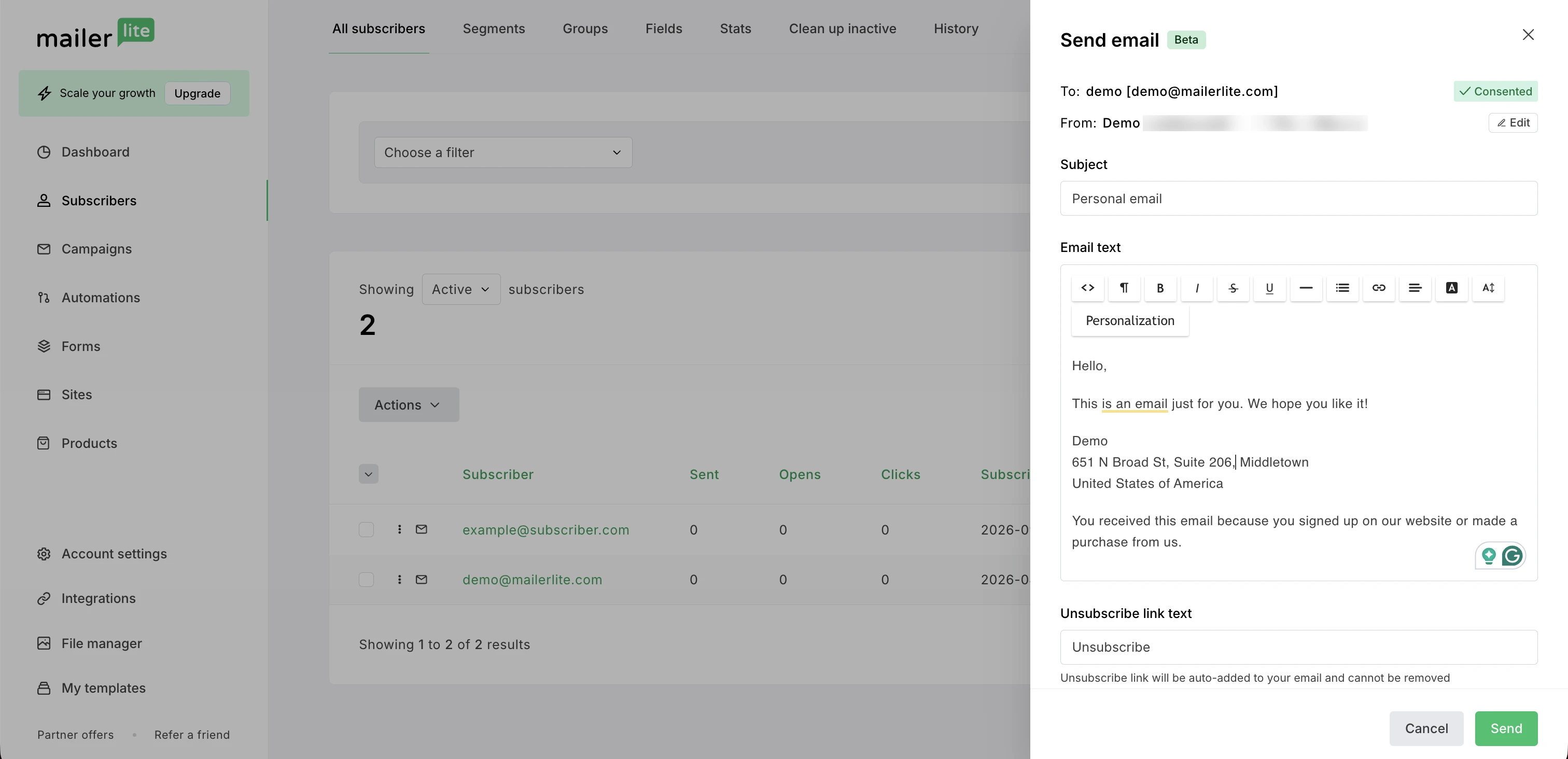
Check the To and From fields. To send from a different email address, click Edit and change your default sender email.
Enter a Subject and write your message.
Edit the Unsubscribe link text.
Click Send.
A few things to keep in mind:
One-to-one emails can only be sent to Active subscribers. Unconfirmed, unsubscribed, bounced, and spam complaint subscribers can’t be sent emails.
You can begin sending one-to-one emails once your sender email is verified or authenticated.
Every one-to-one email includes a footer with your postal address and an unsubscribe link. The footer is required for compliance and can’t be removed.
One-to-one emails are sent without open or click tracking, so they don’t appear in campaign reports.
How to view your sent one-to-one email
Once your email is sent, you can view it in your subscriber’s activity. To do so:
Navigate to Subscribers.
Click on the subscriber you wish to view.
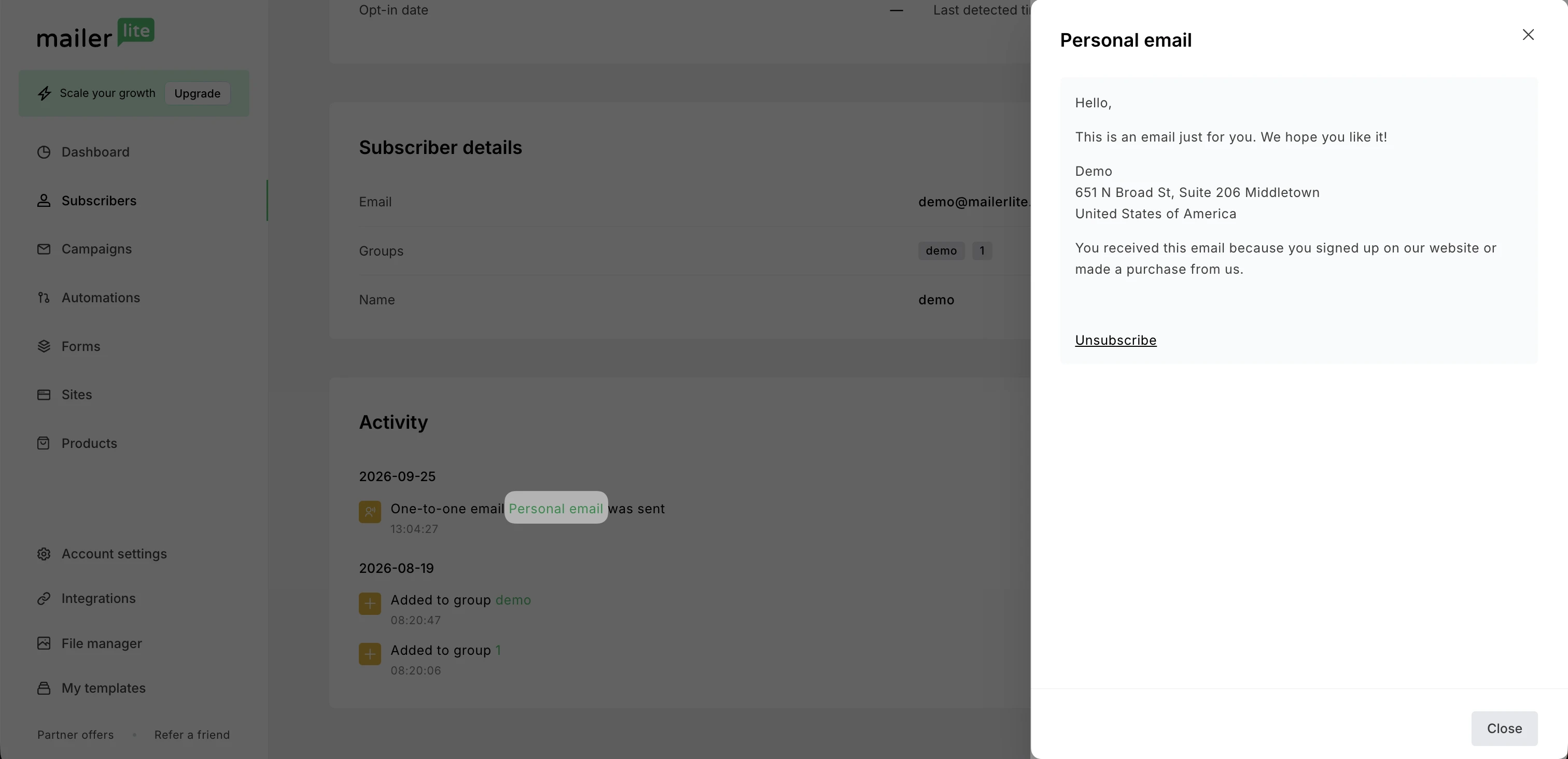
Scroll down to the Activity section.
Click on the subject of the email to view it.
💡 If you'd like to send a campaign instead, check out How to send a campaign to an individual subscriber.