Note: If you're a Legacy (Classic) user, please log in to your account to access the dedicated Legacy (Classic) Help Center.
💡 Plan usage tracking is available on the Free and Comfort plans. Power plan has unlimited feature use.
The plan usage tracker allows you to check how much of your plan’s limit you’ve used. It covers active subscribers, monthly sent emails, automations, landing pages, websites, forms, and digital products.
Check plan usage to spot a limit before it blocks your work and decide when to upgrade your plan or deactivate items.
How to check your plan usage
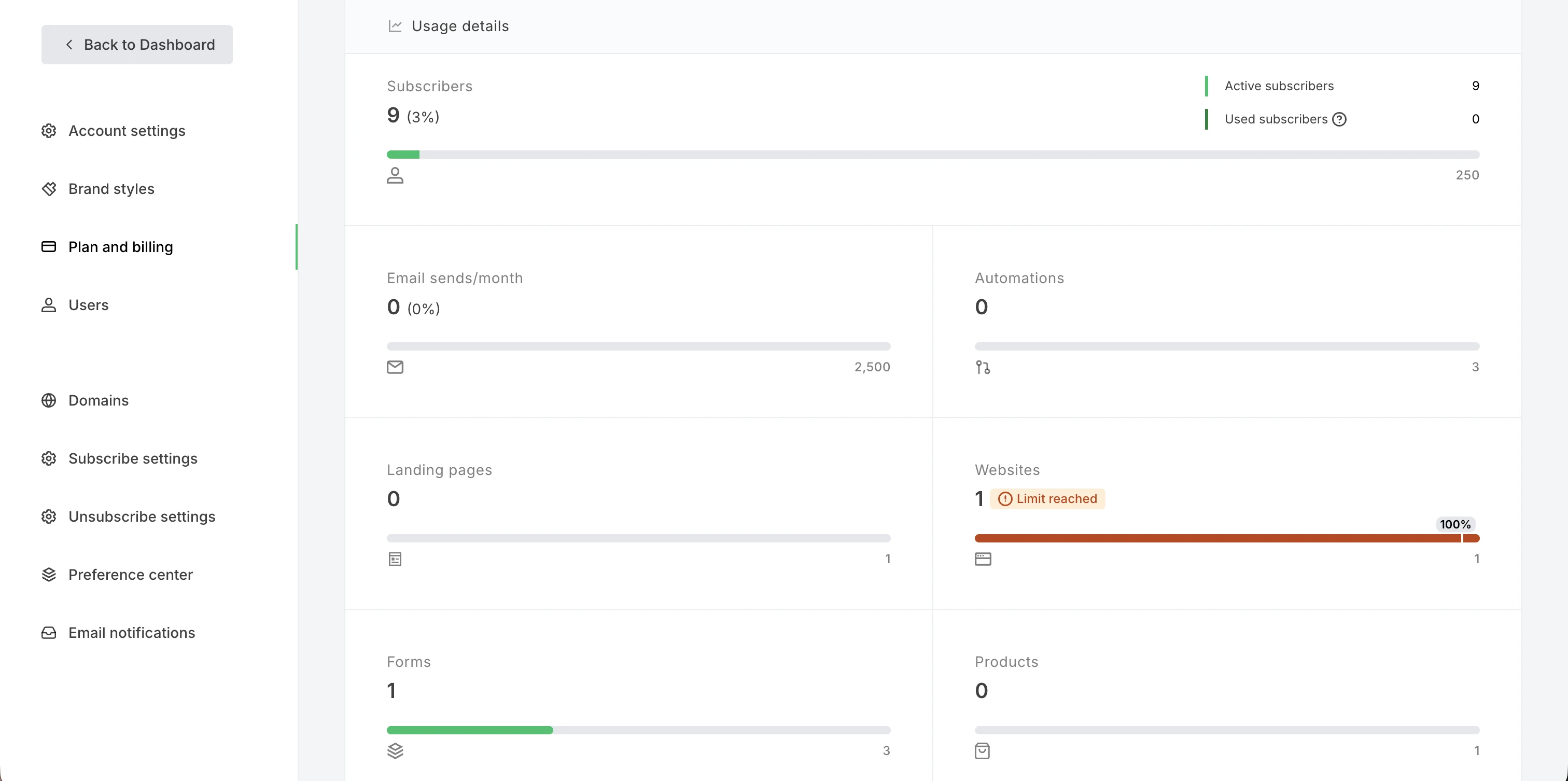
You can check your plan usage from the sidebar and by going to the Plan and billing page.
From the sidebar
You can check your plan usage by hovering over the Plan usage button on the sidebar.
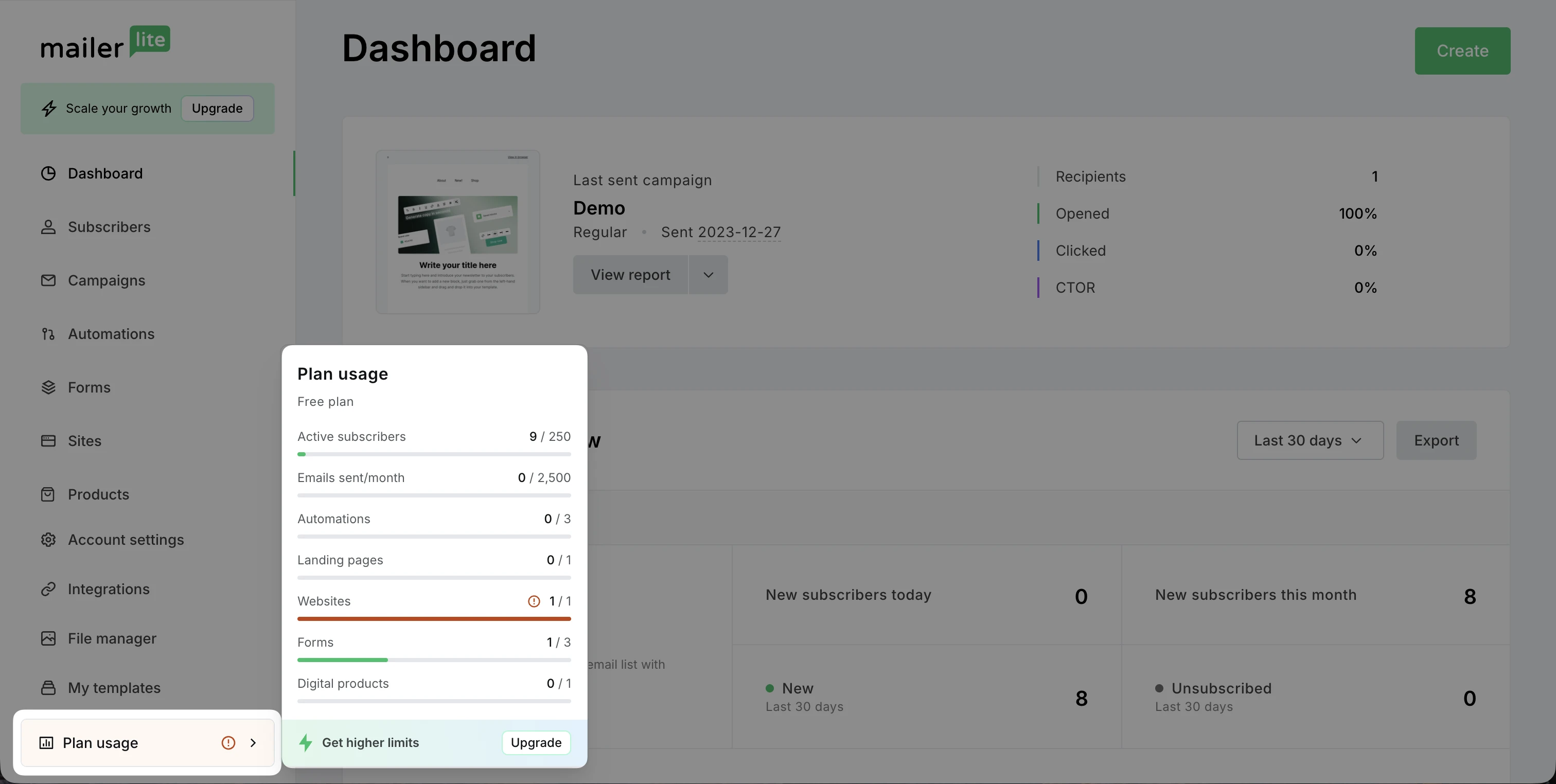
The button changes color and displays a warning when you are approaching or exceed a limit. By hovering over it, you can see the exact usage of each item.
Click Upgrade to upgrade your plan and get higher limits. If your feature use exceeds limits, you can also deactivate items to stay within the threshold.
From Plan and billing
From the sidebar, go to Account settings.
Click Plan and billing.
Scroll down to Usage details.
Keep in mind:
The limits apply to active or published items; drafts are not counted. You can keep extra items in your account as long as they are not active beyond your plan's limit.
Plan usage can take up to 60s to update after a change, such as publishing a form or adding subscribers. If your plan usage numbers look outdated, wait a minute and refresh the page.
Plan usage is not shown to users without billing access and to paused accounts.
What happens when you reach a plan limit
Reaching a plan limit affects your account differently on the Comfort and Free plans.
Comfort plan
Exactly at a feature use limit: You can still create and save drafts, but you can’t activate or publish anything new for that feature until you reduce your use or upgrade.
Over a feature use limit: Your existing automations, forms, landing pages, websites, and digital products keep working. You can’t create, activate, or edit items for those features until you’re back under the limit. Going over a feature limit doesn’t upgrade your plan automatically.
Over the active subscriber or sent email limit: Your plan upgrades automatically to the next tier when you reach your subscriber or monthly email limit, so your campaigns and automations keep sending.
For full details, see Moving to the new Comfort and Power plans: What you need to know.
Free plan
Exactly at a feature use limit: You can still create and save drafts, but you can’t activate or publish anything new for that feature until you reduce your use or upgrade.
Over a feature use limit: Your account enters a restricted state, and the following actions are disabled:
Creating, activating, and editing automations, forms, websites, landing pages, or products
Sending emails
Importing subscribers
A notification appears at the top of the app, and a pop-up explains which limits you are over. To leave the restricted state, deactivate enough items to get back under the limit, or upgrade to a paid plan.
Over the active subscriber or sent email limit: Your plan doesn’t upgrade automatically. If you exceed the active subscriber limit, sending campaigns, automations, and importing subscribers is paused until you upgrade or reduce your list. If you go over 2,500 sent monthly emails, sending pauses until you upgrade or the limit resets on your account registration date.
For full details, see Free plan update: What you need to know.
How to stay within your plan limits
After you’ve exceeded your plan limits, you can upgrade your plan or reduce usage to get back on track.
Upgrading your plan
Upgrading your plan allows you to have higher limits and enjoy additional features. Review our pricing page to choose the best plan for your needs.
Reducing usage
To reduce your usage:
Active subscribers: Remove subscribers who no longer open your campaigns. Navigate to Subscribers and open the Clean up inactive tab. For full steps, see How to clean up inactive subscribers.
Sent emails: Be mindful of the limit before sending campaigns. Once the limit is exceeded, it resets each month on your account registration (for Free plan) or billing (for Comfort plan) date.
Feature use: Deactivate items that exceed the limit:
Automations: Click Pause in the automation Overview.
Pop-up and promotional forms: Switch off the Status toggle. Embedded forms can’t be deactivated, only deleted.
Landing pages and websites: Click Unpublish on the Overview page.
Digital products: Switch off the Status toggle.