Note: If you're a Legacy (Classic) user, please log in to your account to access the dedicated Legacy (Classic) Help Center.
HeyLite Intelligence operates on a set of AI-powered tools to make your experience using our platform more efficient. You can use our AI tools to:
Generate content: Our AI writing assistant and subject line generator, agent for HTML emails, and AI-powered landing pages help create your campaigns and landing pages simply and quickly.
Optimize performance: Smart sending, HeyLite insights, and our MCP server help improve your deliverability, list management, and overall account administration.
Which plans include MailerLite's AI features?
AI feature availability depends on your MailerLite plan:
| AI tool | Plan availability | Notes |
| AI writing assistant | Comfort, Power | Power plan users receive maximum credits; Comfort plan users get a limited amount. |
| AI subject line generator | All plans | Comfort and Power accounts get the most credits; Free accounts have a limited amount. |
| AI-generated HTML emails | Comfort, Power | Paid feature; not available on Free. |
| AI-generated landing pages | Comfort, Power | Free plan users can generate a landing page with AI once. |
| Smart sending | Comfort, Power | Paid feature; not available on Free. |
| HeyLite insights | Comfort, Power | Currently in Beta, available to a limited number of users. |
| MCP server | All plans | Connected AI tool (e.g. Claude Pro/Max/Team/Enterprise) may have its own plan requirement. |
AI writing assistant
Built directly into the Drag & drop campaign, landing page, and pop-up editors, the AI writing assistant generates text from a short prompt so you don’t have to start from a blank page.
To use it, open the text settings for any text block in the editor and click the AI text generator icon. Choose a tone of voice, text type, and write a prompt describing your idea.
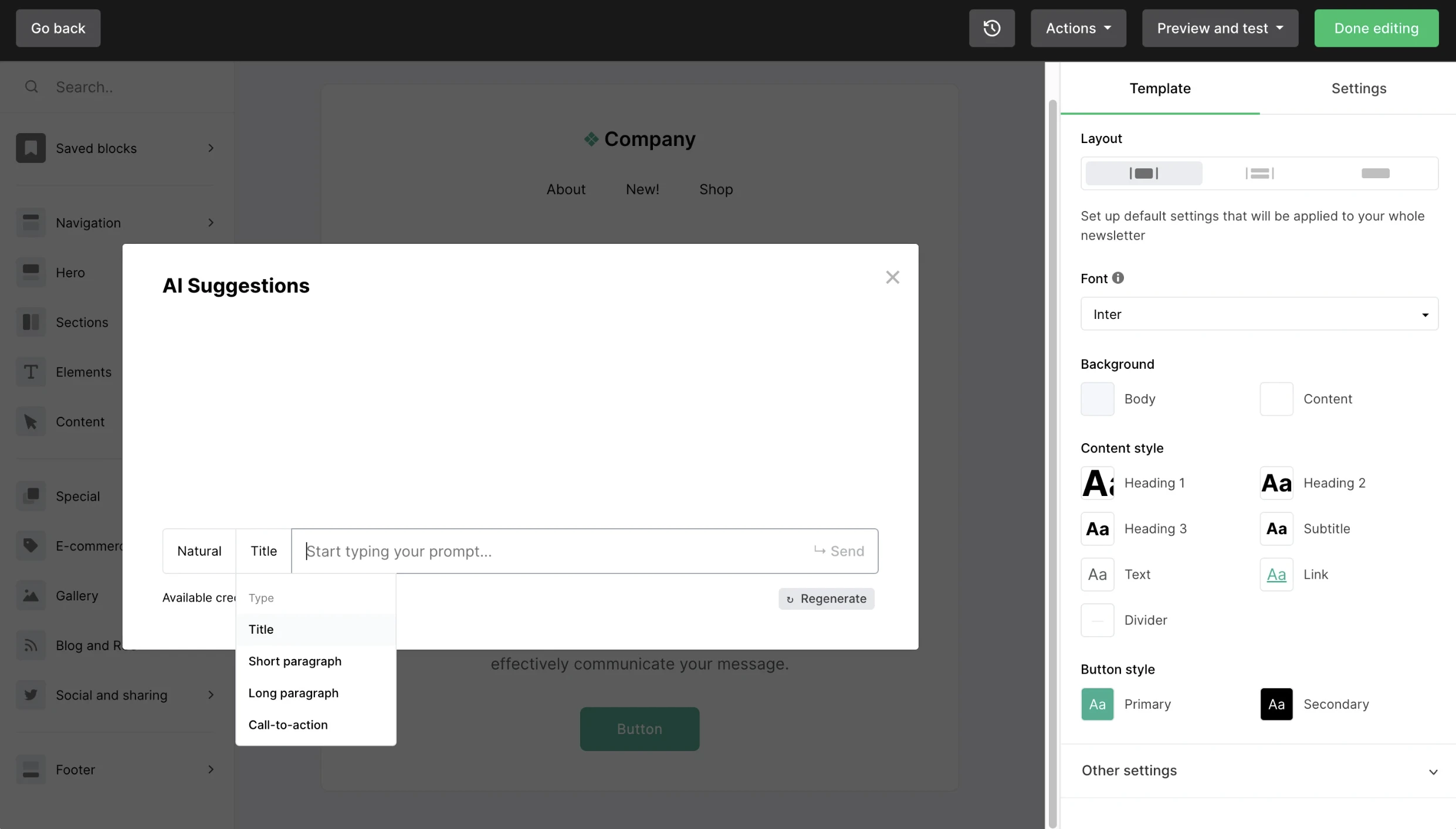
For the full walkthrough, including 16 example prompts, see How to use the AI writing assistant and write effective prompts.
AI subject line generator
The AI subject line generator creates multiple subject line options based on your campaign, helping boost your open rate and conversions. It's available directly on the Subject field of the Campaign details page.
To use it, click into the Subject field and cycle through the suggestions. You can choose one of the options or regenerate for more subject lines.
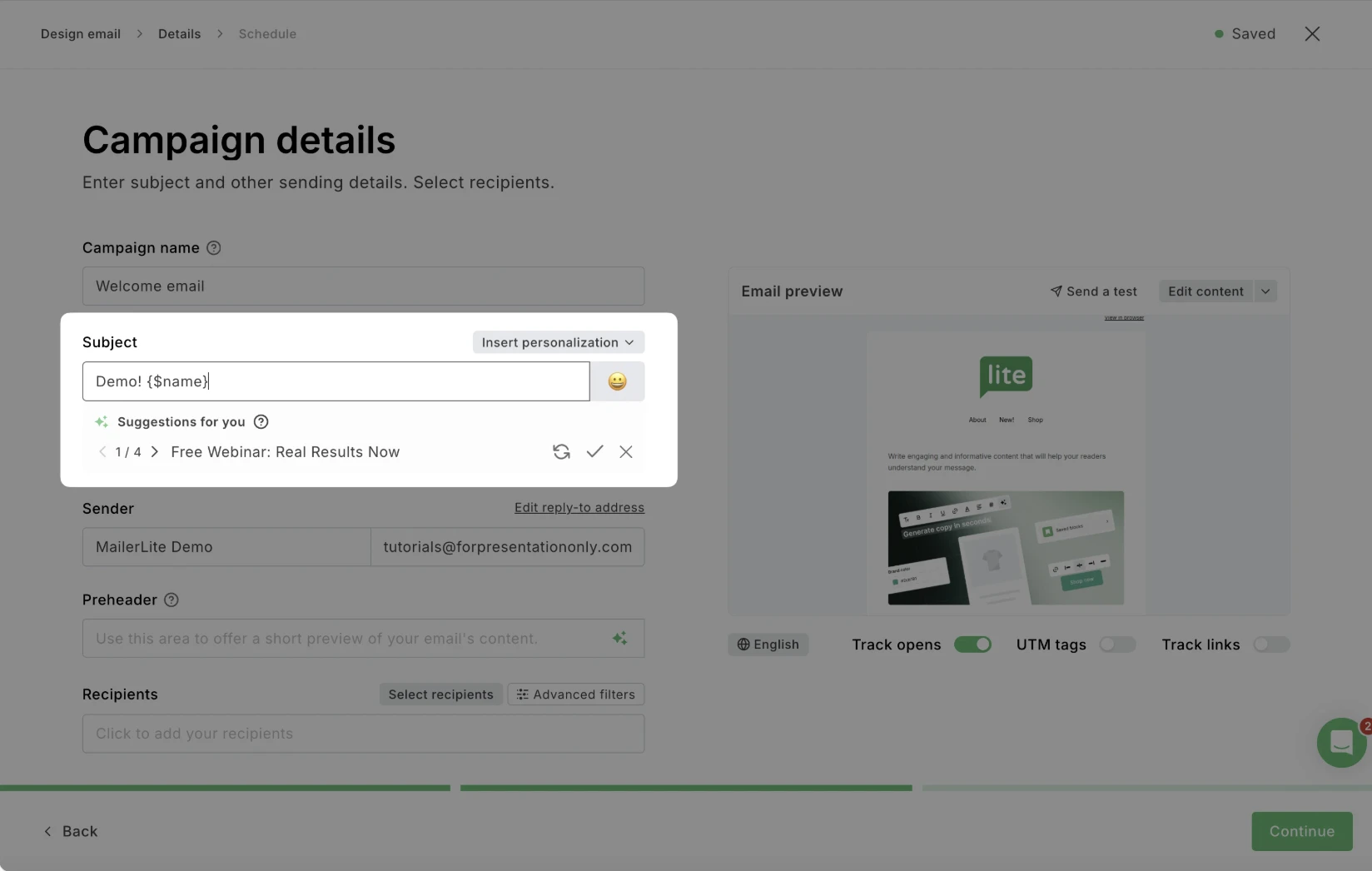
For step-by-step instructions, see AI subject line generator.
AI-generated HTML emails (Beta)
Available in the custom HTML editor, MailerLite's AI Agent can build an HTML campaign from a plain-English description or help make adjustments to your imported code.
To use it, start a new campaign in the Custom HTML editor, then select Generate email. Describe what you want and keep refining with follow-up instructions.
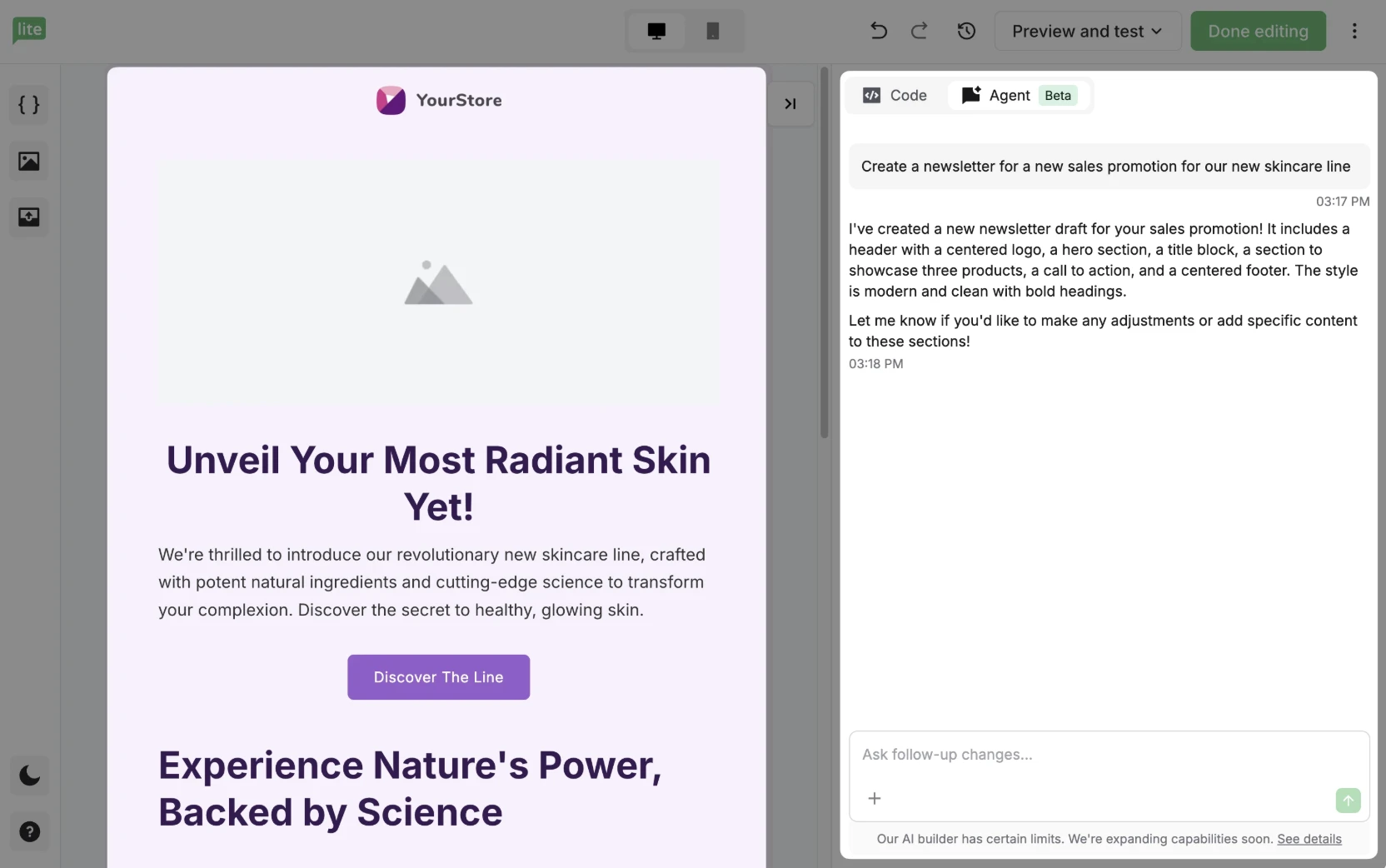
Note: The AI Agent doesn't yet support advanced components like quizzes, countdown timers, social feeds, surveys, etc. Treat it as a starting point rather than a finished campaign.
For the full walkthrough, check out: How to use the custom HTML editor.
AI-generated landing pages
MailerLite can generate multiple complete landing page options from a short questionnaire about your business and goals.
To use it, start creating a new landing page and choose Build with AI. Answer a few questions about your business and the page's goal, choose a style and tone of voice, and click Generate. Select your preferred design and keep customizing it to make the page your own.

For more details, see How to create a landing page.
Smart sending
Smart sending uses AI to analyze each subscriber's past clicks, opens, sign-up date, and time zone to send your campaign at the moment they're most likely to engage. Campaigns are delivered to subscribers at individually tailored times, boosting open rates.
To use it, create a Regular campaign and choose Smart sending on the Review and schedule step.
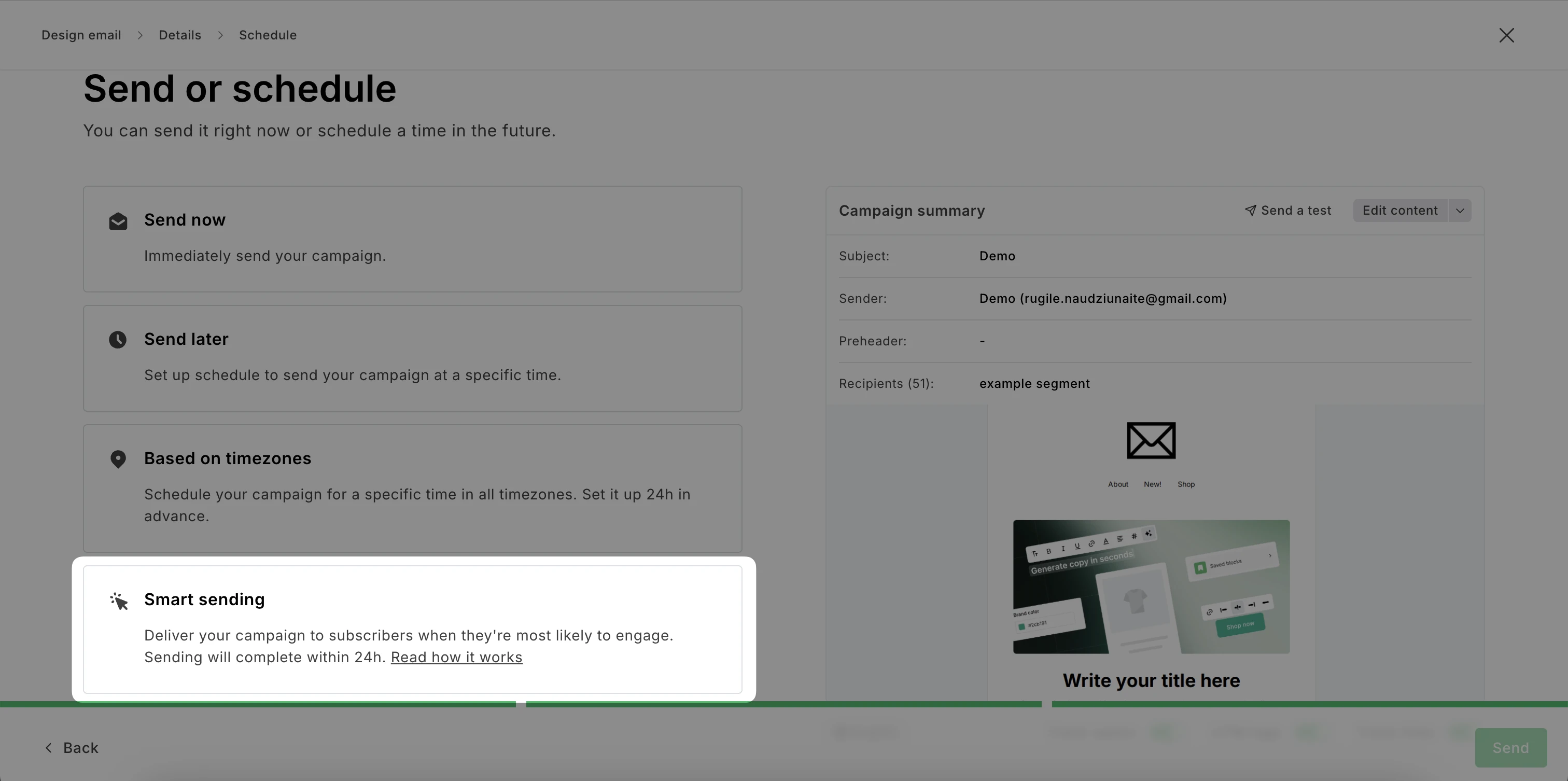
For the full walkthrough, check out Smart sending: How to send perfectly-timed emails.
HeyLite insights (Beta)
HeyLite insights are personalized recommendations that appear inside your MailerLite workspace to help you optimize your email marketing practices. Currently, they cover three areas: subscriber re-engagement, send time, and deliverability.
Re-engagement suggestion: Appears on your dashboard when a part of your list goes inactive. Use it to set up an inactive-subscriber group and a win-back automation automatically.
Send time suggestion: Comes up when your subscribers tend to open mail at different times. Use Smart sending to differentiate send times and improve your engagement.
Deliverability suggestion: Shown when scheduling a campaign or analyzing past sendouts. Use this recommendation to see if your emails are likely to land in the spam folder and catch issues like spam-trigger phrases, broken links or images, authentication problems, and HTML code issues.
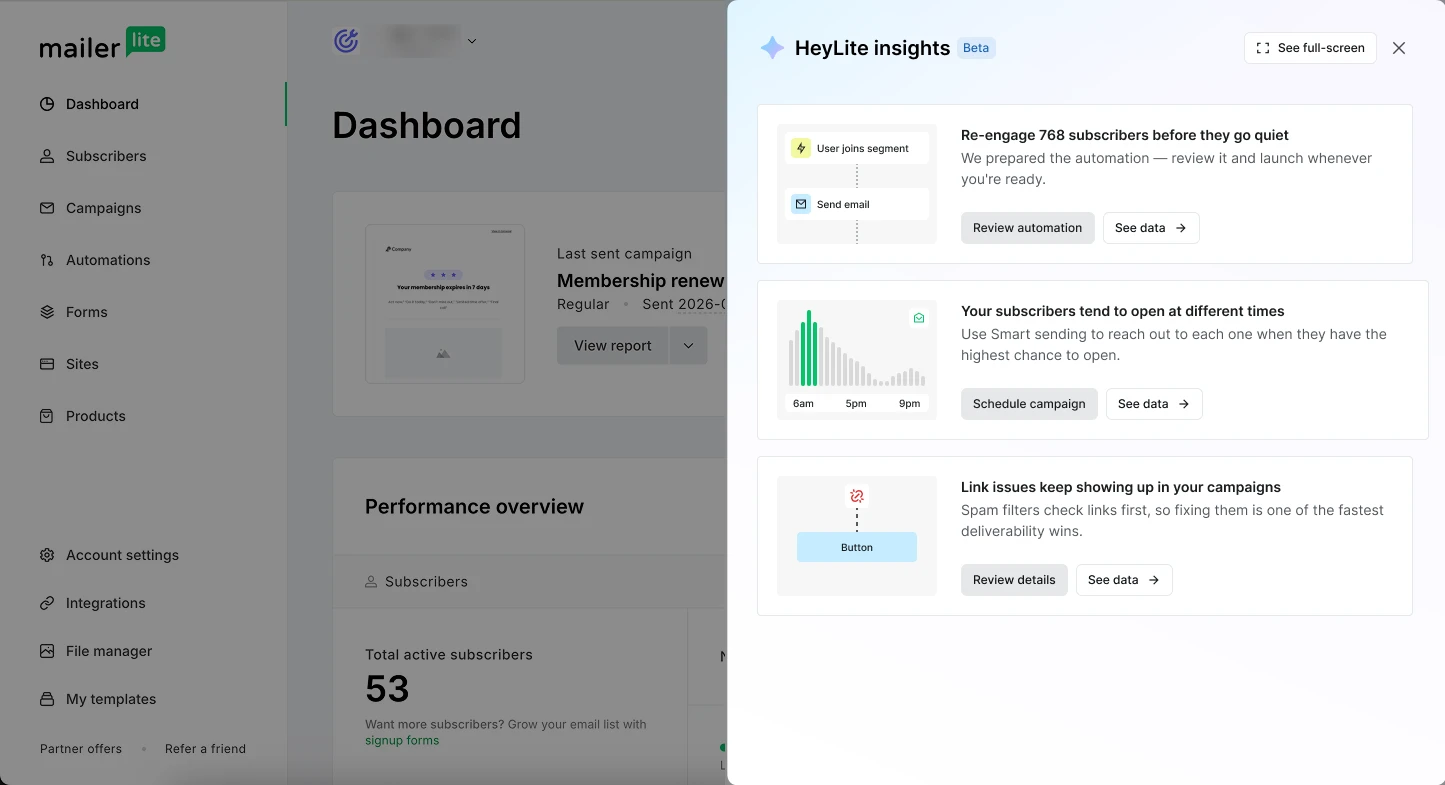
Note: HeyLite insights are currently in Beta and only available to a limited group of accounts. If you don't see them yet, they'll roll out more broadly over time.
For further details, see How to use HeyLite insights (Beta).
MCP server for AI tools like Claude and ChatGPT
MailerLite's MCP (Model Context Protocol) server lets external AI tools (such as Claude, ChatGPT, Cursor, etc.) connect directly to your MailerLite account and manage content on your behalf. Unlike the other tools on this page, which run inside MailerLite's own editor, the MCP server works inside the AI tool you choose.
Once connected, you can ask your AI assistant to do things like analyze your best-performing campaigns or draft a new automation, using plain-language prompts.
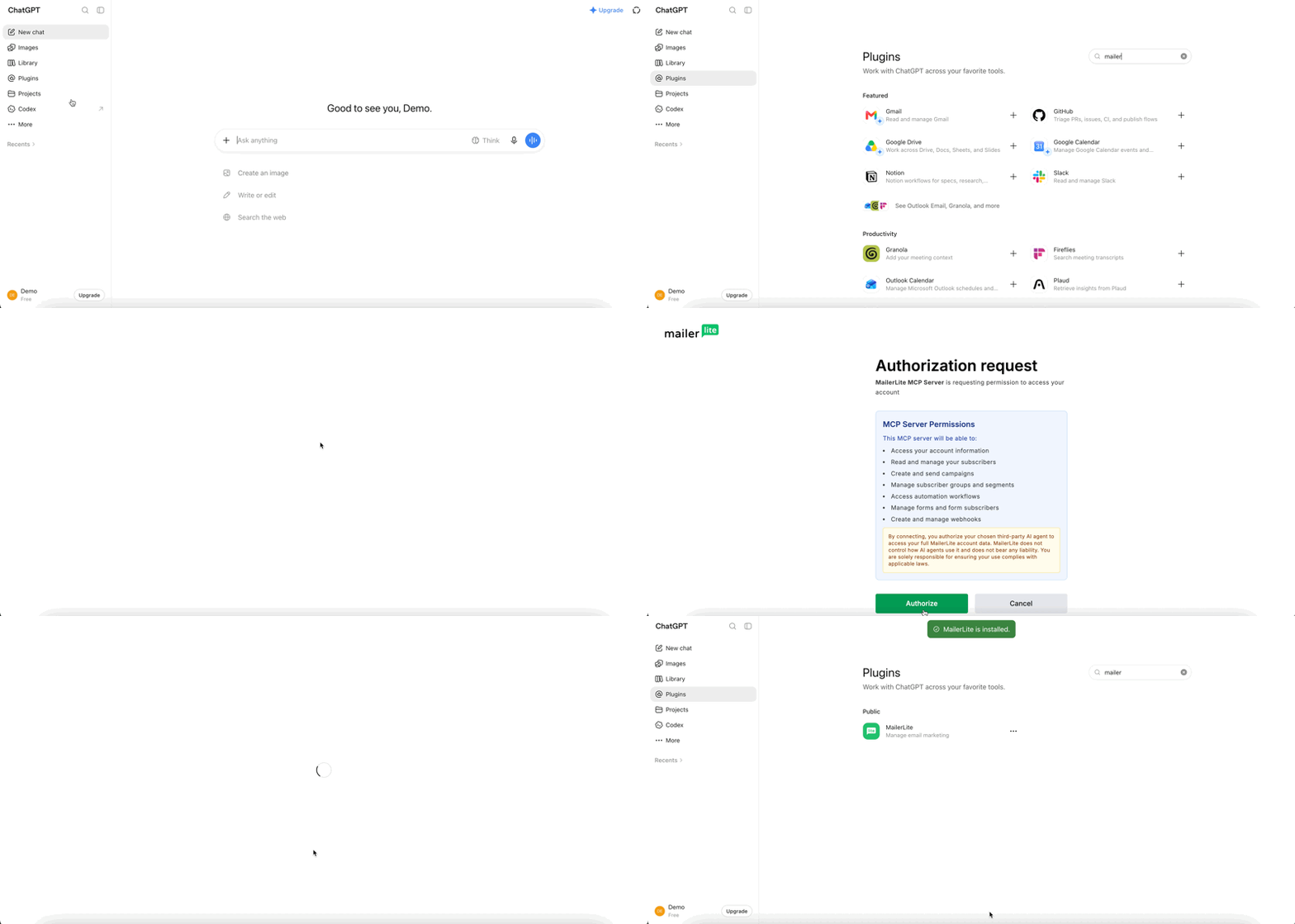
For setup instructions, see How to connect MailerLite's MCP with your AI tools.
Is my data used to train AI models?
Any data you process using MailerLite's AI features within your account will not be used to train the AI models of our partners, OpenAI and Google.
For the MCP server, MailerLite doesn't send your account data to any AI tool automatically. The connection only shares data with the specific AI tool you authorize, and only when you give it a command. The provider’s own terms and privacy policy govern the data handling, retention, and security once the data is received by them.
For more details, review our AI policy.