Note: If you're a Legacy (Classic) user, please log in to your account to access the dedicated Legacy (Classic) Help Center.
Subscriber notes are comments you can add to an individual subscriber’s profile. You can use subscriber notes to record context about a subscriber, like a support conversation or a special request, so the information is always attached to the right person.
💡 Keep in mind:
Subscriber notes differ from custom fields. Custom fields store structured data used for audience segmentation and personalization; subscriber notes are internal comments kept for your reference only.
How to add notes to a subscriber’s profile
You can add subscriber notes manually to any subscriber’s profile. To add a note:
Go to the Subscribers page.
Click the email address of the subscriber you want to add a note to. This will open the subscriber profile.
Go to the Notes tab.
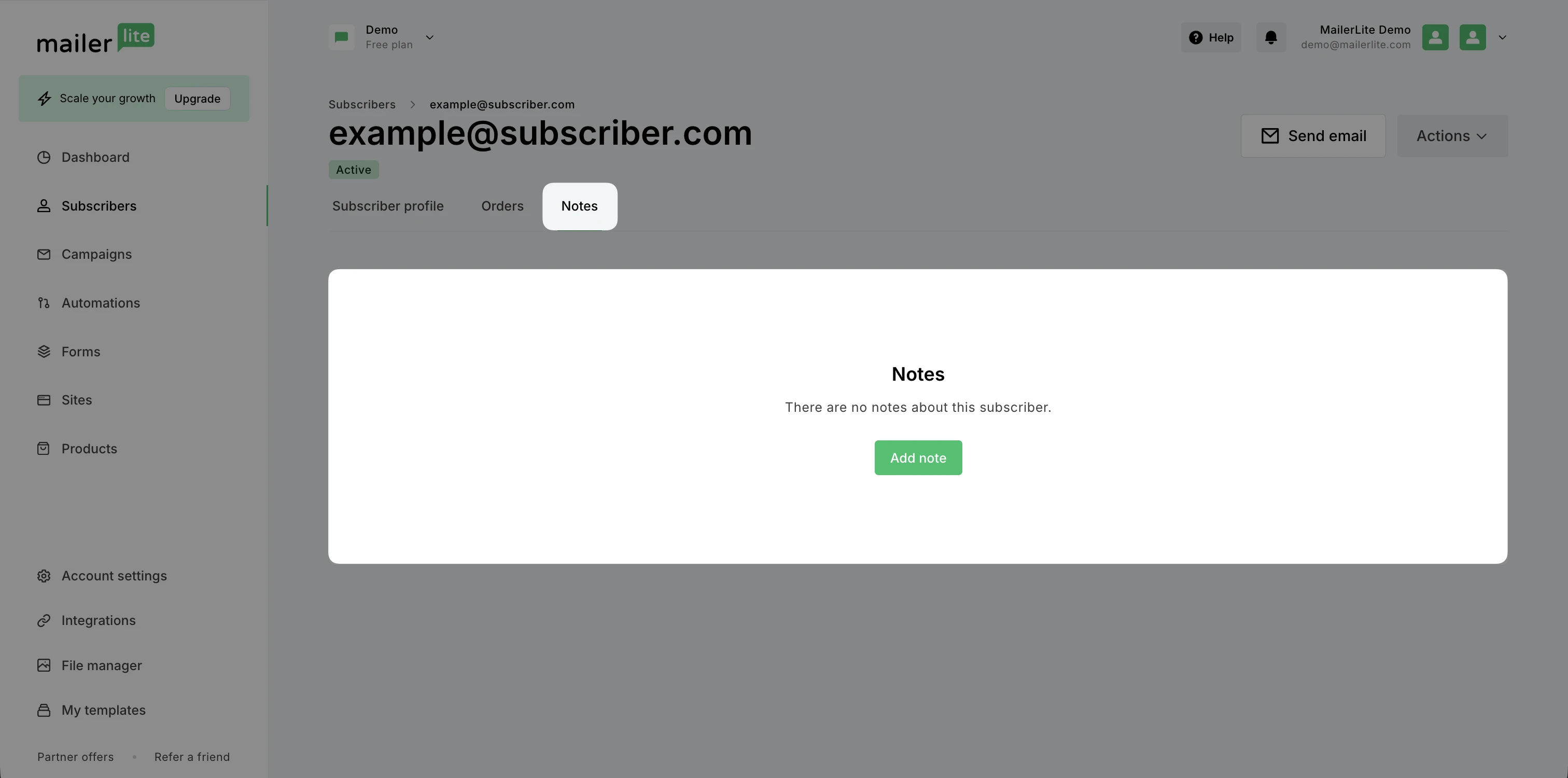
Click Add note.
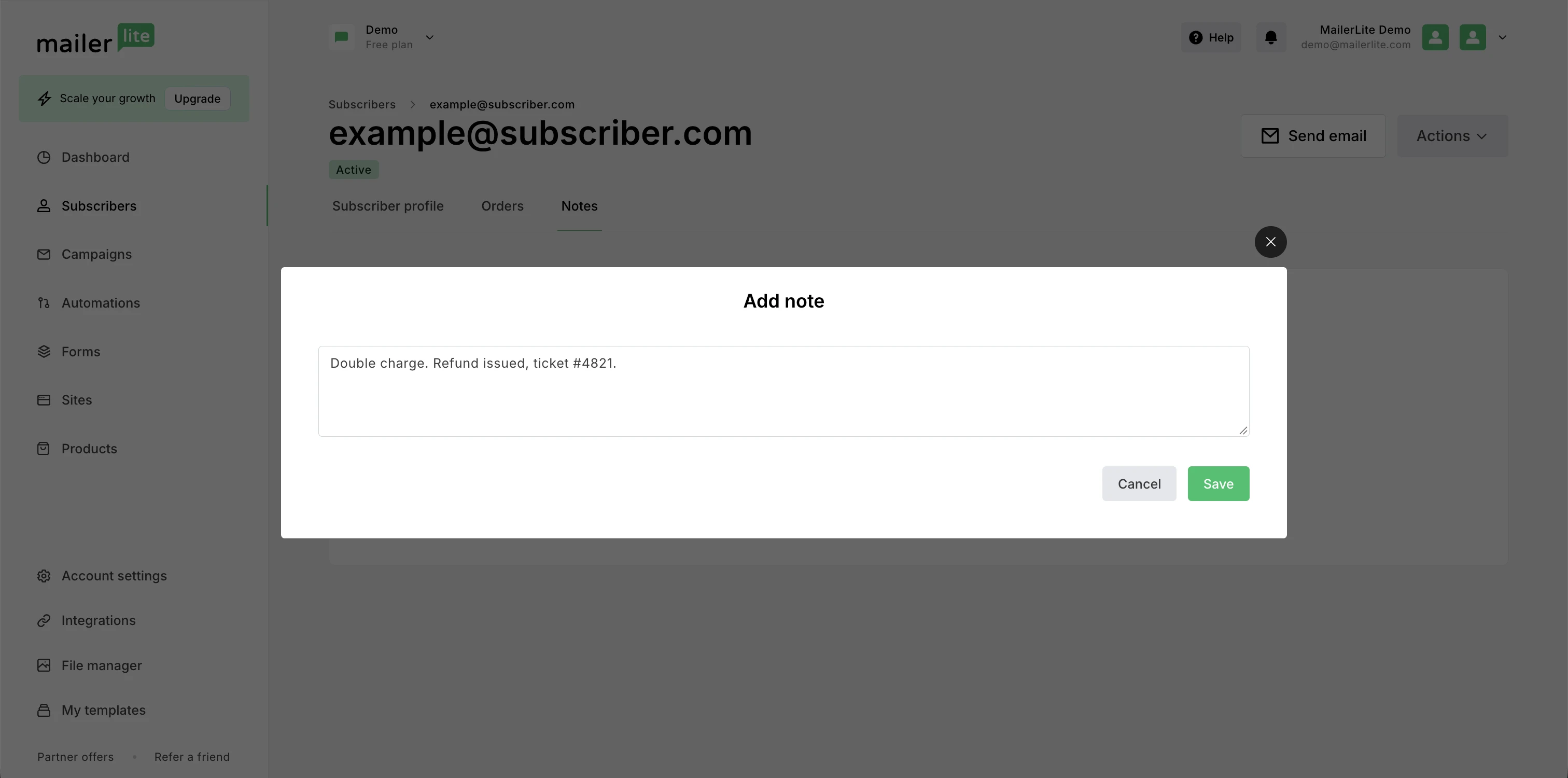
Type in your note and click Save.
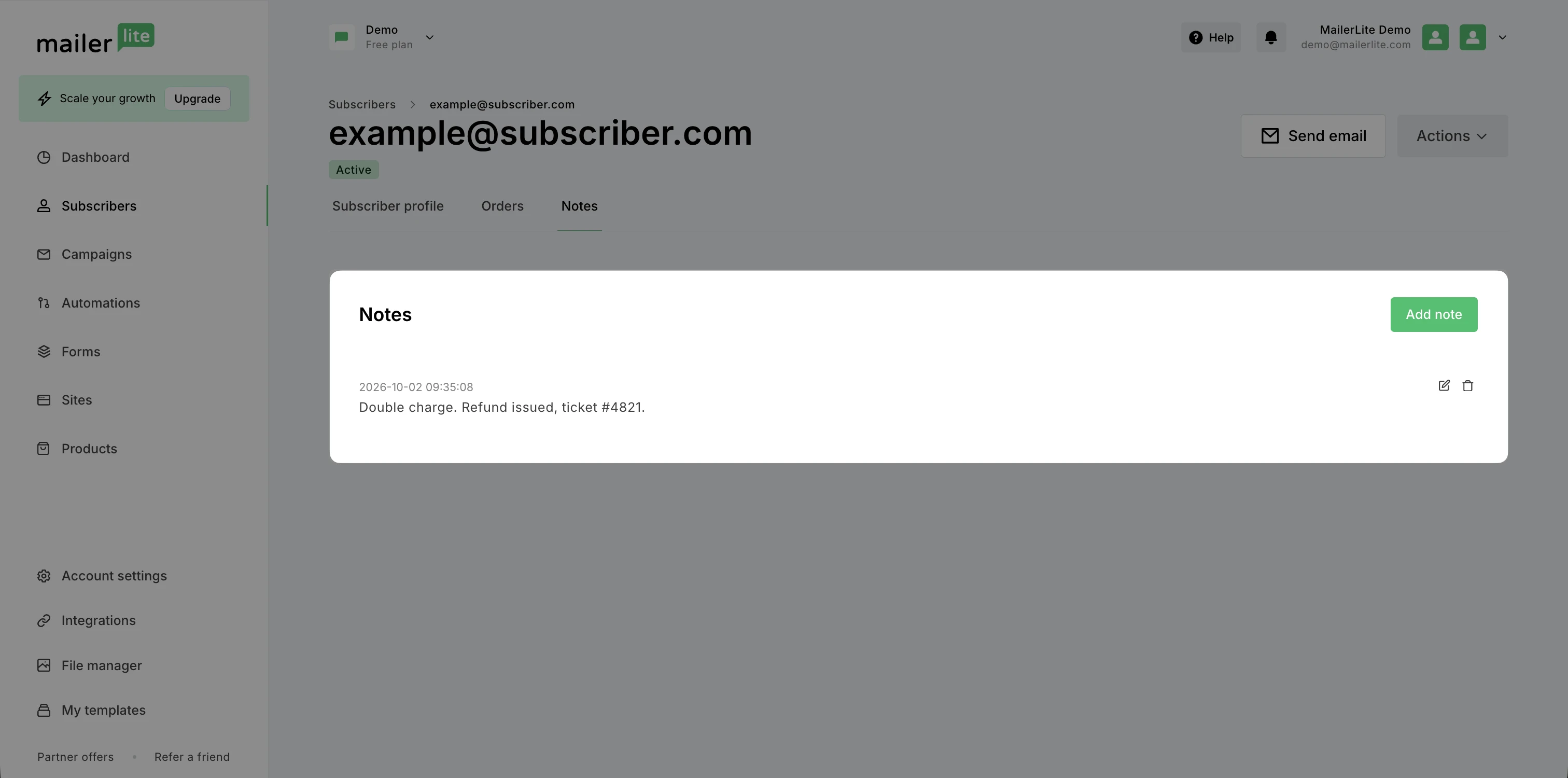
The subscriber note will appear with the date and time it was added. You can add as many notes as you need, and each note will be listed separately with its own timestamp.
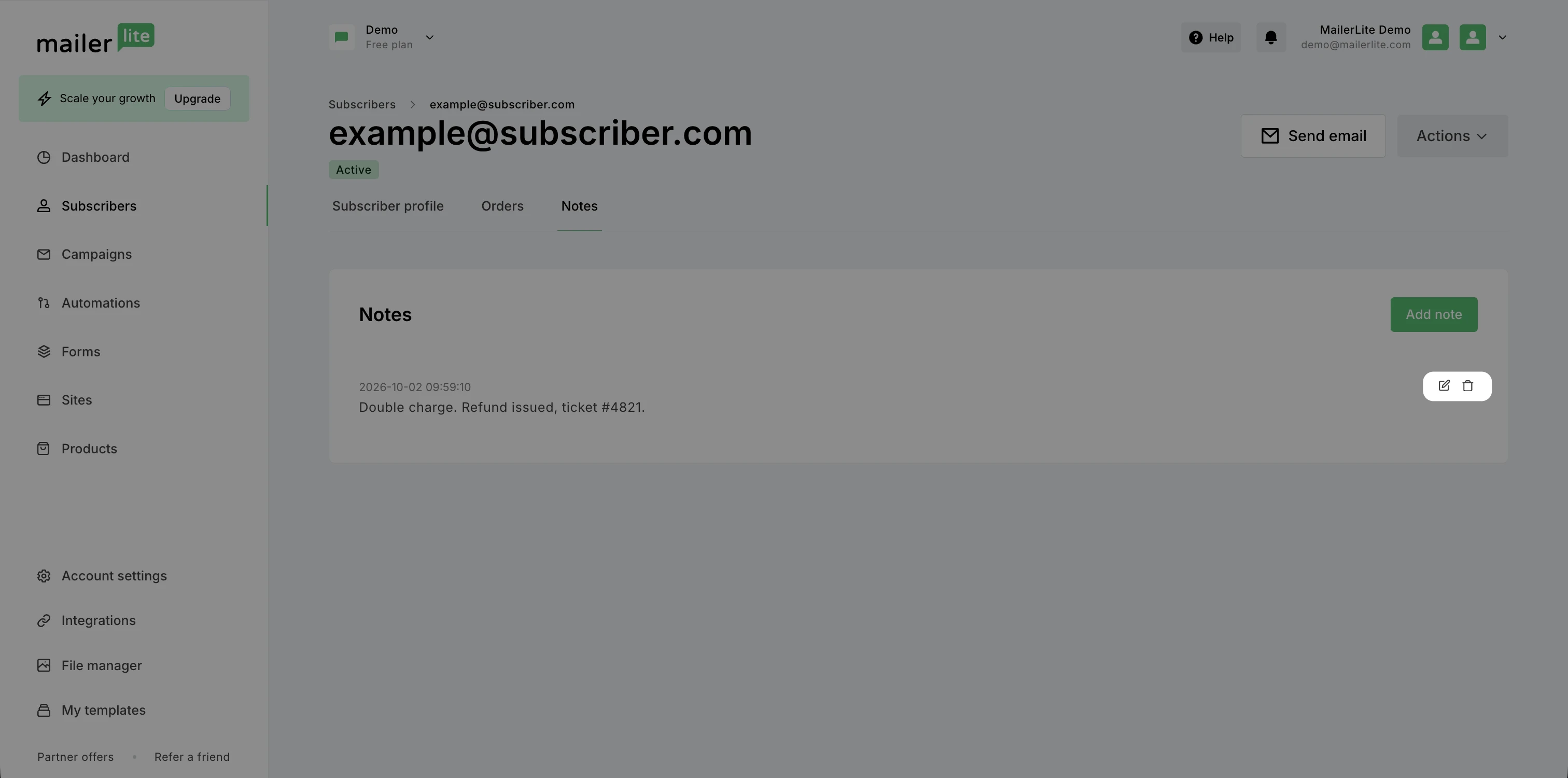
To edit or delete a note, click the corresponding icons next to the note:
How to add notes in bulk via subscriber import
copying/pasting from Excel. During import, the column that contains your notes gets matched to subscriber notes and added to the Notes section of each subscriber’s profile.
To add subscriber notes during an import:
Prepare your file with a column titled Notes (Comments or Remarks would also work). Put each subscriber’s note in the same row as their email address.
Navigate to the Subscribers page.
Click Add subscribers.
Choose your import method:
- Import from a CSV or TXT file: upload your file.
- Copy/paste from Excel: paste your data into the field.Click Import subscribers.
On the Import settings page, choose the group(s) you want to add your subscribers to.
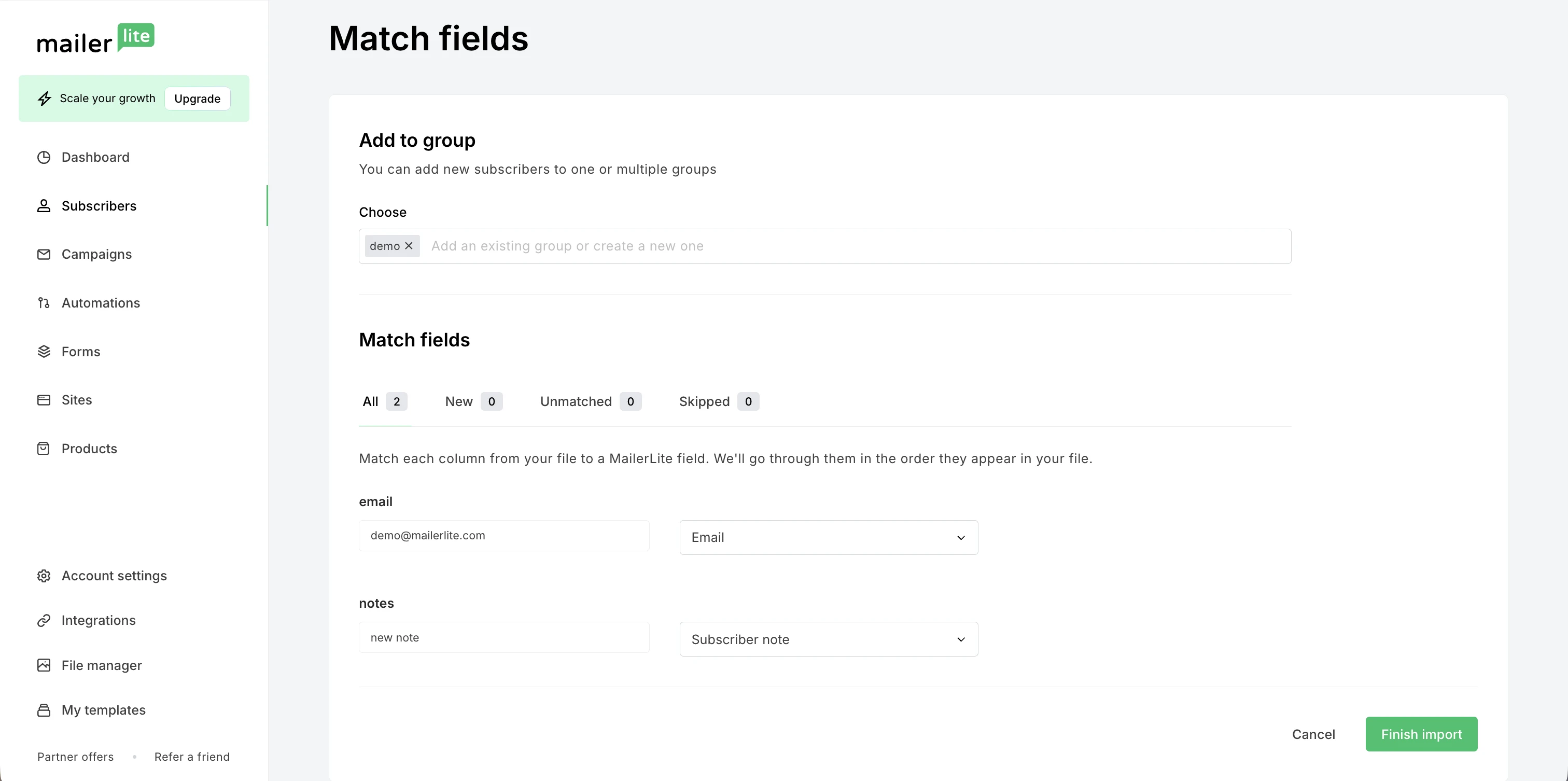
In the field-matching step, make sure the column that contains your notes is matched to Subscriber notes.
Review your remaining columns and click Finish import.
You’re all set! For more on preparing files and matching fields, see How to import subscribers.