2 new email editors: Cleaner writing, smarter coding

 Betania, Customer support
Every email creator works differently, so we've built 2 new editors to match.
Some want to write emails the way they'd write a personal note. Open the editor, type or paste in a draft, hit send. No templates. No design choices. Just the words.
Others want full control of the code. They'd happily build a campaign from scratch, but get frustrated flipping between their editor, ChatGPT, a Stack Overflow tab from 2014, and a Canva export that refuses to import cleanly.
Today, we're launching two new builders designed exactly for these moments—the Simple editor and the Custom HTML editor. 🎉
Your 2 new email editors at a glance
Simple editor:
A distraction-free, Notion-style writing environment that replaces our legacy Rich-Text Editor
Copy and paste from Notion, Google Docs, or any AI tool. Your formatting survives the journey
Available on all plans
Custom HTML editor with integrated AI agent:
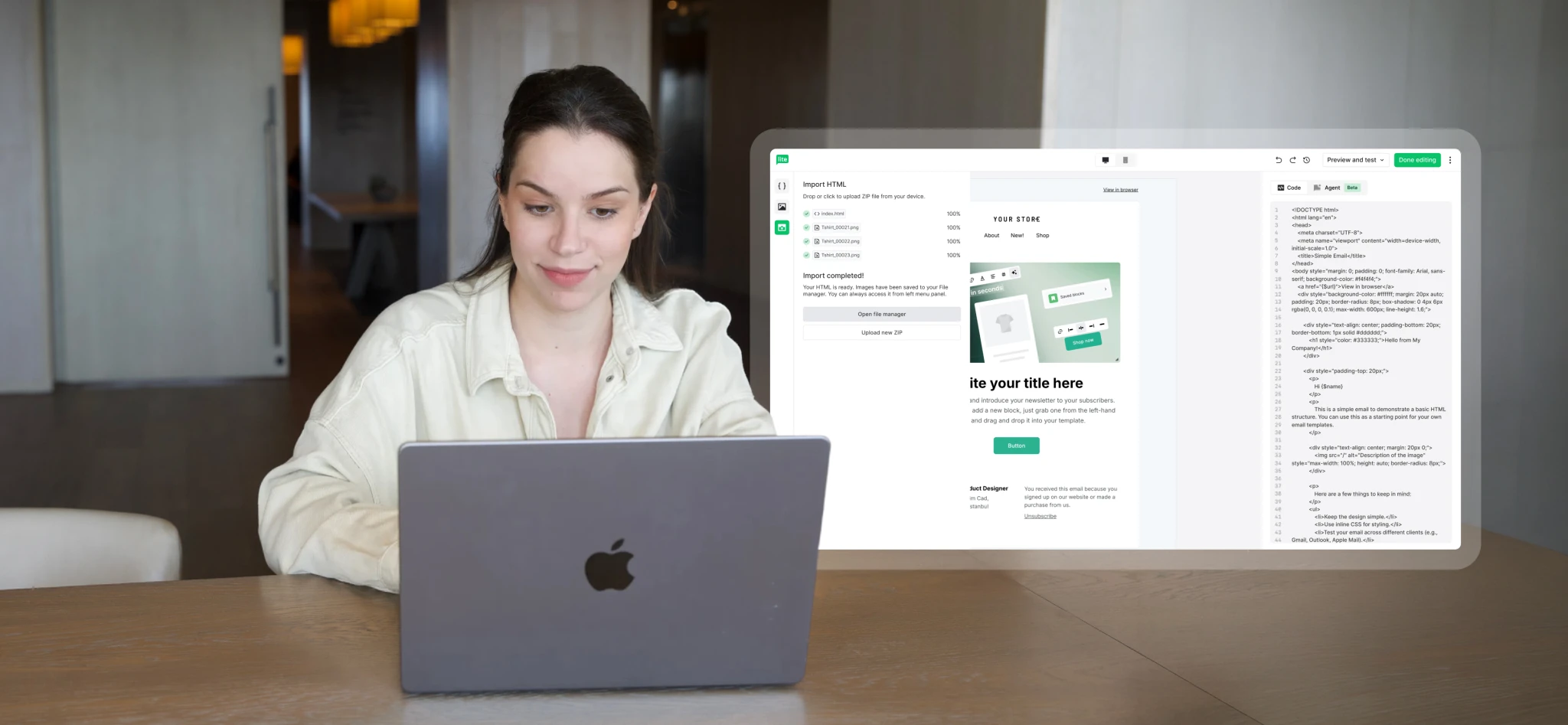
A rebuilt code editor with live preview, syntax highlighting, real-time validation, and an AI agent you can talk to in plain English
Drag and drop ZIP files from Canva (now up to 10MB) and watch your design transfer seamlessly
Available on all plans
Both email builders are designed around one idea: getting out of your way and letting you create. 🤗
What's new in each email editor?
The 2 new email editors are built around a common principle: strip away the friction, keep what matters, and build for the way you actually work. Let’s take a look at their functionalities:
The Simple editor
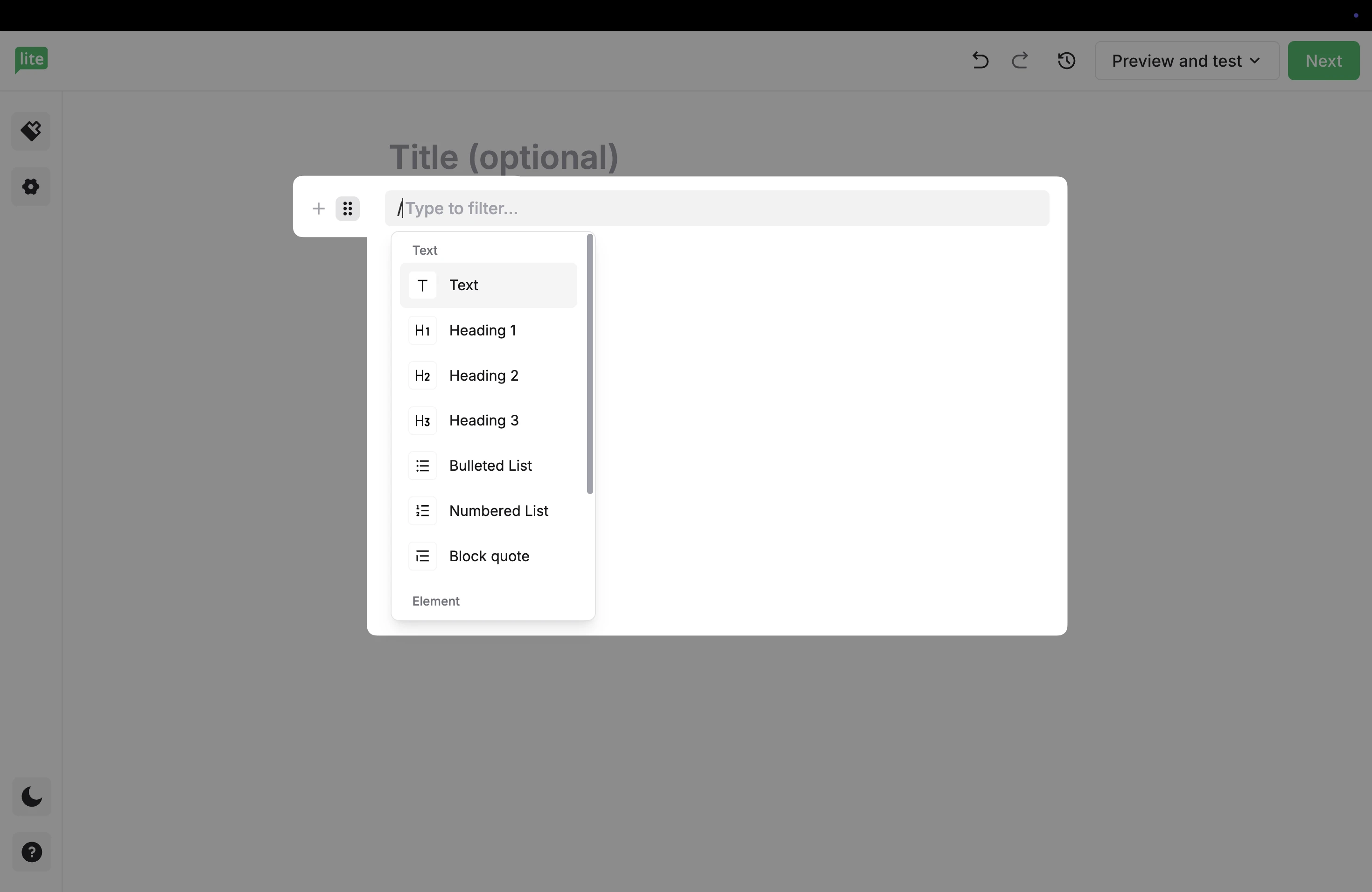
The new Simple editor is for the writers: the founders, solopreneurs, artists, and newsletter creators who want to send something that feels like it came from a real person, not a marketing department.
It replaces our legacy Rich-Text Editor. The new editor is faster, cleaner, and optimized for a focused writing experience.
Here's what's new:
Copy-paste with the formatting intact: Paste from Google Docs, Notion, Apple Notes, or any AI tool, and your formatting comes with you. Bold stays bold. Lists stay lists. Links stay clickable
A clean, single-column canvas: One column, plenty of white space, no clutter competing for attention
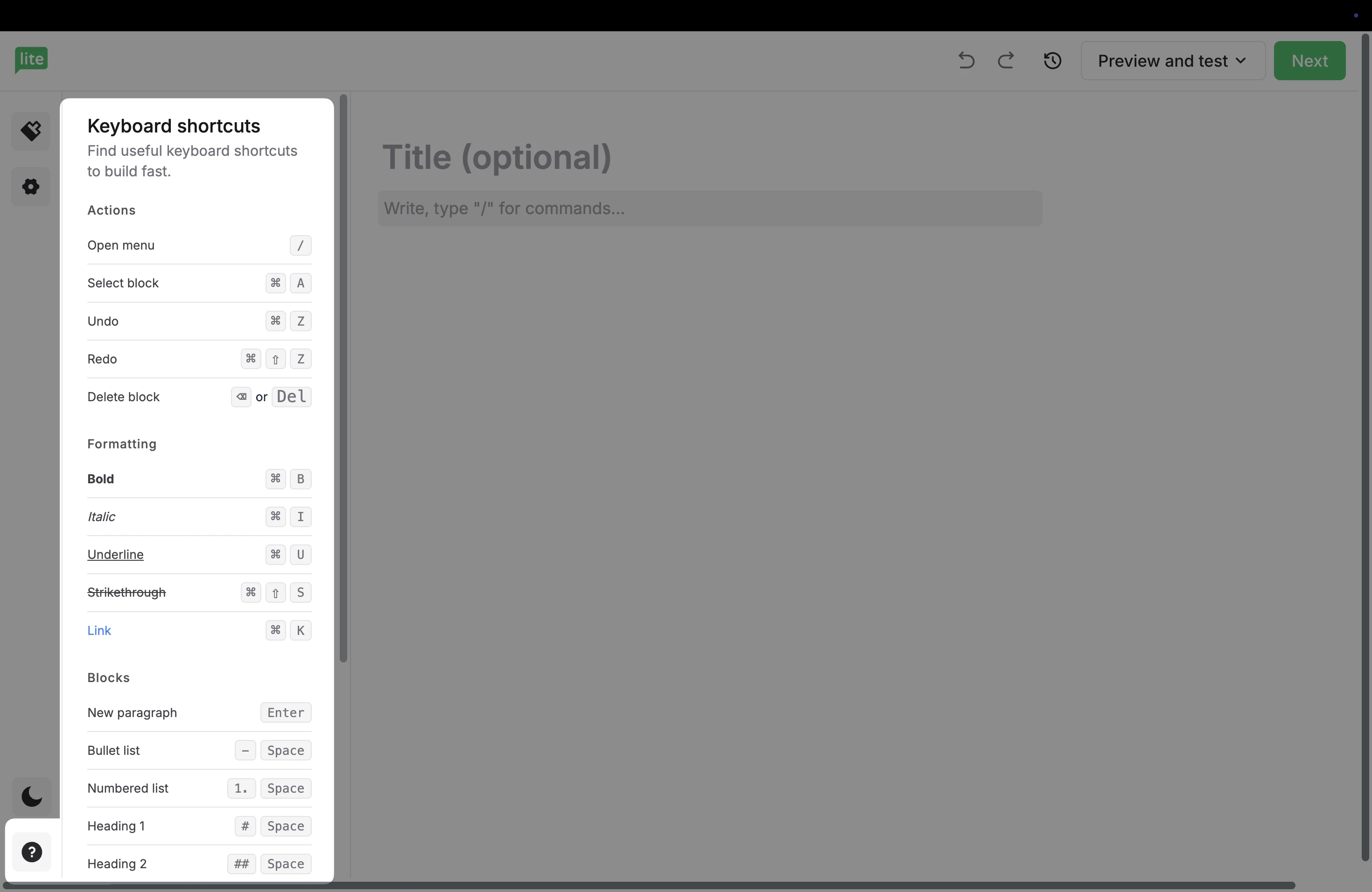
Familiar shortcuts and Markdown: Go to the ? at the bottom-left of your dashboard for the full list of shortcuts and Markdown commands you can use
Easy formatting: Includes bold, italic, underline, strikethrough, lists, block quotes, dividers, buttons, hyperlinks, images, and variables for personalization
Insert anything in seconds: Hit + on the left-hand side or / and scroll down to Element to drop in an image, divider, button, or variable
Instant autosave: Your work is saved as you type. Undo and redo within your session
Note: We've kept this first release intentionally lean, so you won’t find any video blocks, tables, or AI writing features yet. This editor replaces our legacy Rich-Text Editor and lays the foundation for everything coming next. It’s built to grow with you. 😊
The new Custom HTML editor and AI agent
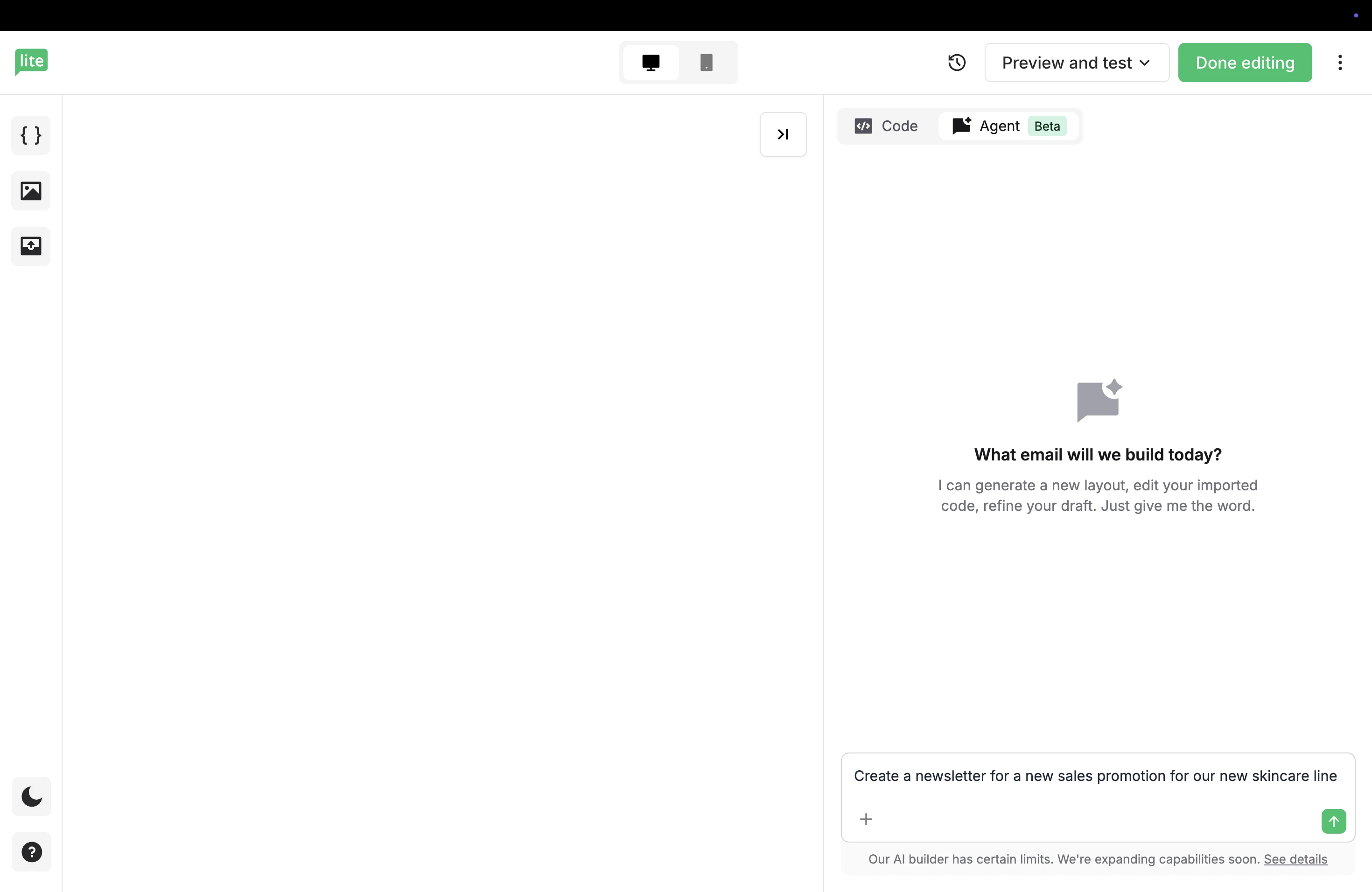
The new Custom HTML editor is for those who want full control of the code (and probably have strong opinions about tabs vs spaces 😉).
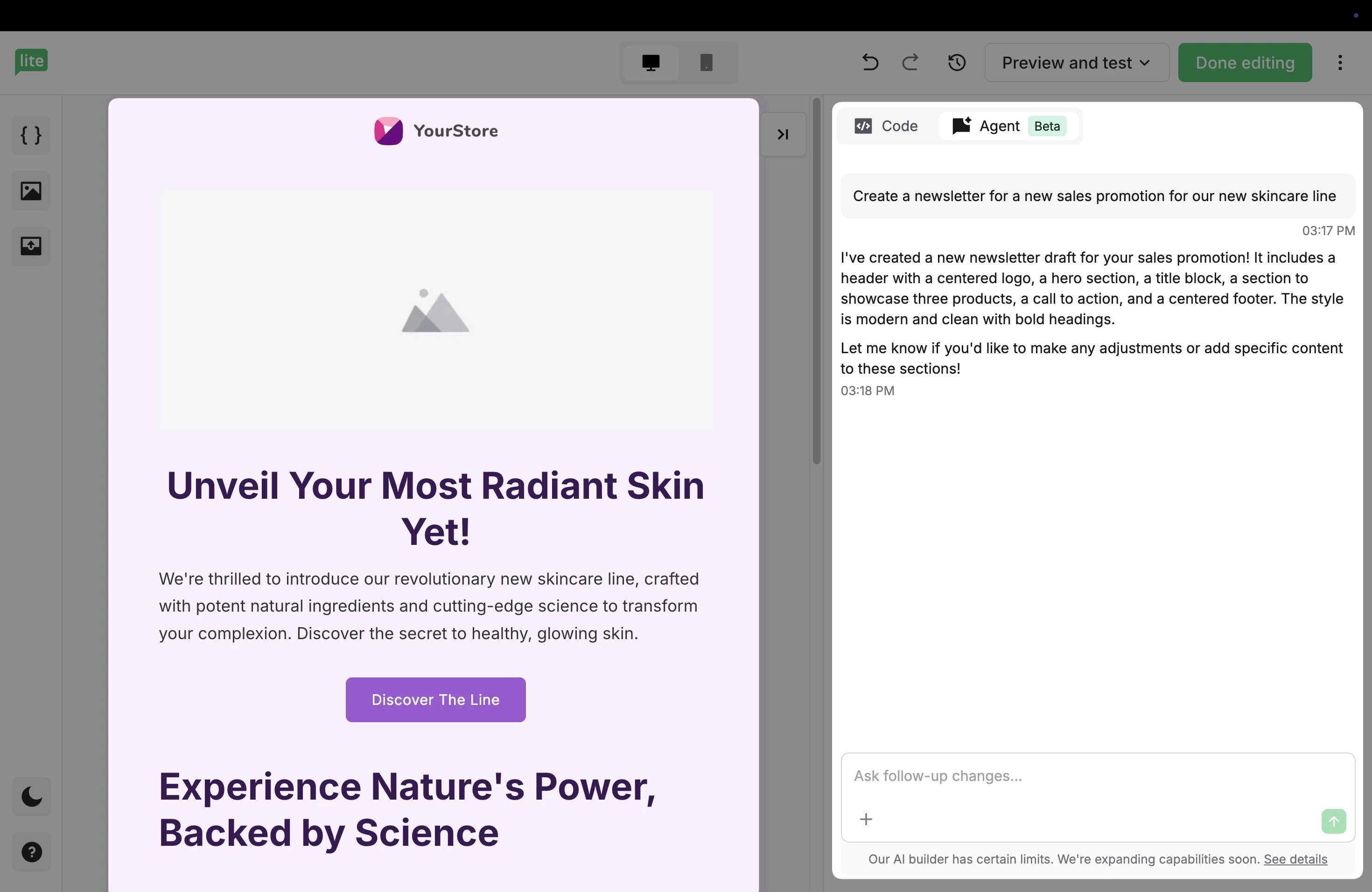
We've rebuilt it from the ground up with a cleaner UI, proper code tooling, and—for the first time— an integrated AI agent that lives inside the editor.
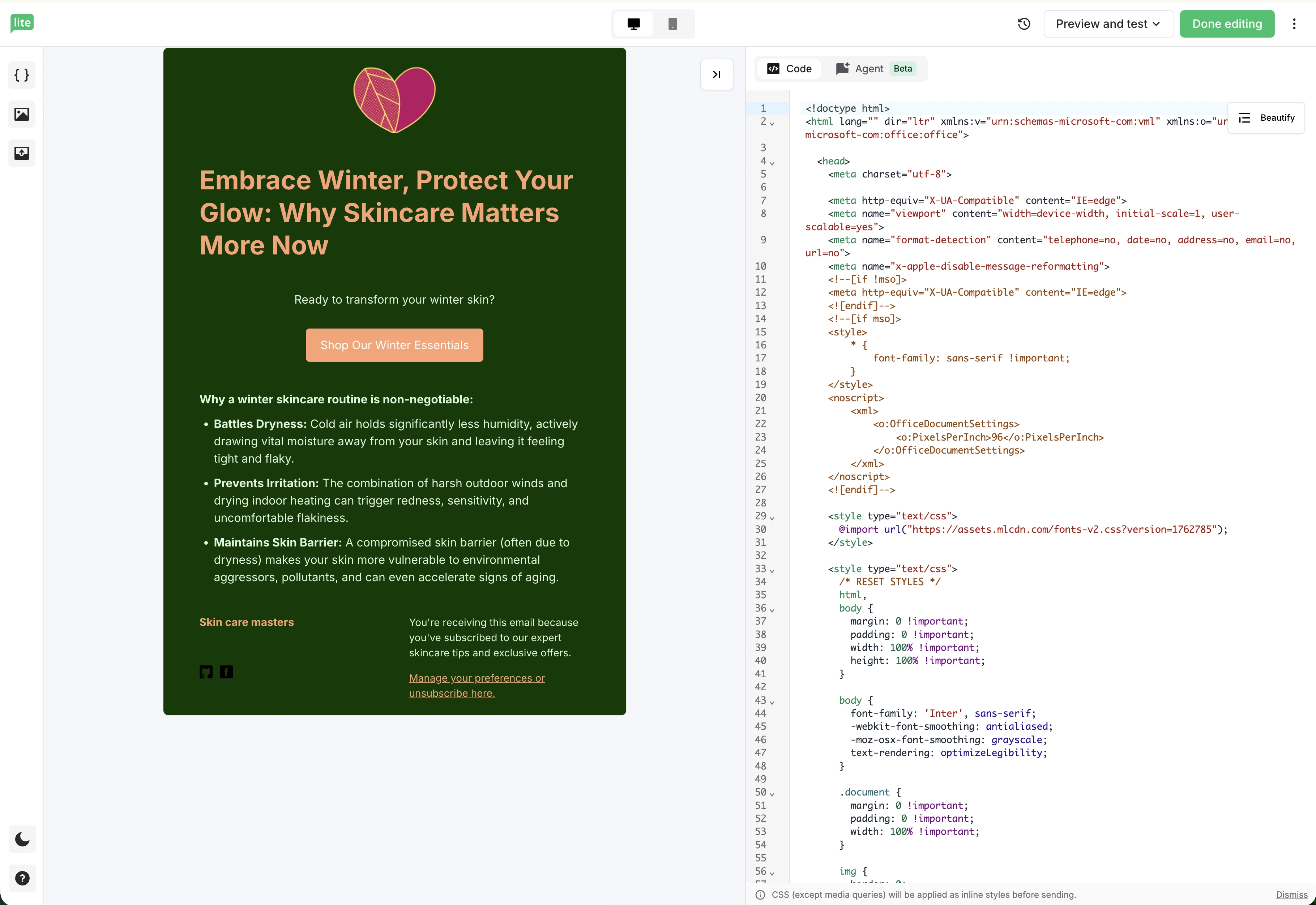
Here's what's new:
Live preview: See exactly how your email looks as you write
Syntax highlighting: Your code is finally readable
Real-time code validation: Catch errors as you go, not after you hit send
Search and replace: For those big find-and-fix jobs
One-click code formatting: Beautify messy code instantly
CSS inlining by default: No more toggling it on; it just happens when you save
Easy email HTML imports: Drag and drop ZIP files from Canva or other tools, and watch as your design and images are automatically processed and ready to use. We now allow up to 10MB ZIP imports which covers most Canva exports
An AI agent inside the editor: Describe what you want in plain English and the AI agent writes the HTML
Two ways to work: Switch between writing code manually or chatting with an AI agent
3 ways to get started with the Simple editor
You can use the Simple editor for any text-led email, but here are 3 workflows where it really shines:
1. Draft a founder's weekly update
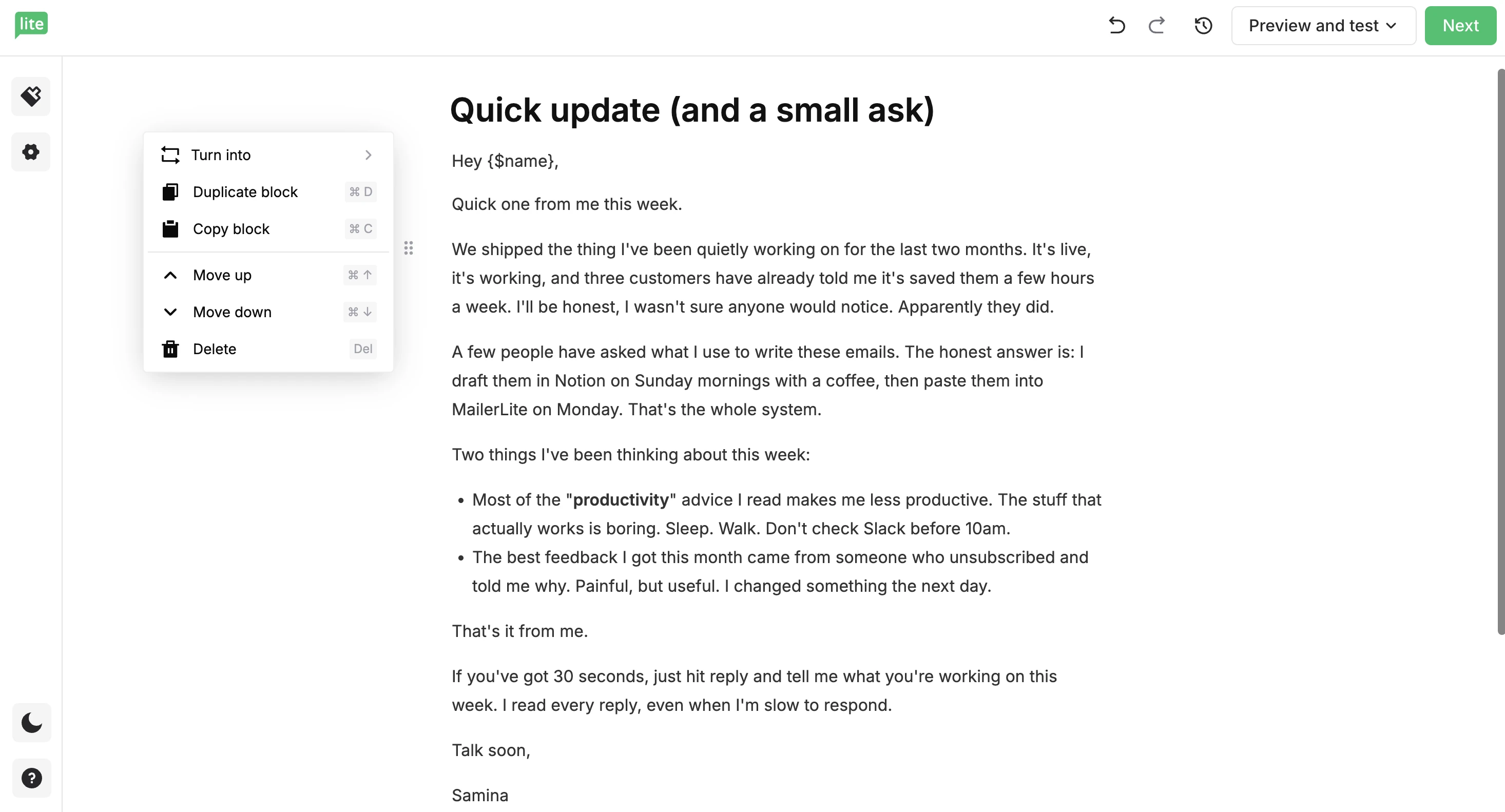
Build deep trust by sending a minimalist, text-first update. Draft your update in your favorite writing app, paste it in, and add a Variable like {$name} to keep it personal.
If you've migrated from a creator-focused newsletter platform, this part will feel familiar. What's different in MailerLite is everything around it.
You're doing it inside a full email platform, with automation, segmentation, and analytics tools underneath.
So, the personal email you just wrote can also trigger a paid-subscription nudge a week later.
2. Create a multi-part educational mini-course

Delivering a free email course is one of the most reliable ways to grow a list and warm up new subscribers, but a heavy template can make a "lesson" feel like a sales pitch.
The Simple editor strips that distraction out. Your teaching takes center stage, the way it would in a Notion doc or a textbook chapter.
Use the / command to drop in a Header for each lesson, format your steps as a numbered or bulleted list, and add a Button block at the end to link to the next lesson, a worksheet, a paid course, or a consultation call upgrade.
Pair it with an automation to schedule the whole sequence to drip out over a week or a month, and you've turned a one-off email into an evergreen growth engine.
3. Build a curation newsletter
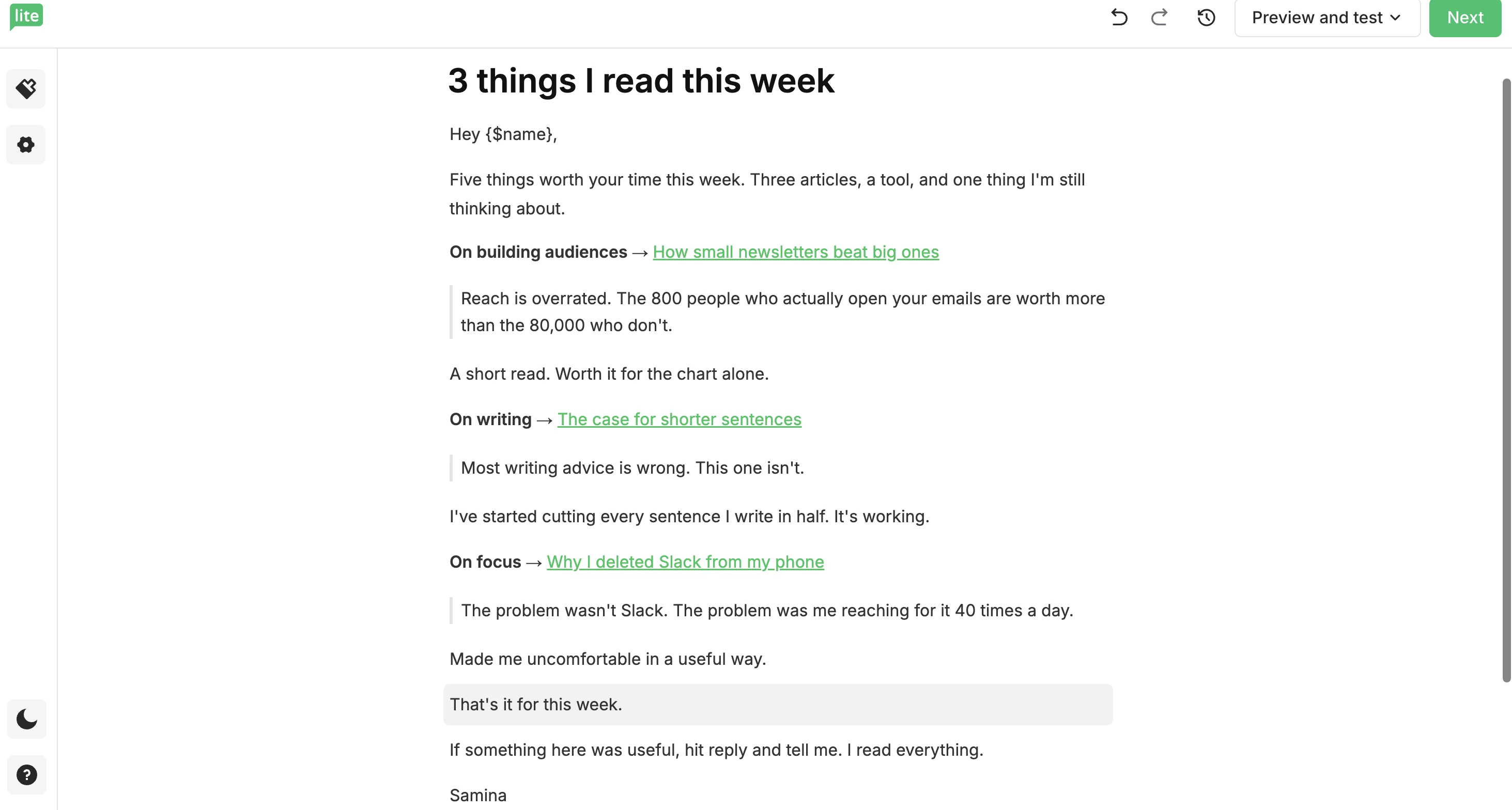
"X things I read this week" is a format that's built audiences for many from solo creators to industry analysts. It works because the value is the curation, not the design.
Pasting your draft from a notes app or a Google doc keeps your formatting intact, so you spend your time on the editorial judgement that makes people open your emails.
3 ways to use the Custom HTML editor and AI agent
The Custom HTML editor isn't just for developers or coders. With the AI agent as its sidekick, the door's open to anyone who can describe what they want clearly.
Here are 3 workflows where the new setup pays off:
1. Speed up the parts of email coding that eat your hours
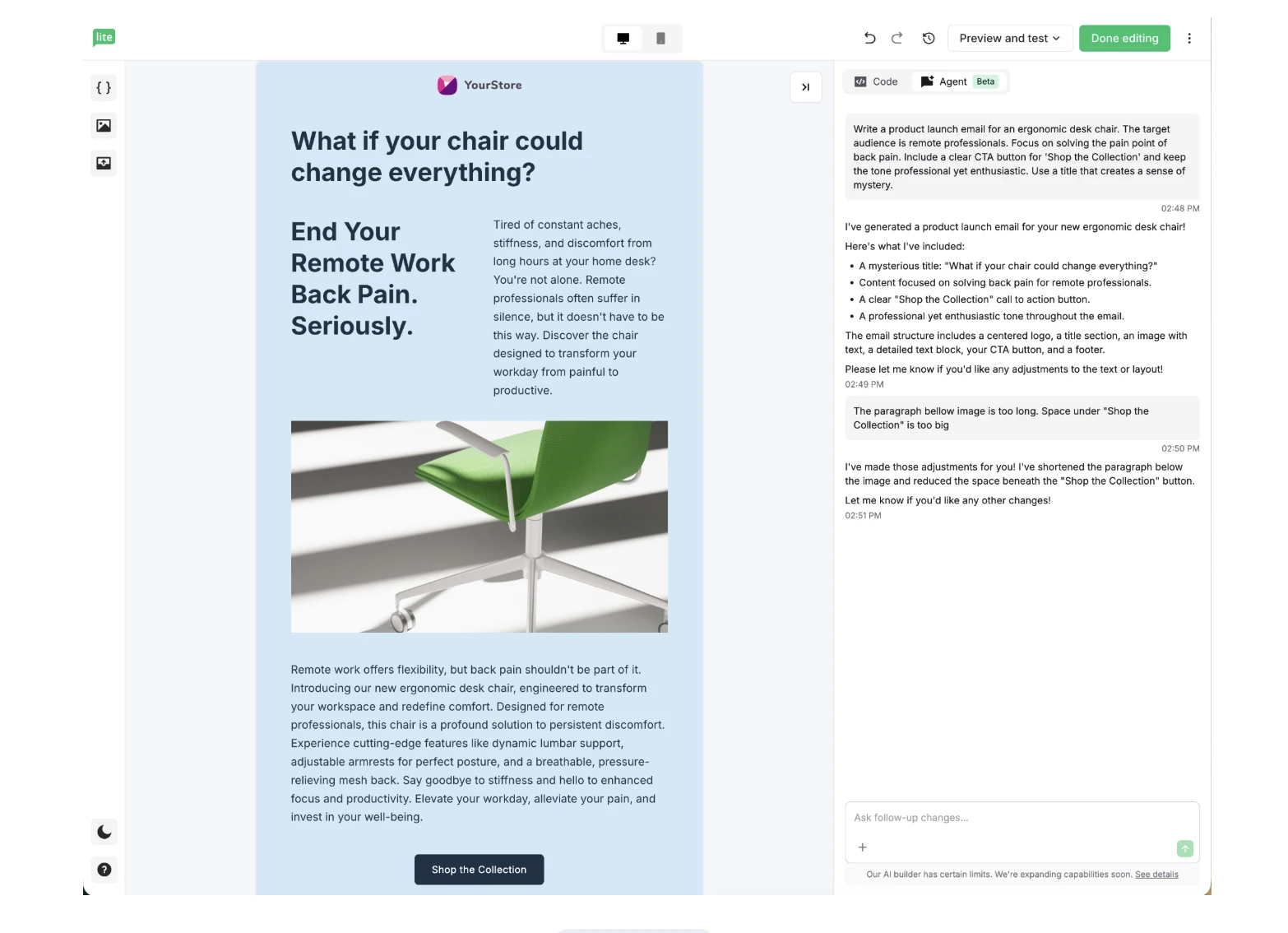
You know the parts of email development that eat your time—bulletproof button markup, CSS that works in Outlook, dark mode fallbacks, alt text on every image. The AI-agent handles the boilerplate so you can focus on the parts that need your judgment.
For example, "Add a responsive hero with a 600px max-width, dark background, and a centered CTA button," or, "Check this code for missing alt text, broken tags, and accessibility issues." And you’re done! ✨
The AI-agent handles the tedious-but-necessary stuff, so you stay in control of structure and creative direction.
Note: The agent handles standard email layouts beautifully. But for richly interactive components like quizzes, countdowns, or surveys, our drag & drop email editor is the better tool.
2. Go from Canva to campaign in minutes!
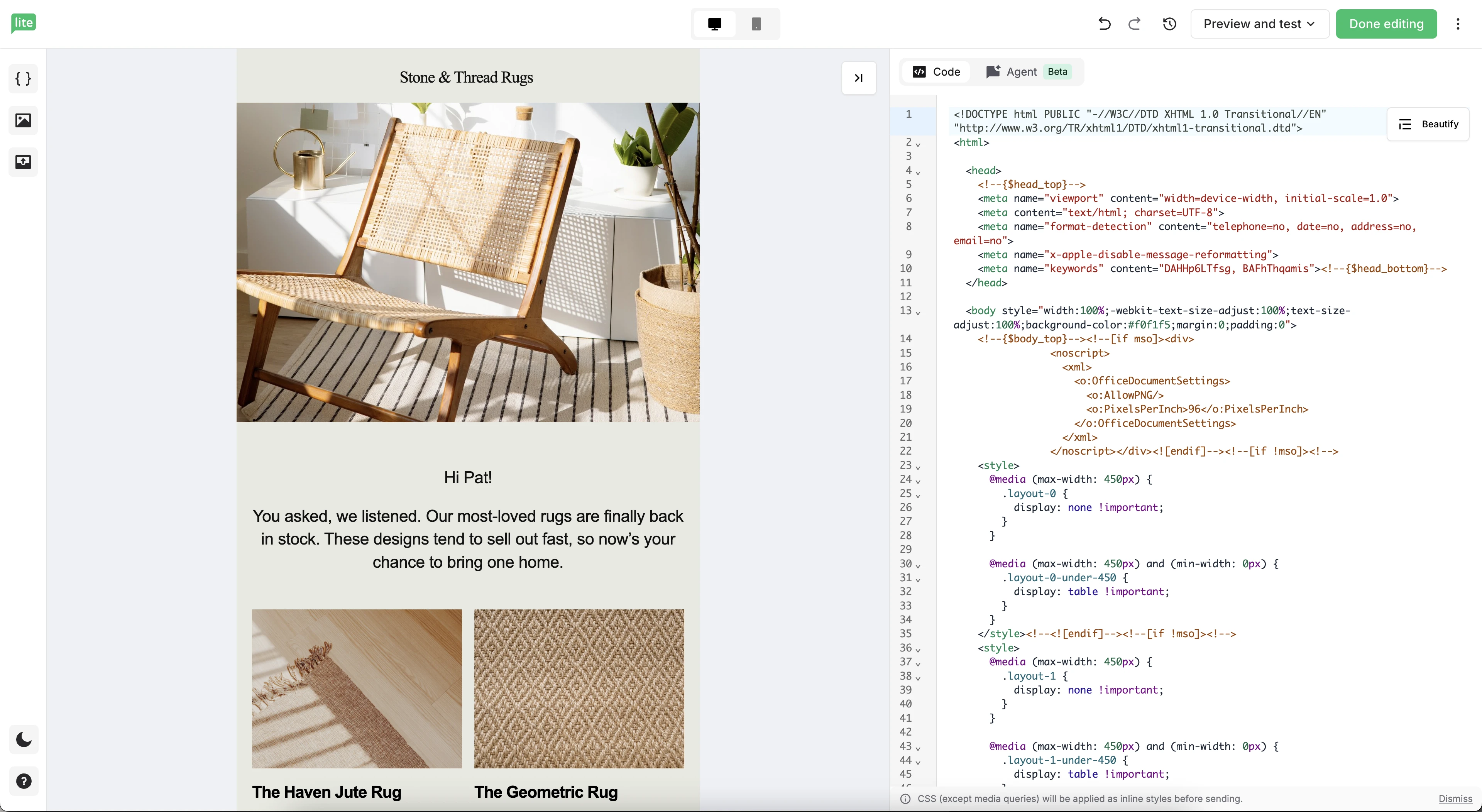
Design your email in Canva the way you usually would. Export it as a ZIP. Drag the file straight into the editor and your design and images are processed and ready to send. The 10MB import limit covers the vast majority of Canva exports, so you're not hand-editing HTML to fix what broke in transit.
Want to tweak something after import? Hover over any image to swap it via the File manager, or ask the AI agent to adjust spacing, colours, or copy.
The polished design you spent an hour on in Canva ends up in your subscribers' inboxes looking exactly the way you intended.
3. Create pixel-perfect campaigns, personalized at scale
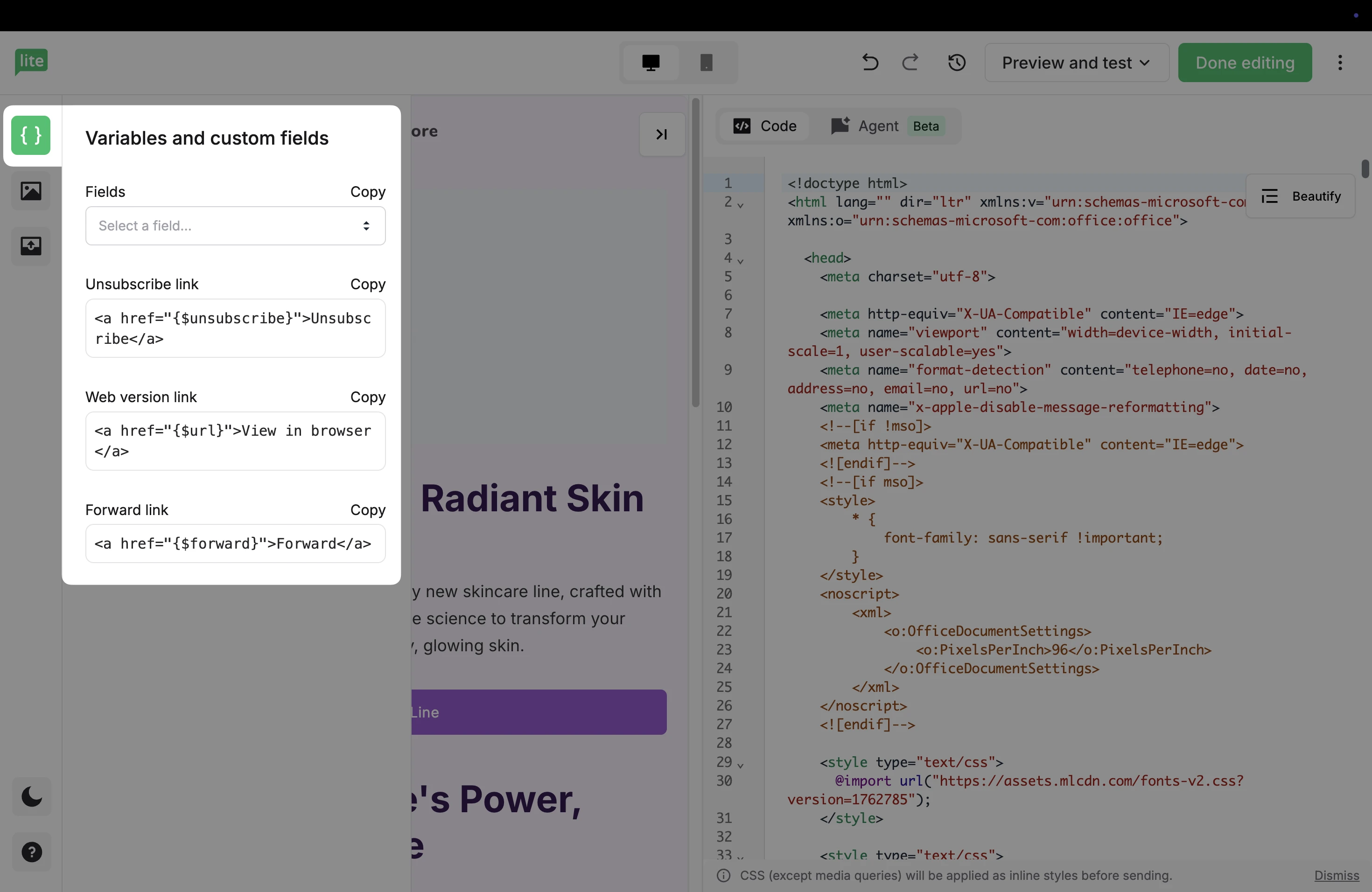
If you're building campaigns where every detail matters, you want full control of the code with no surprises in the inbox.
Choose Code from scratch and write or paste your HTML directly. Live preview on the left shows you exactly how the email renders as you type.
Drop in custom field variables from the sidebar to personalize each send, for example, {$name}, {$company}, anything you've collected, and CSS inlining happens automatically when you save, so your design lands the same way in Gmail, Outlook, or Apple Mail.
And when the code gets messy from copy-pasting? Just hit Beautify to clean it up in one click!
How to get started today
Here’s how you can start drafting emails in our 2 new editors right away:
The Simple editor
Head to Campaigns and click Create campaign.
Choose Start from scratch.
Pick your campaign type and select the Simple editor.
Start typing. Use + or / to insert images, dividers, buttons, and variables.
Check out our tutorial for a detailed, step-by-step guide.
The Simple editor is available on all plans.
The Custom HTML email editor with AI agent
From Campaigns, click Create campaign and select your campaign type.
Choose Start from scratch, then select Custom HTML editor.
Pick how you want to start: Generate email (talk to the AI agent), Import HTML code (drop in a ZIP), or Code from scratch (start with a blank file).
Check out our tutorial for a detailed, step-by-step guide.
The Custom HTML email editor is available on all plans. If you want to try it out, start a free trial now.
Find your flow and start creating today
Both our new email builders are built around the same idea: creative flow. That feeling of working without resistance. 🧘
Whether you're writing your most personal email yet, copy-pasting a draft from Notion, building a custom HTML campaign for a client, or moving a Canva design into a live email, the editor should be the thing that helps you, not the thing you fight.
We hope our email editors change the way you work. Both editors are live right now.
Access both the editors with a free trial
You can try both builders with no strings attached by starting your free trial today. Plus, you get to access all our features, including customer reports, bookings, digital products, and our revamped automation builder. Sign up below!