Note: If you're a Legacy (Classic) user, please log in to your account to access the dedicated Legacy (Classic) Help Center.
After integrating your MailerLite account with WooCommerce, Shopify, BigCommerce, PrestaShop, Wix, Squarespace, Shoper, or using our e-commerce API, you will find e-commerce automation triggers available in your workflow editor. One of these triggers is Purchase frequency.
When you select the Purchase frequency trigger, the automation workflow will trigger every time a customer hits a specific milestone number of orders.
Creating a purchase frequency automation
To create a purchase frequency email automation:
Navigate to the Automations page.
Click Create workflow.
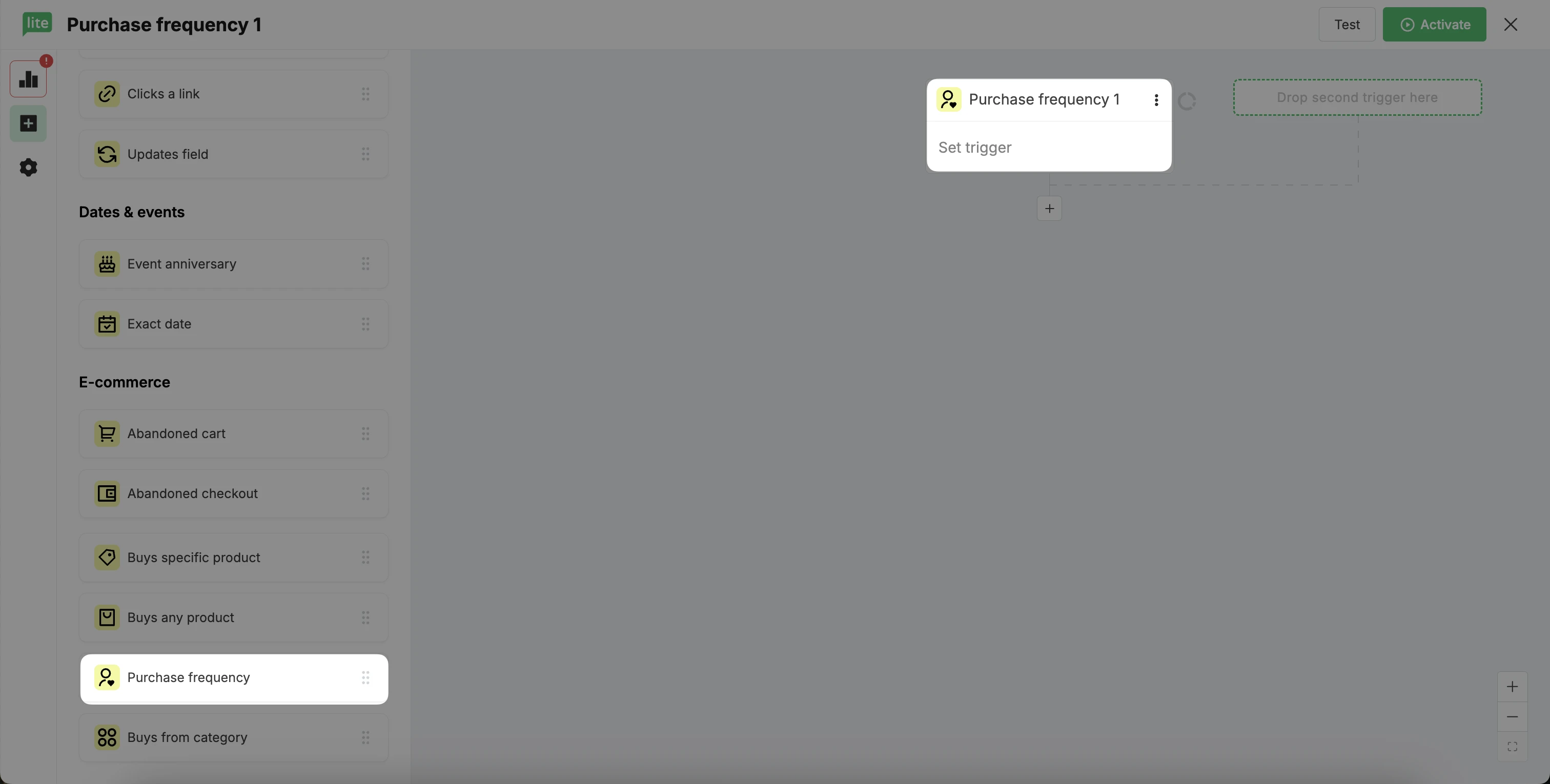
In the left sidebar of your workflow editor, scroll down to the E-commerce triggers.
Select Purchase frequency.
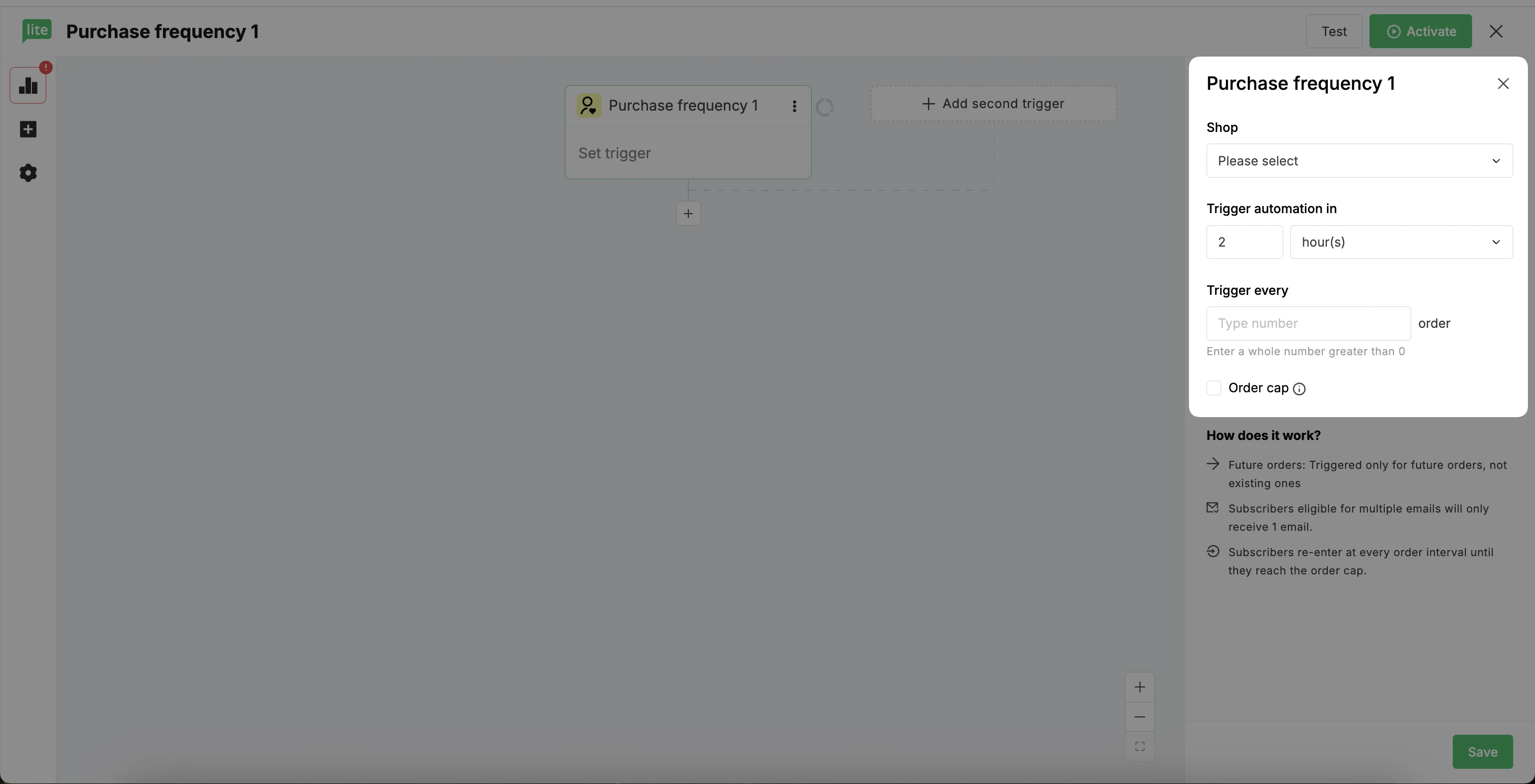
In the sidebar, select the number of hours (or days/weeks/months) after the purchase milestone when you’d like your automation to trigger.
Specify the trigger frequency. For example, every 3rd, 5th, 10th order.
If you wish to add a trigger stopping point, select Stop triggering when customer reaches and specify the number of orders.
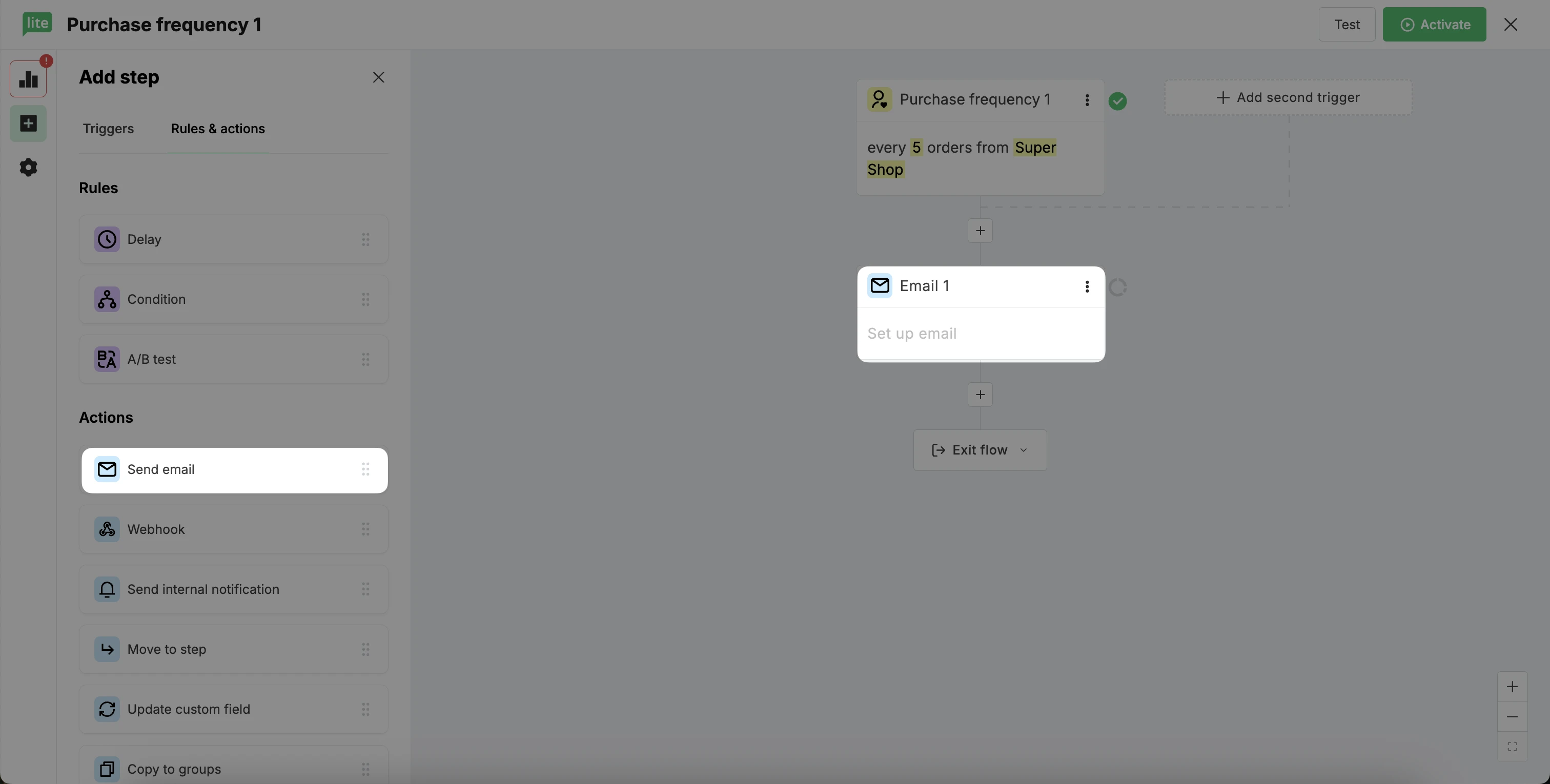
Drag and drop an Email to add an email step.
Edit your email name, subject, and sender information in the sidebar.
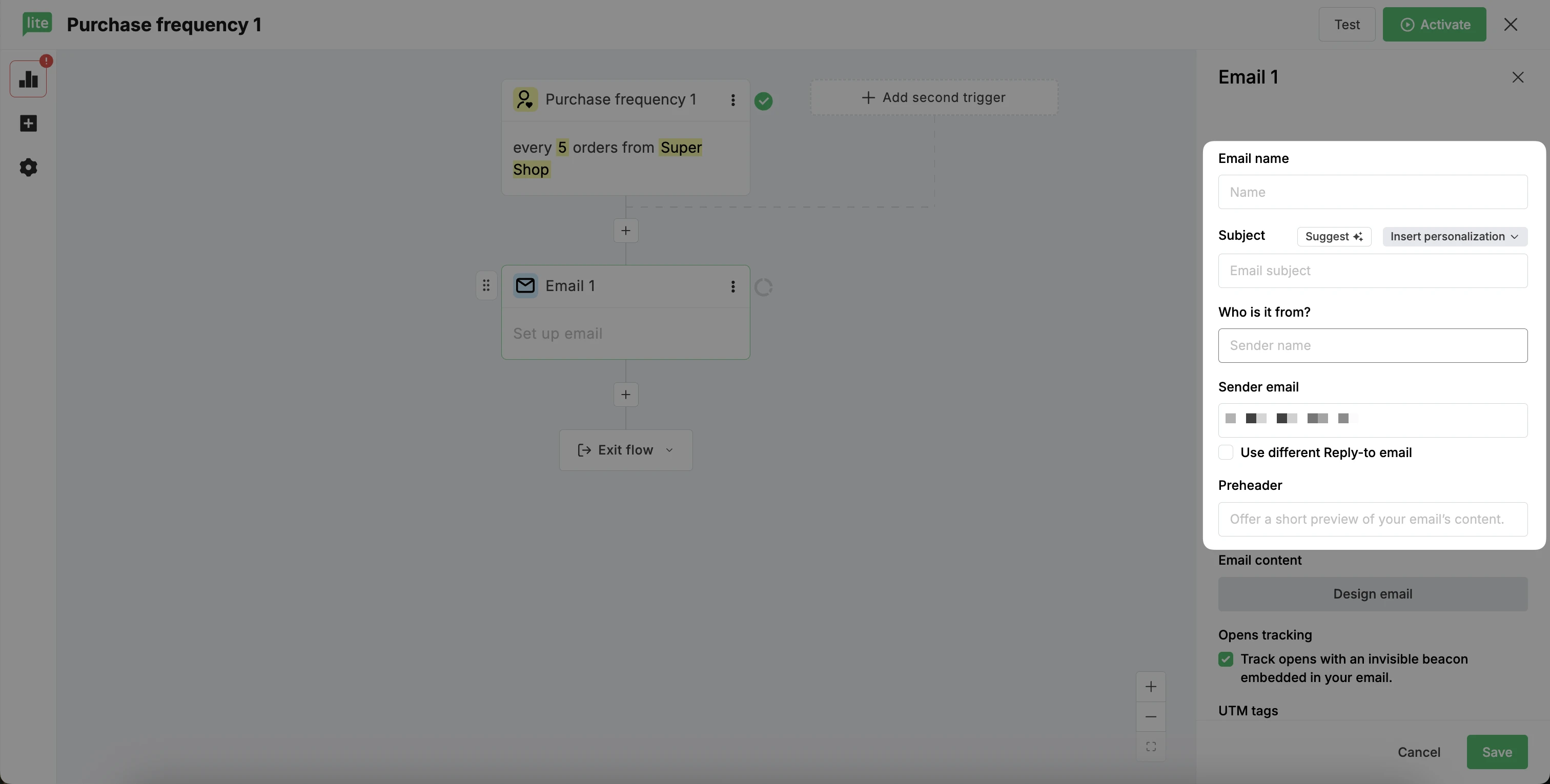
In the sidebar, click the Design email button.
Create your purchase frequency email from scratch, or choose a template from our template gallery.
Once you’ve finished designing your email, click Done editing.
Activate your workflow.
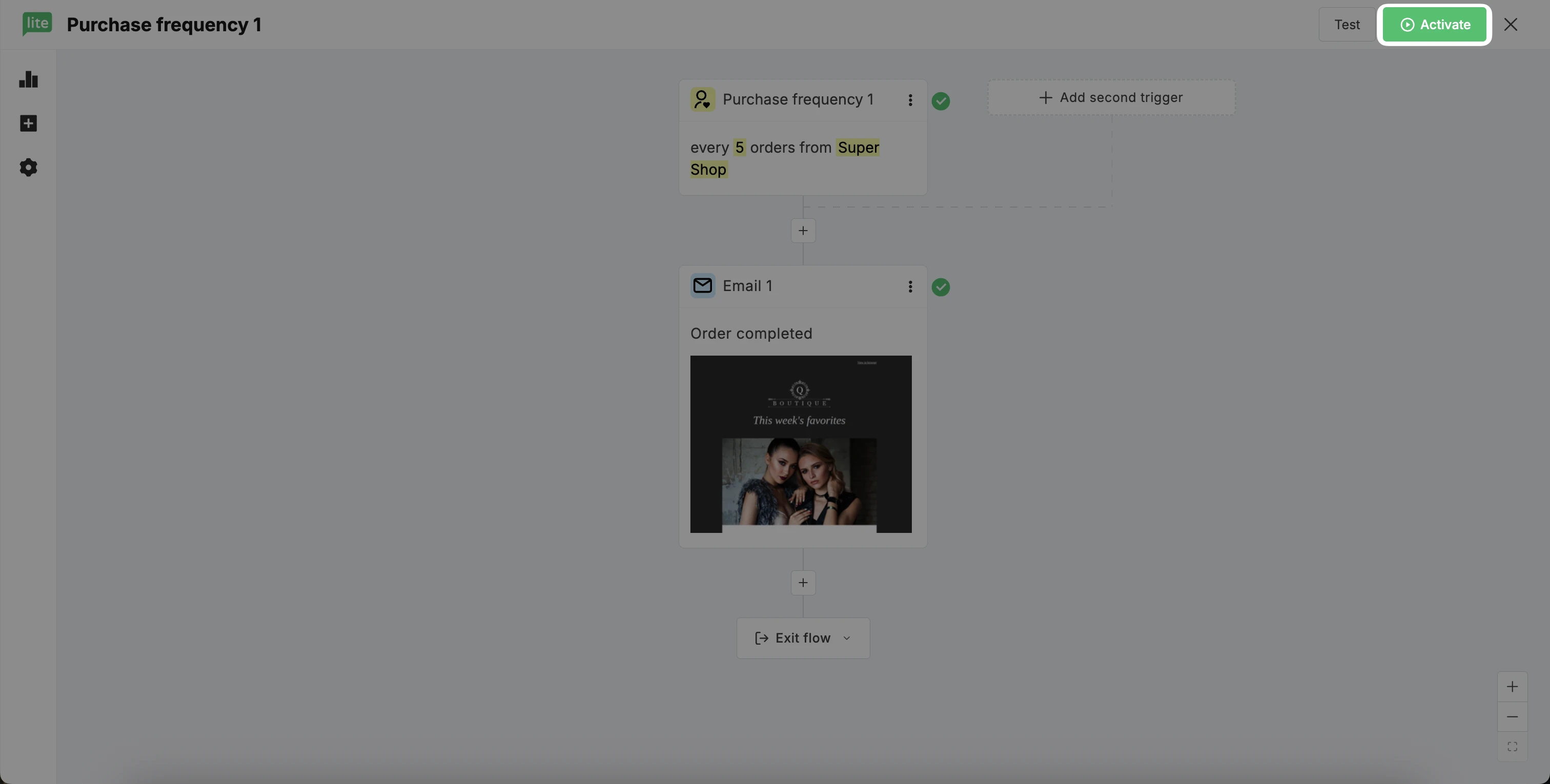
Your purchase frequency automation is active and ready to go!
Understanding purchase frequency automations
To ensure your workflow runs smoothly, it’s important to keep in mind how the system tracks data and handles overlaps:
Only Completed/Paid orders count toward milestones. If the order status is Pending, Cancelled, or Refunded, it will not count toward a subscriber's milestone.
Subscribers re-enter the automation automatically. Since this automation is built for repeating milestones, re-entry is enabled by default.
💡 Want to set up a single-run automation?
Opt for an automation with an Updated field trigger instead. Use the Order count field as your trigger and specify the milestone value.
Subscribers who have hit a purchase milestone before the automation was enabled will not trigger it immediately. When the automation is activated, existing subscribers with prior purchase history will wait for their next qualifying milestone.
Note: If you wish to add previous milestone hitters to the automation, you can do it manually: How to add subscribers to an automation (workflow)
If a customer places multiple orders so quickly that they hit two milestones within your configured delay window (e.g., they hit order #3 and order #6 before the 1-hour delay for order #3 finishes), only the most recent trigger is honored. The earlier pending run is automatically canceled so your subscriber won’t receive two emails in the same sending cycle.
Troubleshooting
If your purchase frequency workflow isn’t triggering as expected, review the following checklist to identify potential issues.
✅ Basic setup requirements
The e-commerce integration (Shopify, WooCommerce, BigCommerce, etc.) must be fully set up before the purchases are made.
The automation must be active when the milestone is reached.
The customer must hit the frequency milestone specified in the automation trigger.
📨 Marketing opt-in requirements
To comply with email marketing regulations, shoppers must give permission to receive marketing communications to receive purchase frequency emails.
👤 Subscriber status and eligibility
Only active subscribers on your MailerLite list can receive purchase frequency automations.
Unsubscribed contacts cannot trigger automations.
🛍️ Purchase requirements
The subscriber needs to hit a specified number of Completed/paid orders.
If a subscriber hits a purchase milestone but their order is canceled, the automation will not be triggered.