Note: If you're a Legacy (Classic) user, please log in to your account to access the dedicated Legacy (Classic) Help Center.
When you integrate your MailerLite account with Shopify, BigCommerce, PrestaShop, WooCommerce, Shoper, Wix, or use e-commerce API, you will find e-commerce automation triggers available in your workflow editor. One of these triggers is Abandoned checkout.
When you select the Abandoned checkout trigger, the workflow will trigger when a subscriber begins the checkout process but does not complete the purchase.
💡 If you'd like to trigger an automation when a subscriber adds items to their cart but leaves before checkout, check out: How to create an abandoned cart email automation
Creating an abandoned checkout automation
To create an abandoned checkout email automation:
Navigate to the Automations page.
Click Create workflow.
In the left sidebar of your workflow editor, scroll down to the E-commerce triggers.
Select Abandoned checkout.
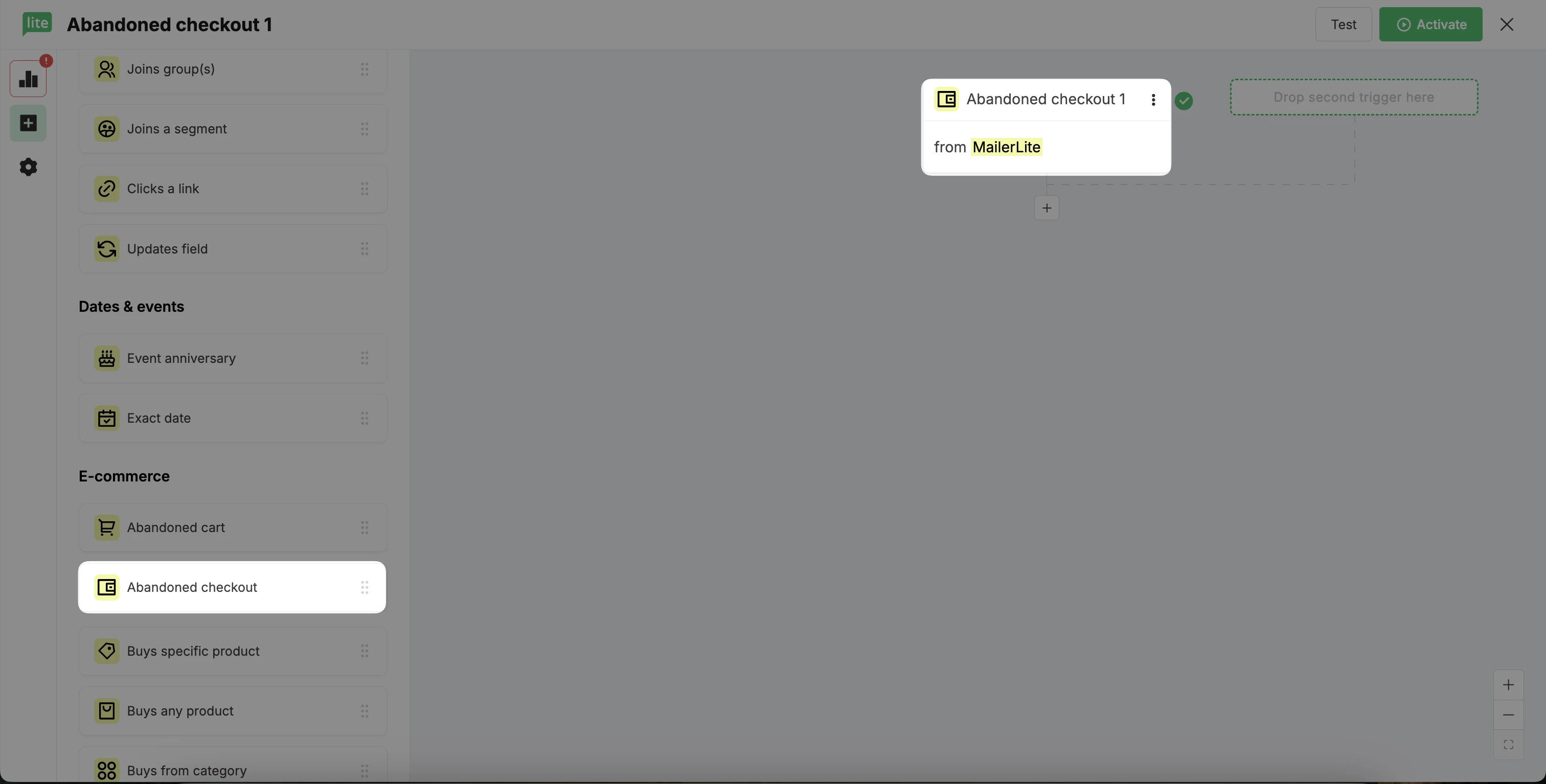
5. Select the amount of time after checkout abandonment before you want your workflow to trigger.
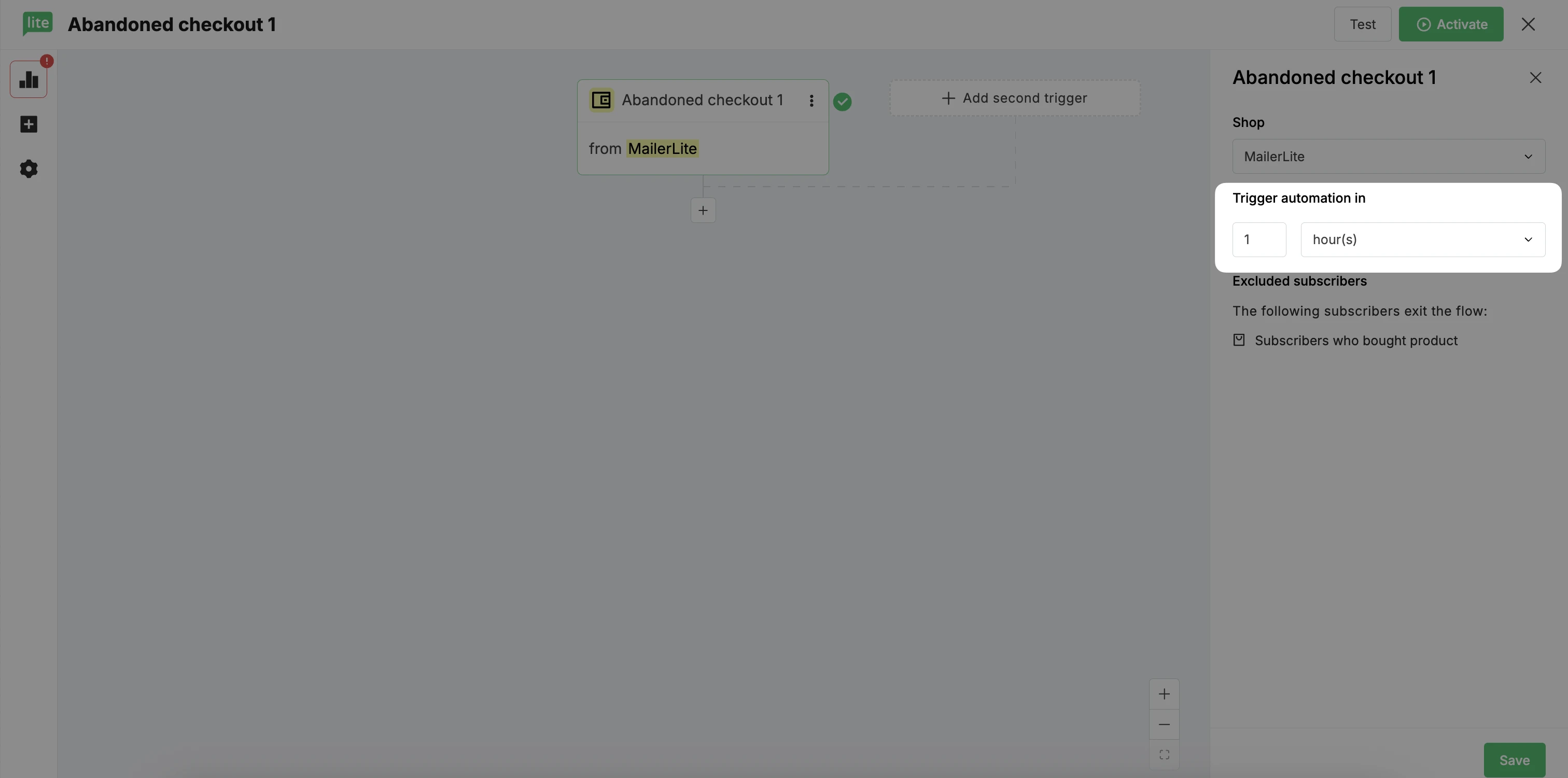
6. Drag and drop an Email to add an email step.
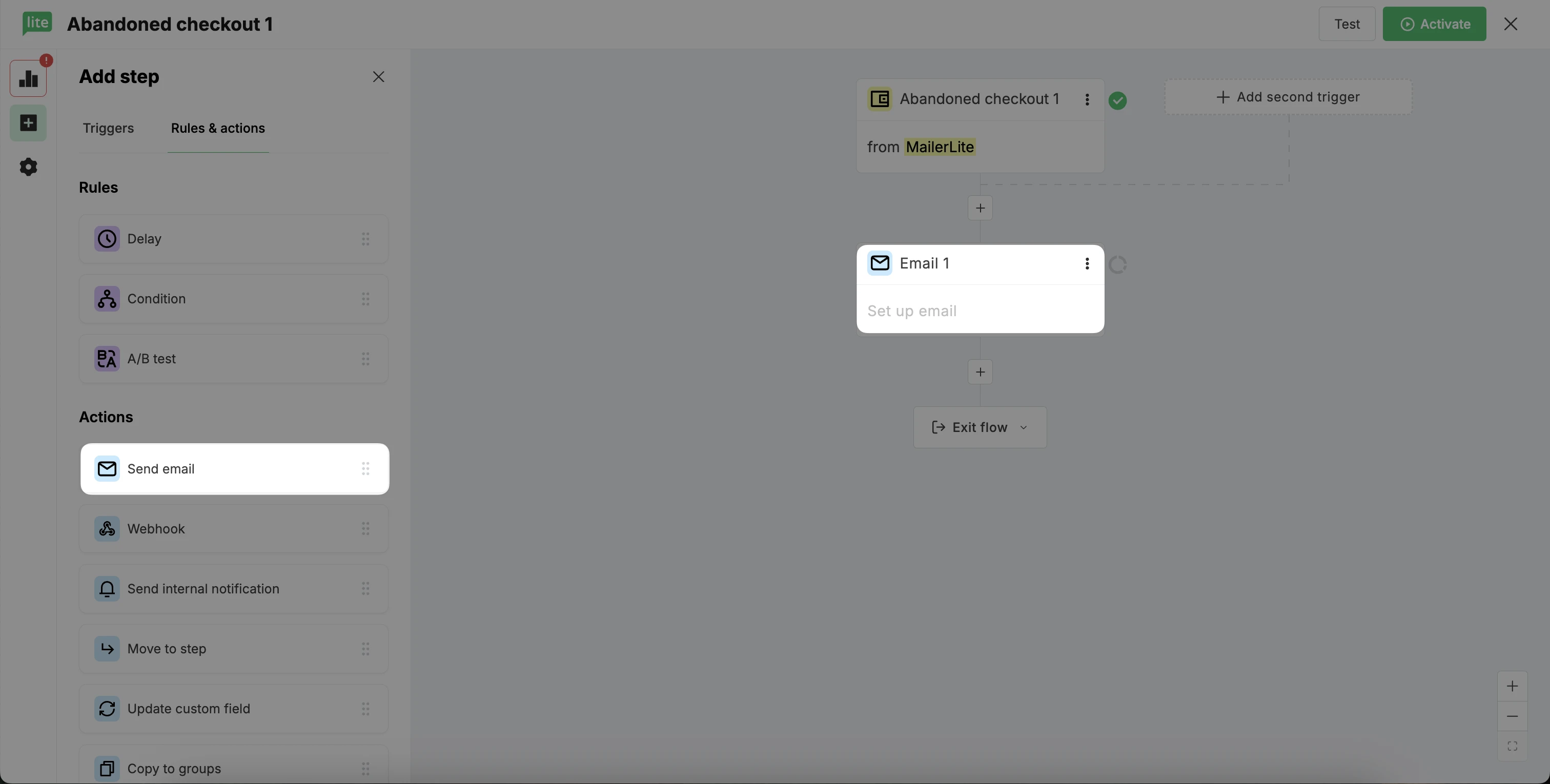
7. Edit your email name, subject, and sender information in the sidebar.
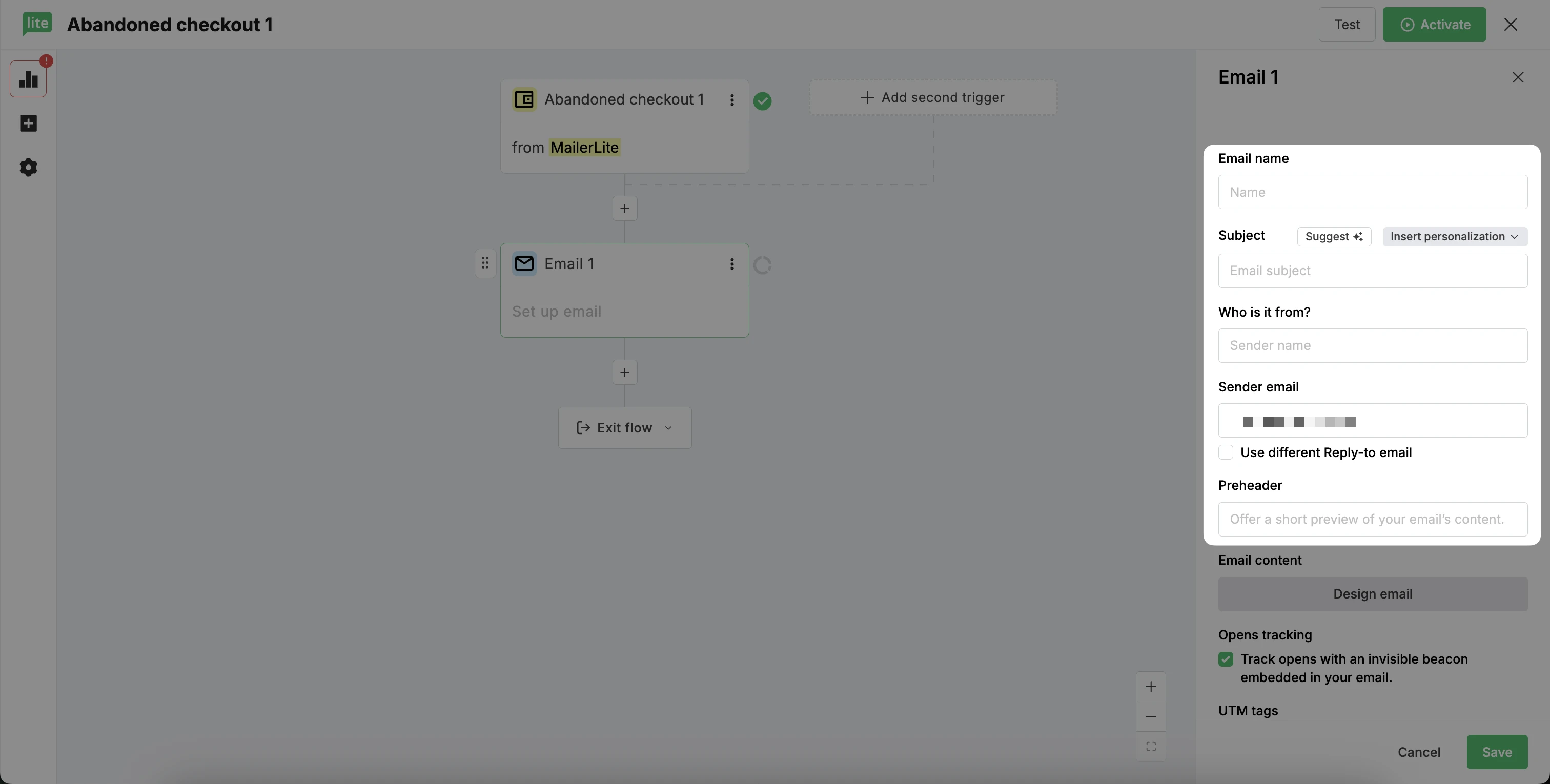
8. In the sidebar, click the Design email button.
9. Create your abandoned checkout email from scratch, or choose a template from our template gallery.
Note: Make sure your abandoned checkout email includes an abandoned checkout block. When the email is sent to the subscriber, it will populate with the items left at checkout.
10. Once you’ve finished designing your email, click Done editing.

11. Activate your workflow.
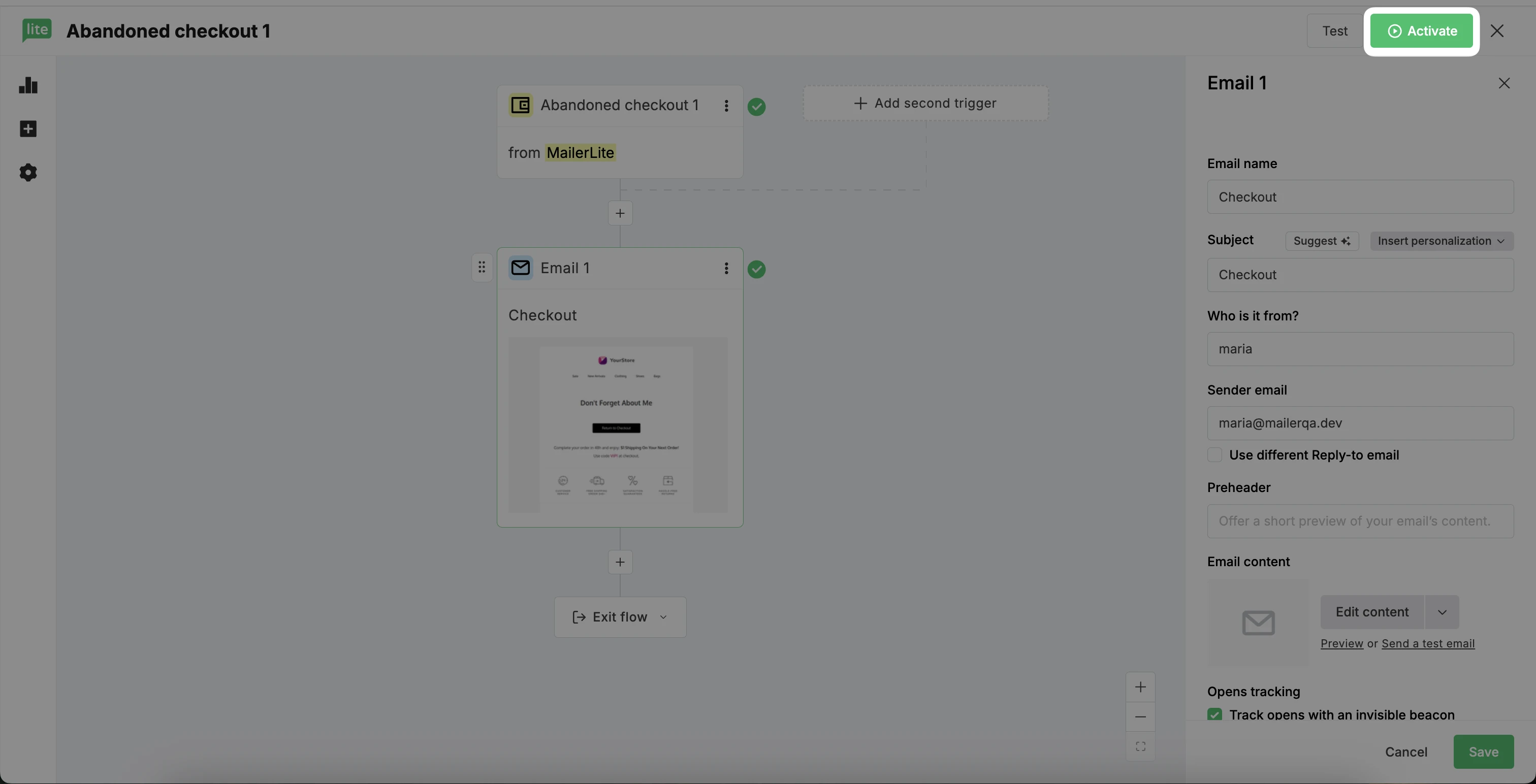
Your abandoned checkout automation is active and ready to go!
Monitoring the status of abandoned checkout workflow
When a shopper triggers an abandoned checkout workflow, you can track the status of the subscriber in our Automation Activity.
In progress
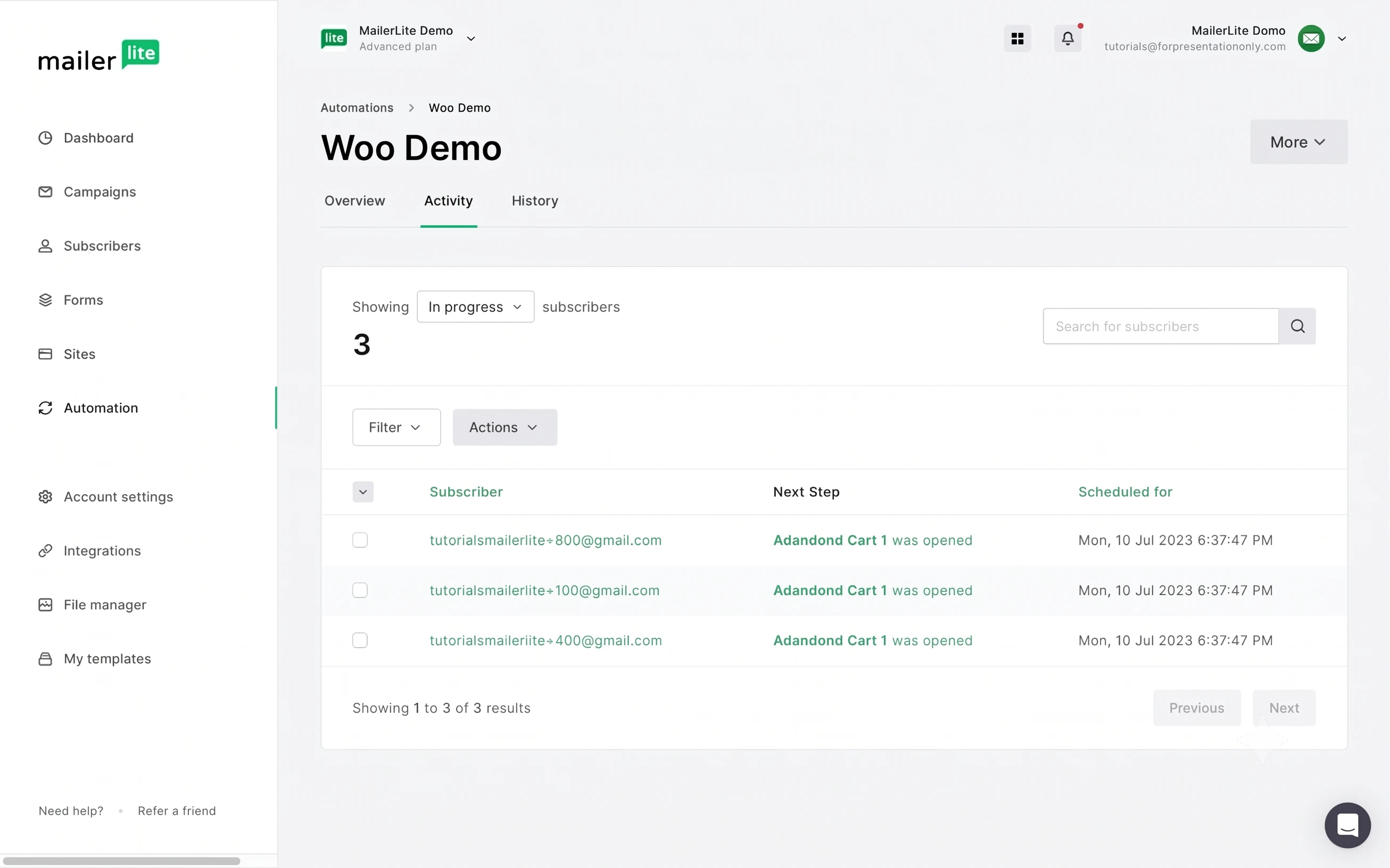
Subscriber - Subscriber who triggered email;
Next step - The next email to be sent (i.e. Abandoned checkout message)
Date/Time - Time when the next step will be initiated.
Completed
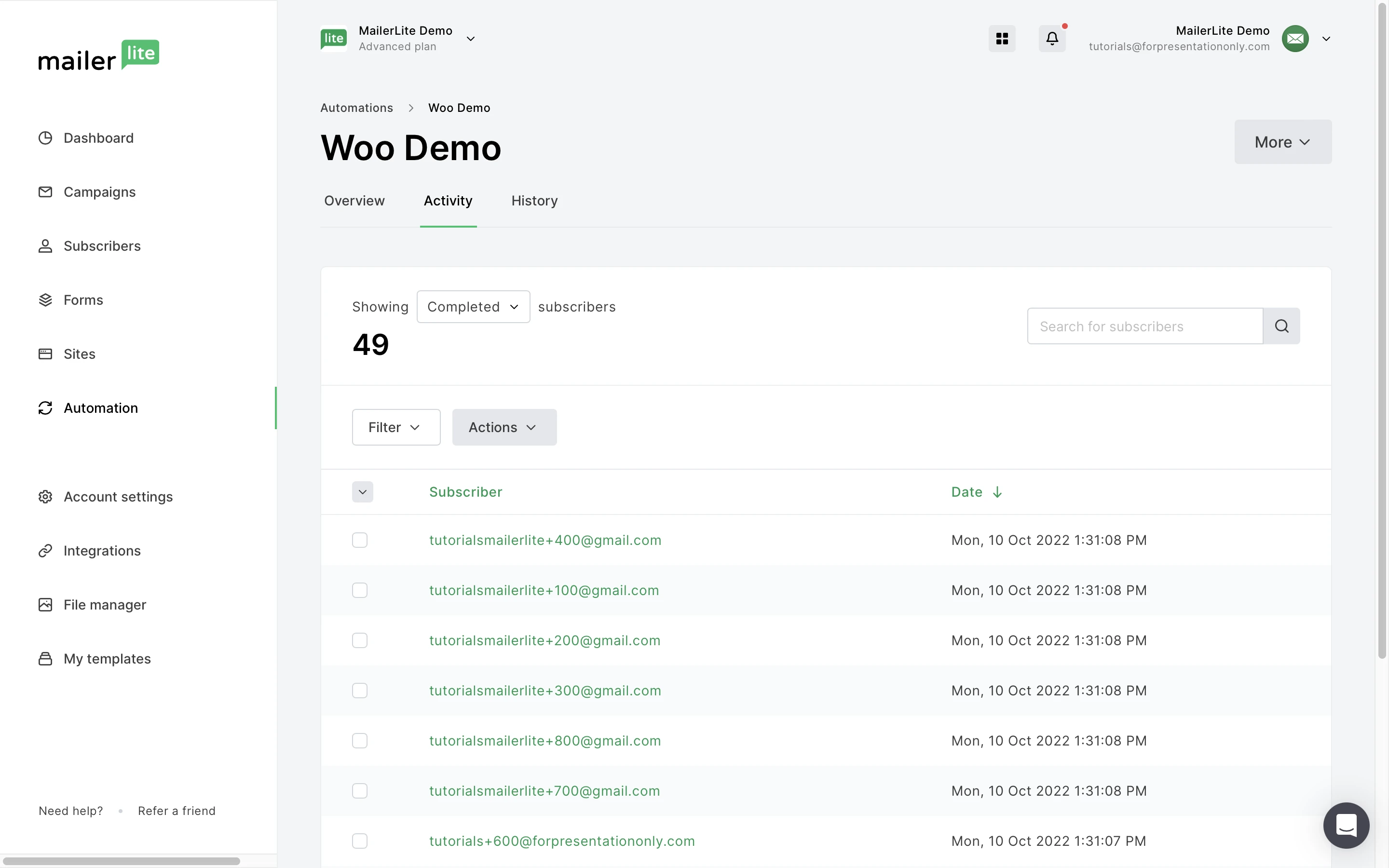
Subscriber - Subscriber who triggered the email;
Date/Time - Time when subscriber completed the sequence.
Canceled
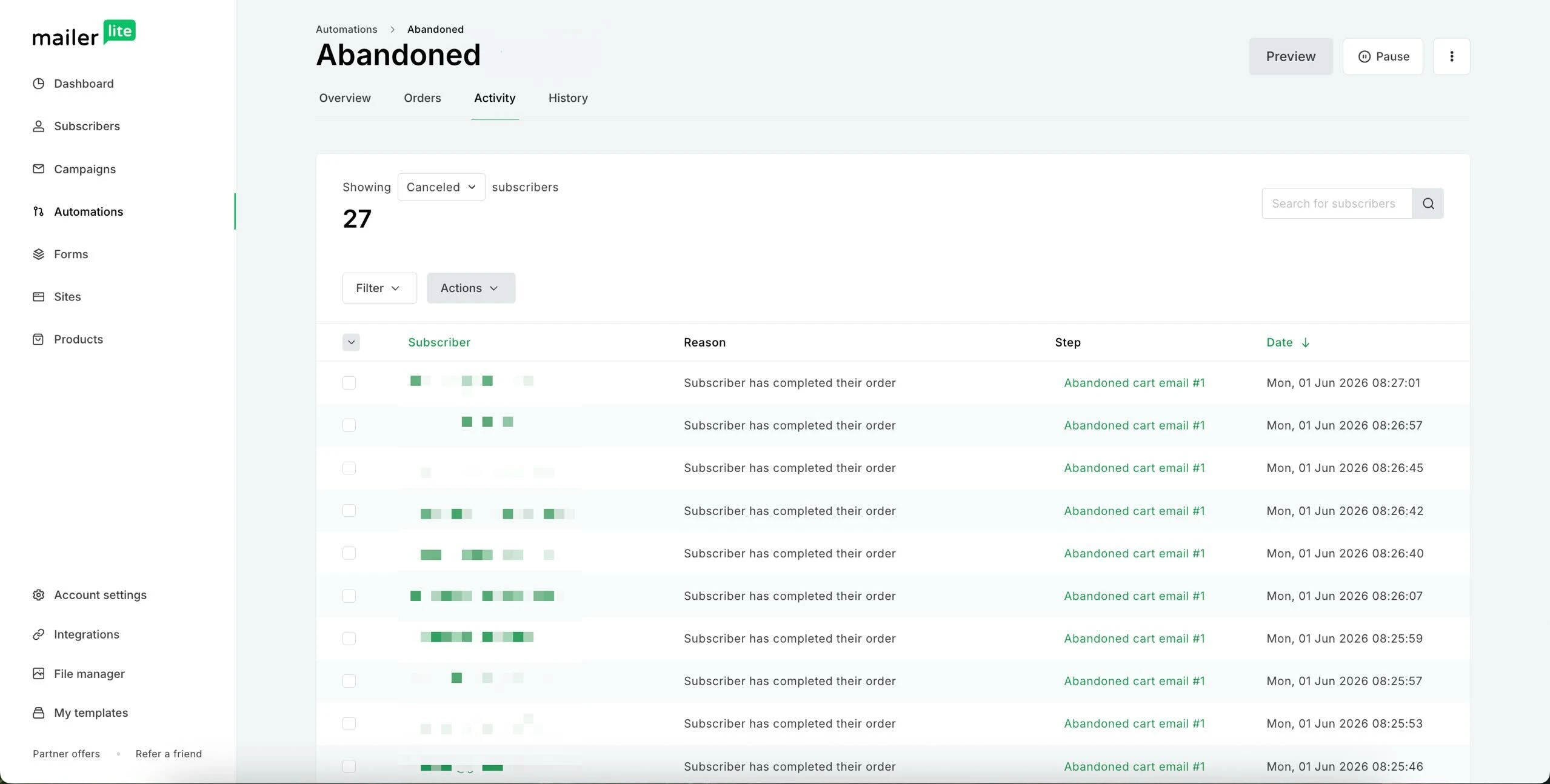
Subscriber - Subscriber who triggered automation;
Reason - Reason why the subscriber was canceled from the sequence;
Step - Step on which the subscriber was canceled from the sequence;
Date/Time - Time when the subscriber was canceled from the sequence.
Since your workflow might have more than one step, we check the status of the checkout before each step in the workflow sequence. Don’t worry, your subscribers won’t get a recovery email if the checkout was already recovered.
If the order is recovered (shopper bought your product), the subscriber will appear under the status Canceled. No further steps in the workflow are triggered.
If the user completes the sequence and the order wasn’t recovered, the subscriber will appear under the status Completed.
Troubleshooting
If your abandoned checkout workflow isn’t triggering as expected, review the following checklist to identify potential issues.
✅ Basic setup requirements
The e-commerce integration (Shopify, WooCommerce, BigCommerce, Wix, Shoper or PrestaShop) must be fully set up before the checkout is abandoned.
The Squarespace Commerce integration does not currently have the ability to create Abandoned checkout email automations.
The automation must be active when the checkout is abandoned.
The customer must enter their email address during checkout. Without an email address, the automation cannot trigger.
📨 Marketing opt-in requirements
To comply with email marketing regulations, shoppers must give permission to receive marketing communications even for abandoned checkout emails.
An Accept Marketing checkbox must be visible during checkout.
Shoppers need to either check the box themselves or leave it checked if it is pre-selected.
If the checkbox is missing or left unchecked, visitors cannot be added to the abandoned checkout workflow because they haven’t consented to receive marketing emails.
👤 Subscriber status and eligibility
Only active subscribers on your MailerLite list can receive abandoned checkout emails.
Unsubscribed contacts cannot trigger automations.
If a customer uses an email that’s already on your subscriber list, the automation can still trigger immediately.
If a first-time buyer enters their email and opts into marketing, they’ll be added to your subscriber list and become eligible for the workflow right away (except for Shopify buyers).
Note for Shopify users: Abandoned checkout workflows only trigger for returning customers who have placed at least one previous order. Shopify’s system limits guest and first-time buyers from entering these automations.
If a customer does not enter their email address before leaving checkout, they cannot trigger abandoned checkout automation.
⚙️ Still not working?
Confirm that your integration is synced and sending real-time updates to MailerLite.
If you’re using double opt-in for integrations, ensure the subscriber confirmed their subscription before testing.
Common abandoned checkout scenarios
Check your subscriber against these common scenarios:
| Scenario | Will the automation trigger? | Explanation |
| Customer goes to checkout but doesn’t enter an email address | ❌ No | Without an email, MailerLite cannot identify or send the workflow to the visitor. |
| Customer enters an email but the “Accept Marketing” checkbox is missing or unchecked | ❌ No | Marketing consent is required to send abandoned checkout emails. Add or enable the checkbox in your checkout settings. |
| Customer is already a MailerLite subscriber and abandons checkout | ✅ Yes | Existing subscribers who abandon their checkouts can immediately trigger the automation. |
| Customer checks out as a guest but subscribes to marketing during checkout | ✅ Yes (except for Shopify) | Once they opt in and their email is added to your subscriber list, they become eligible for the automation. |
| Customer recovers the checkout and completes the order mid-workflow | ⚠️ Stops | The workflow ends automatically and no further abandoned checkout messages are sent. |