Note: If you're a Legacy (Classic) user, please log in to your account to access the dedicated Legacy (Classic) Help Center.
You can place products directly in your MailerLite emails, landing pages, and websites. This can be done with products from connected e-commerce stores (such as Shopify, WooCommerce, or PrestaShop), as well as digital products and bookings you create in MailerLite.
Each product’s image, name, description, and price are automatically pulled, and a button that takes readers straight to buy or book is added.
How to add products to emails
You can add your products to campaigns and automation emails using the Drag & drop editor. Follow these steps:
Choose the Drag & drop editor when creating your campaign or automation email.
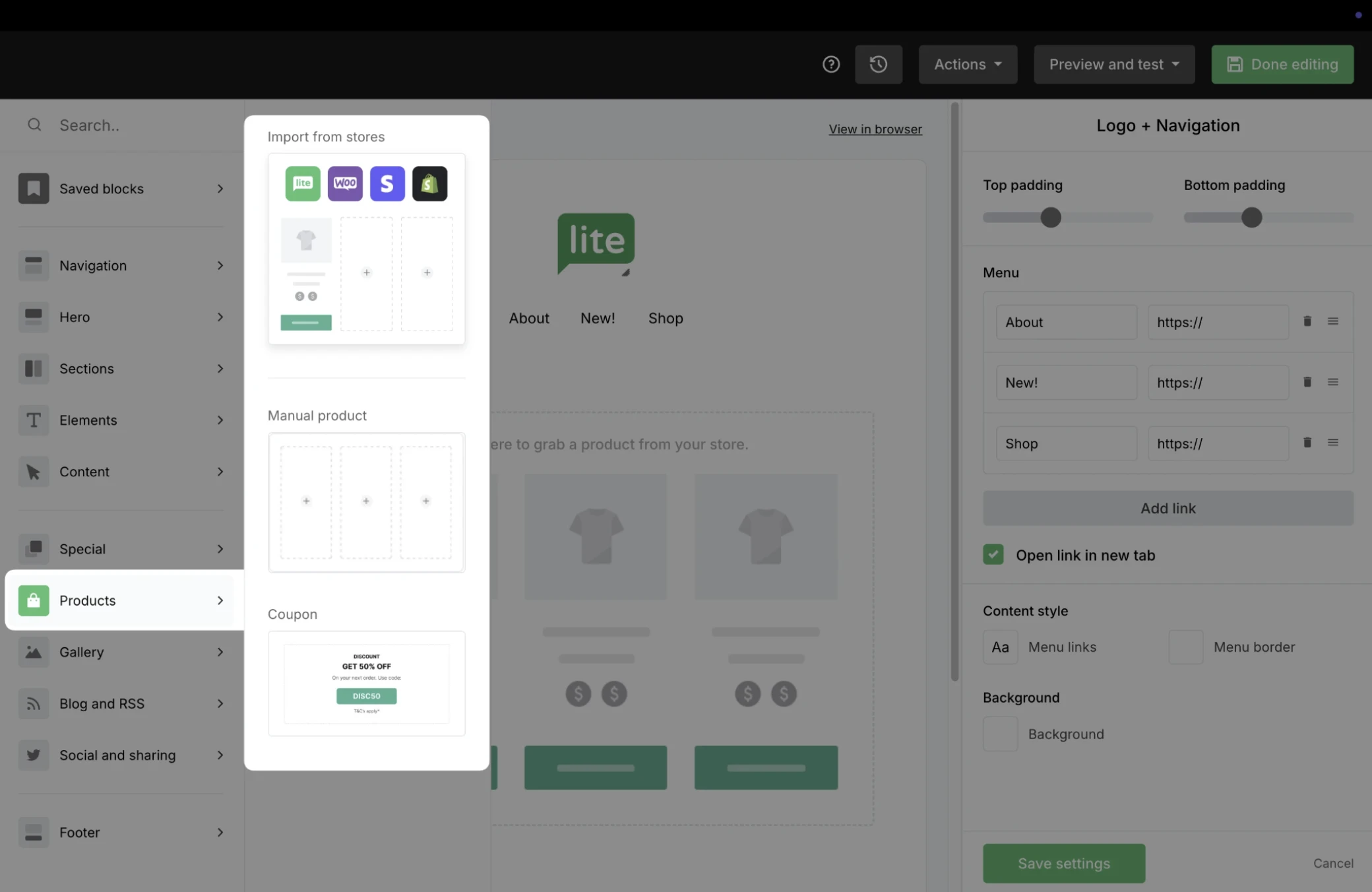
In the left sidebar, under the Products section, you will find Import from stores. Simply drag & drop the block into your email.
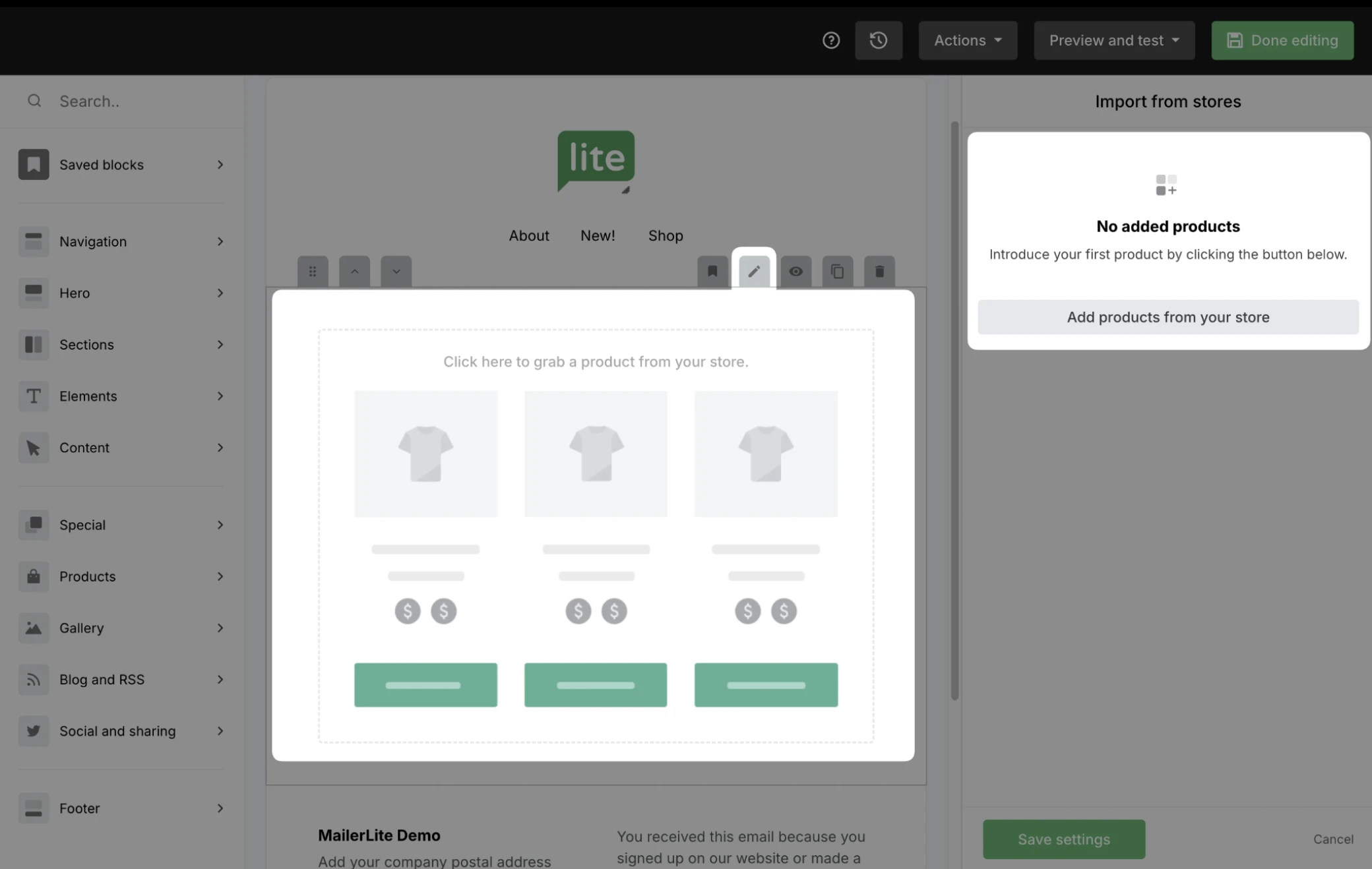
Click into the block to open the settings on the right. Use the Add products from your store button to add products from external stores or MailerLite.
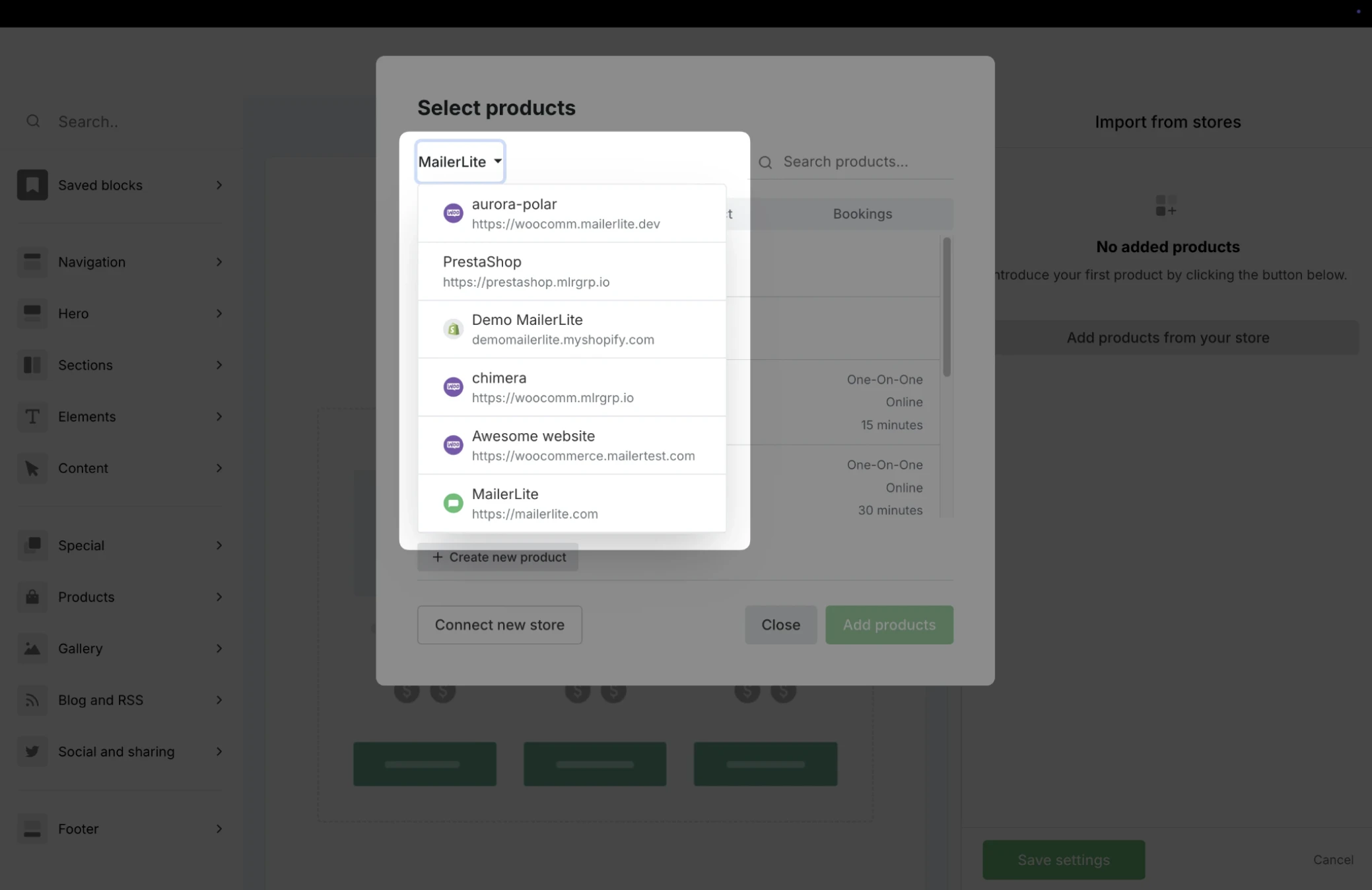
If your account has multiple stores connected, select the one you’d like to pull the products from.
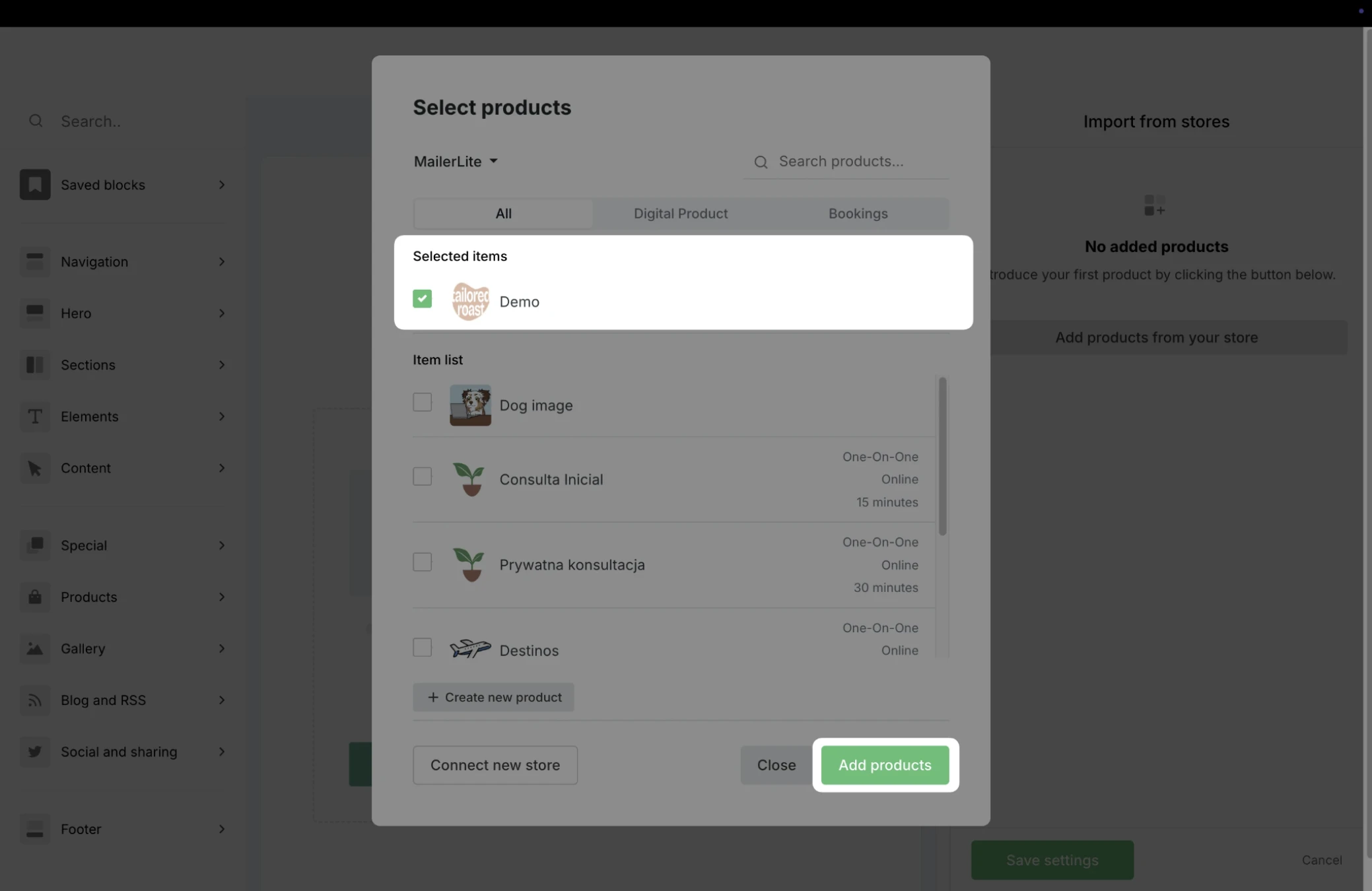
Choose to display one or multiple products. Once the products are selected, click Add products.
Adjust the block settings, such as image position, displayed details, and button text, then click Save settings.
When you’re done editing, click Done editing.
Note: Keep Track links toggled ON for every campaign that includes products from your store. Without link tracking, MailerLite can’t attribute orders to the campaign. Learn more: How to enable and disable tracking options
How to add products to sites
Landing pages
You can add products to a landing page with the Products element or with a premade product section in the landing page editor. To add products to a landing page:
Navigate to Sites and open or create a landing page.
Choose how to add the products:
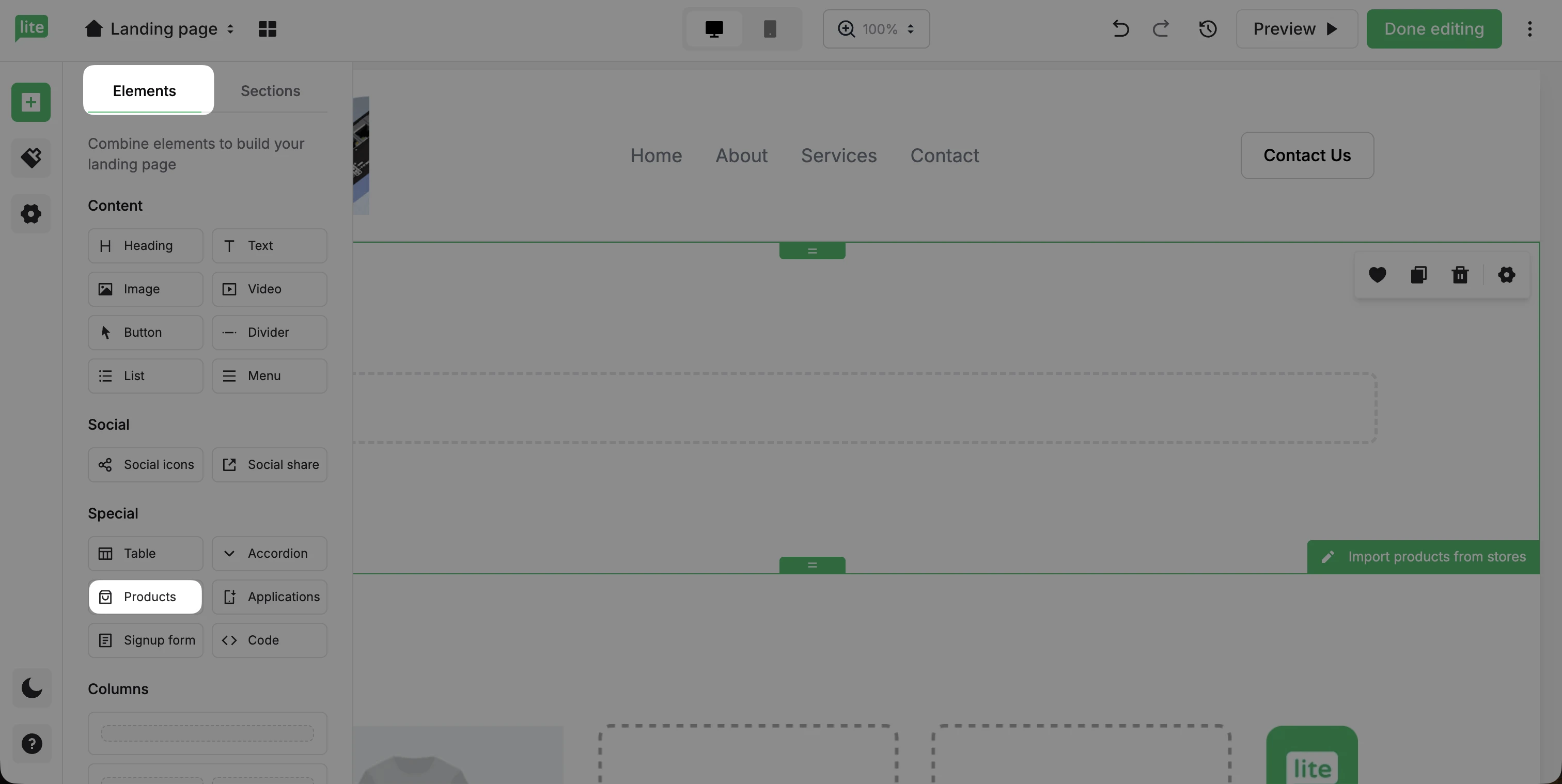
Under Elements, find the Products element.
Or, under Sections, find the Import products from stores section.
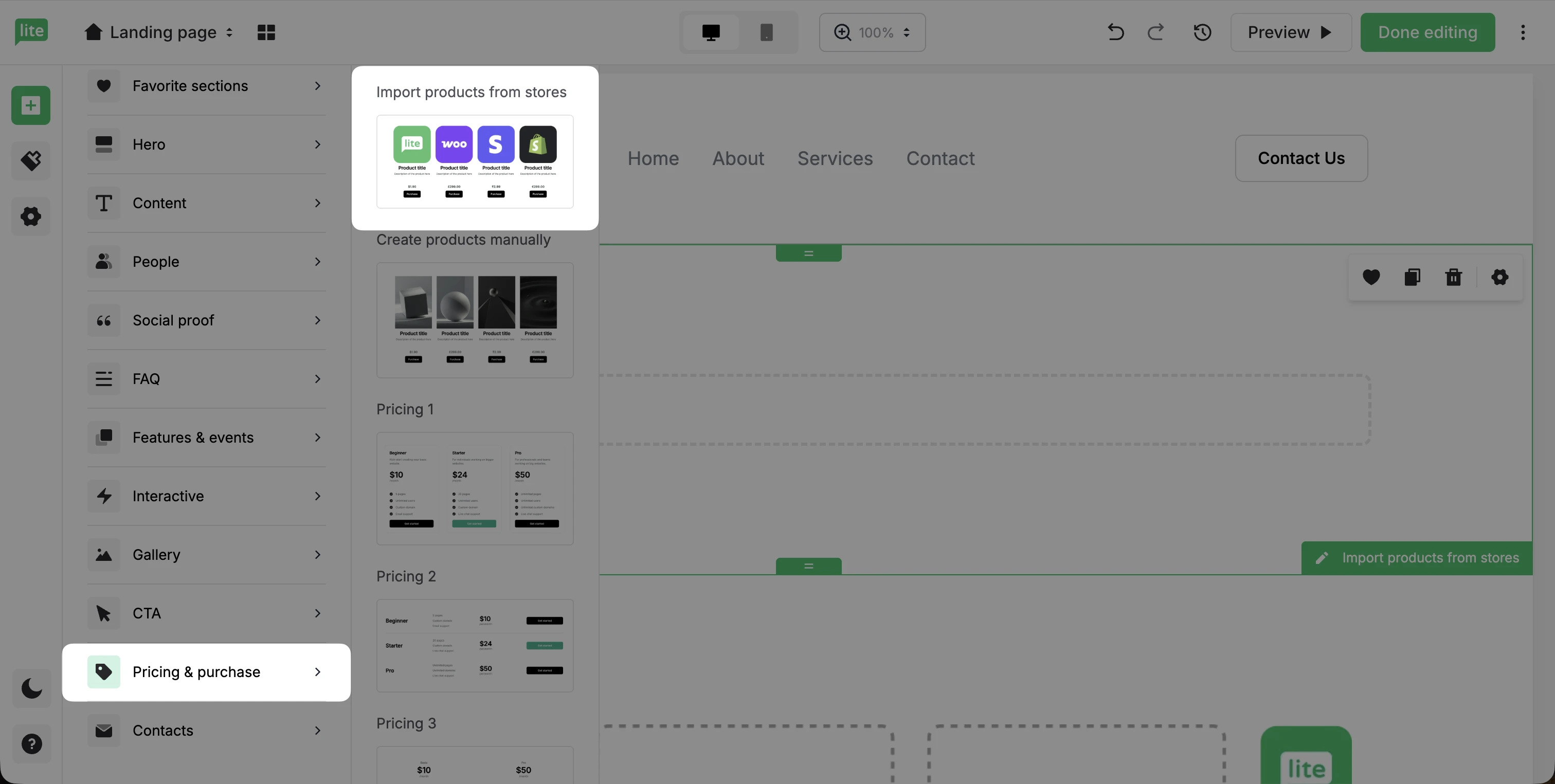
Drag the element or section onto your landing page.
Click on the element or section to open the settings panel on the right.
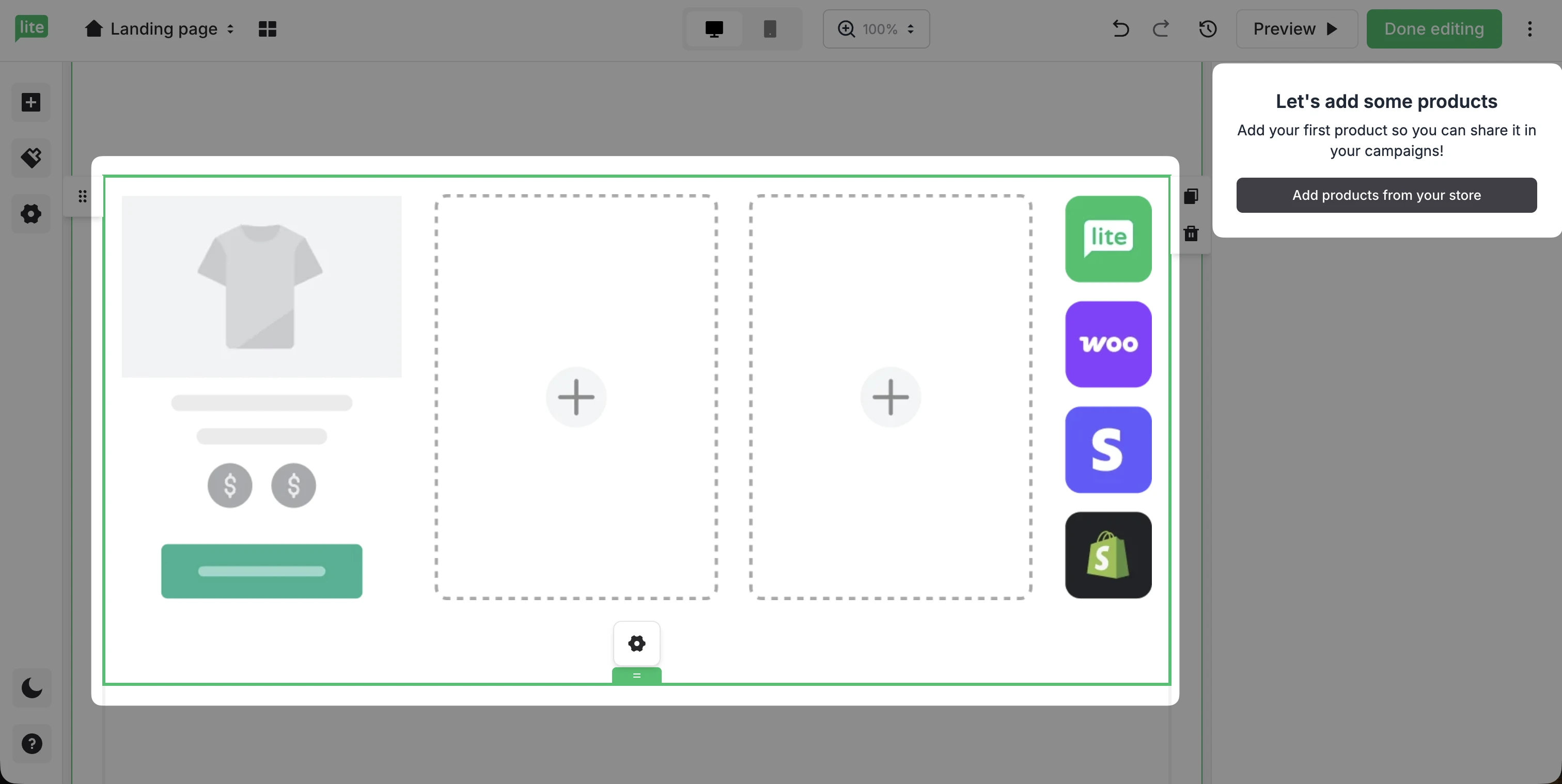
Click Add products from your store.
If your account has multiple stores connected, select the one you’d like to pull the products from.
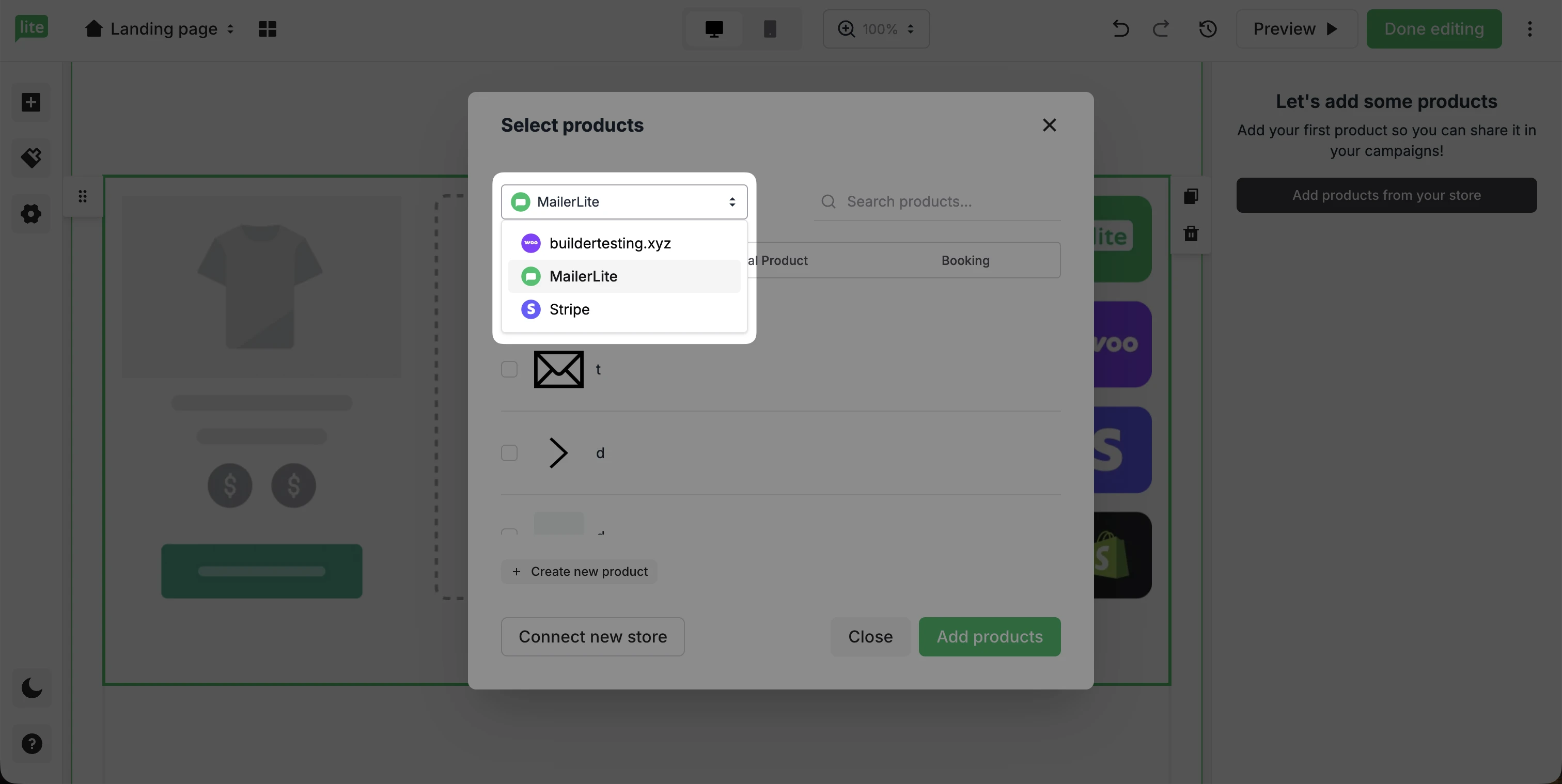
Select your products and click Add products.
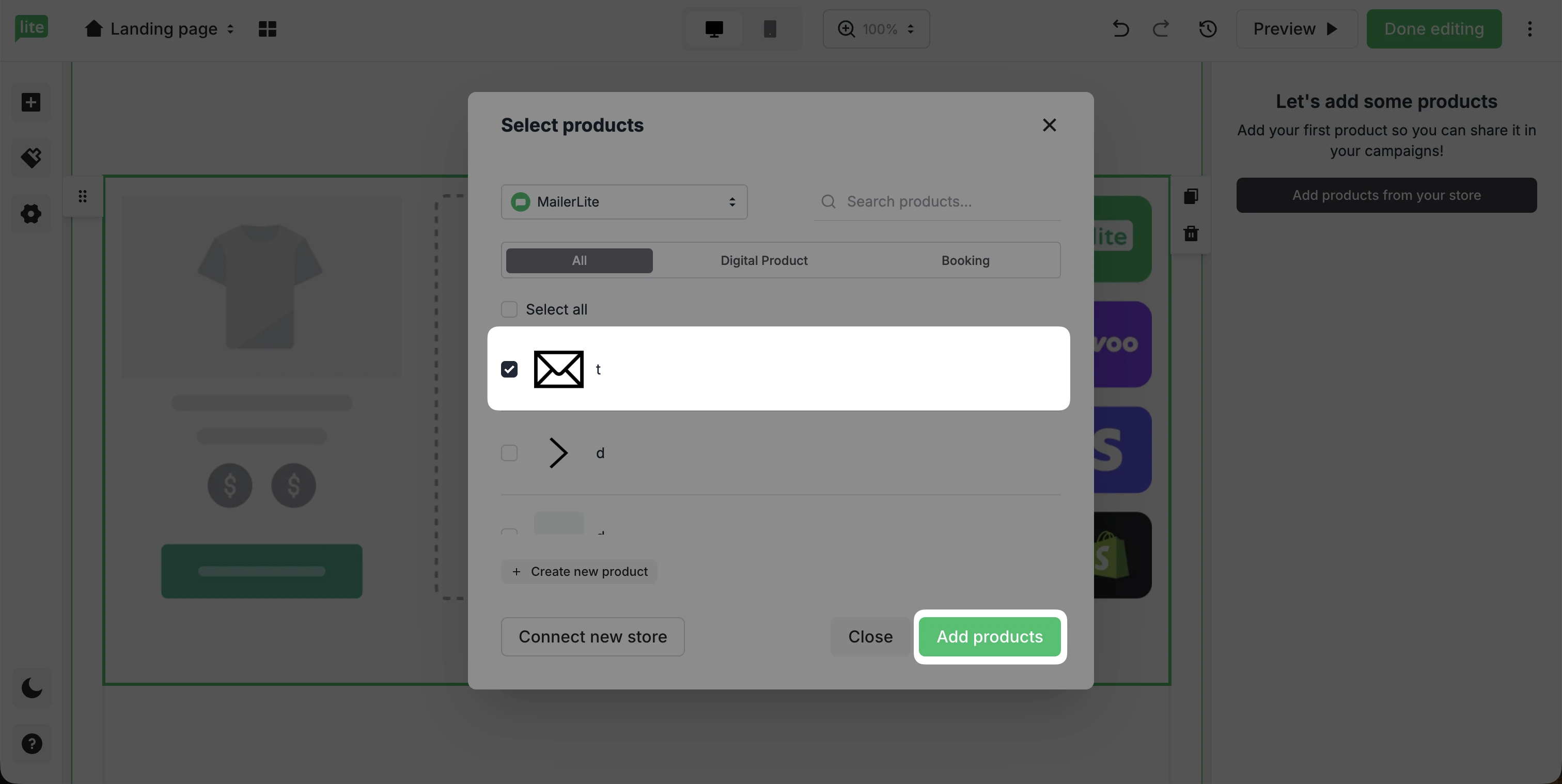
Adjust the block settings, such as image position, displayed details, and button text, then click Save settings.
When you’re done editing, click Done editing.
Websites
To add products to websites:
Navigate to Sites and open or create a website.
Under Blocks, find the Products block. Drag and drop it into your website.
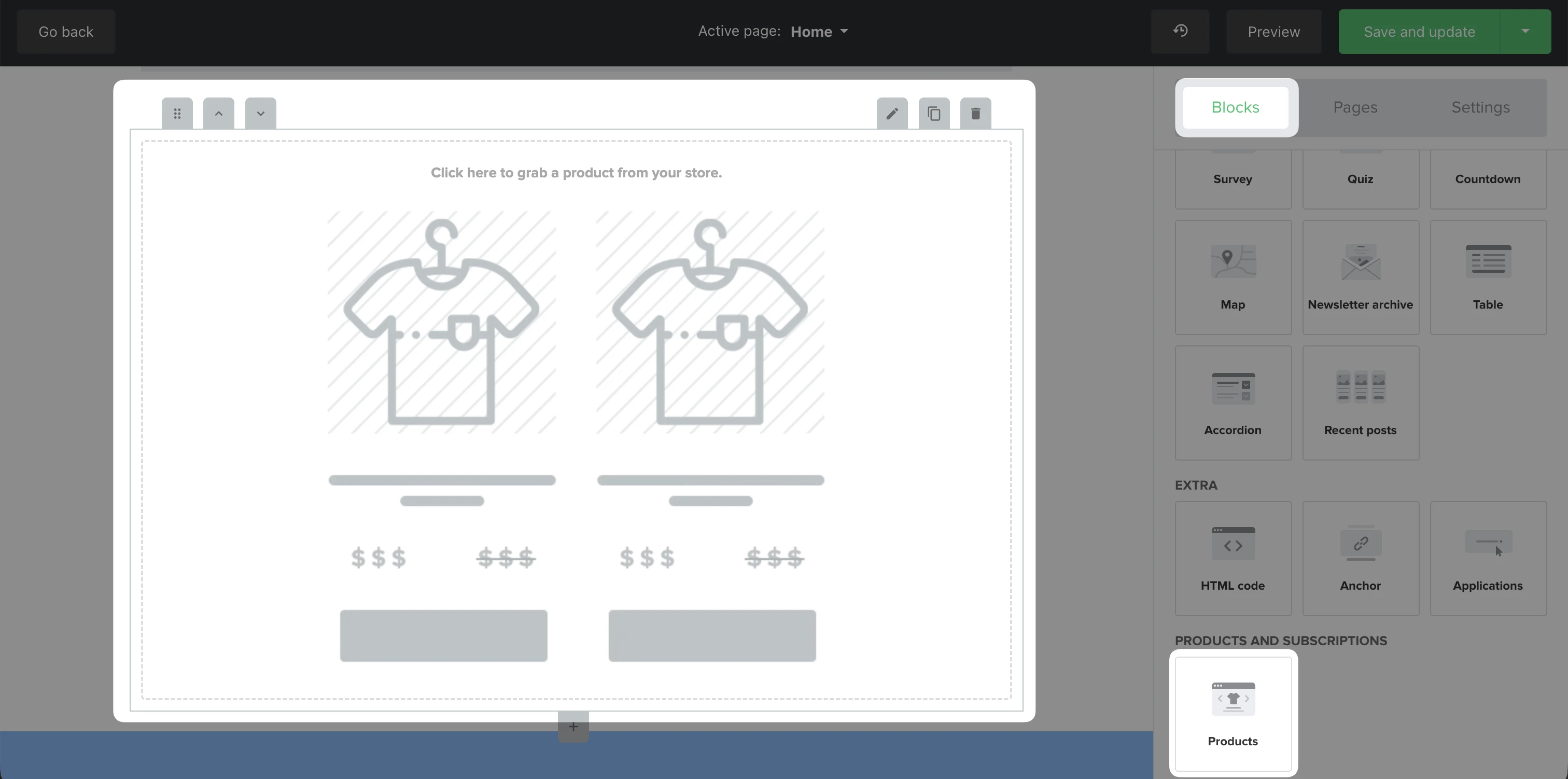
Click on the block, then select Add products from your store.
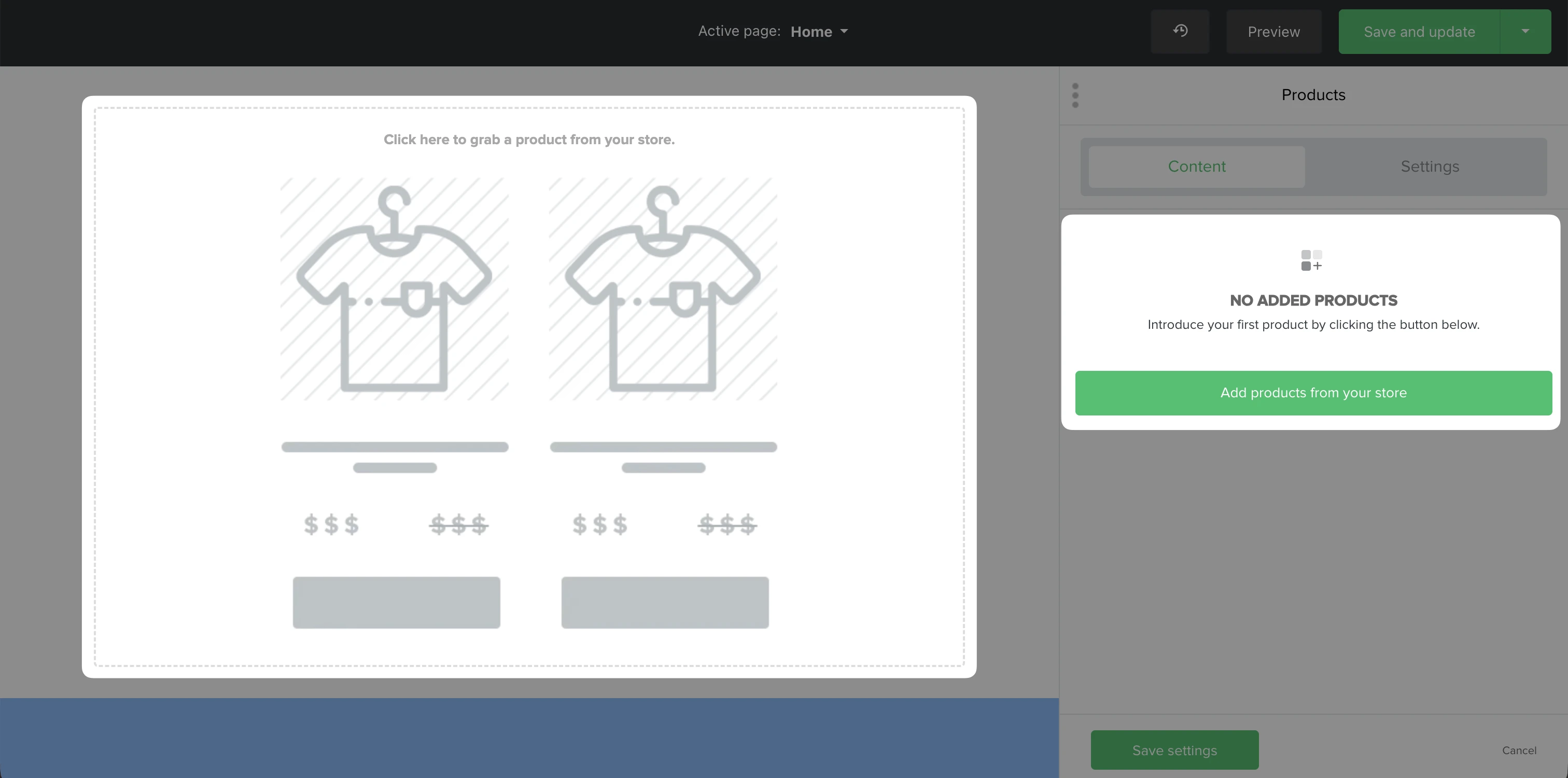
If your account has multiple stores connected, select the one you’d like to pull the products from.
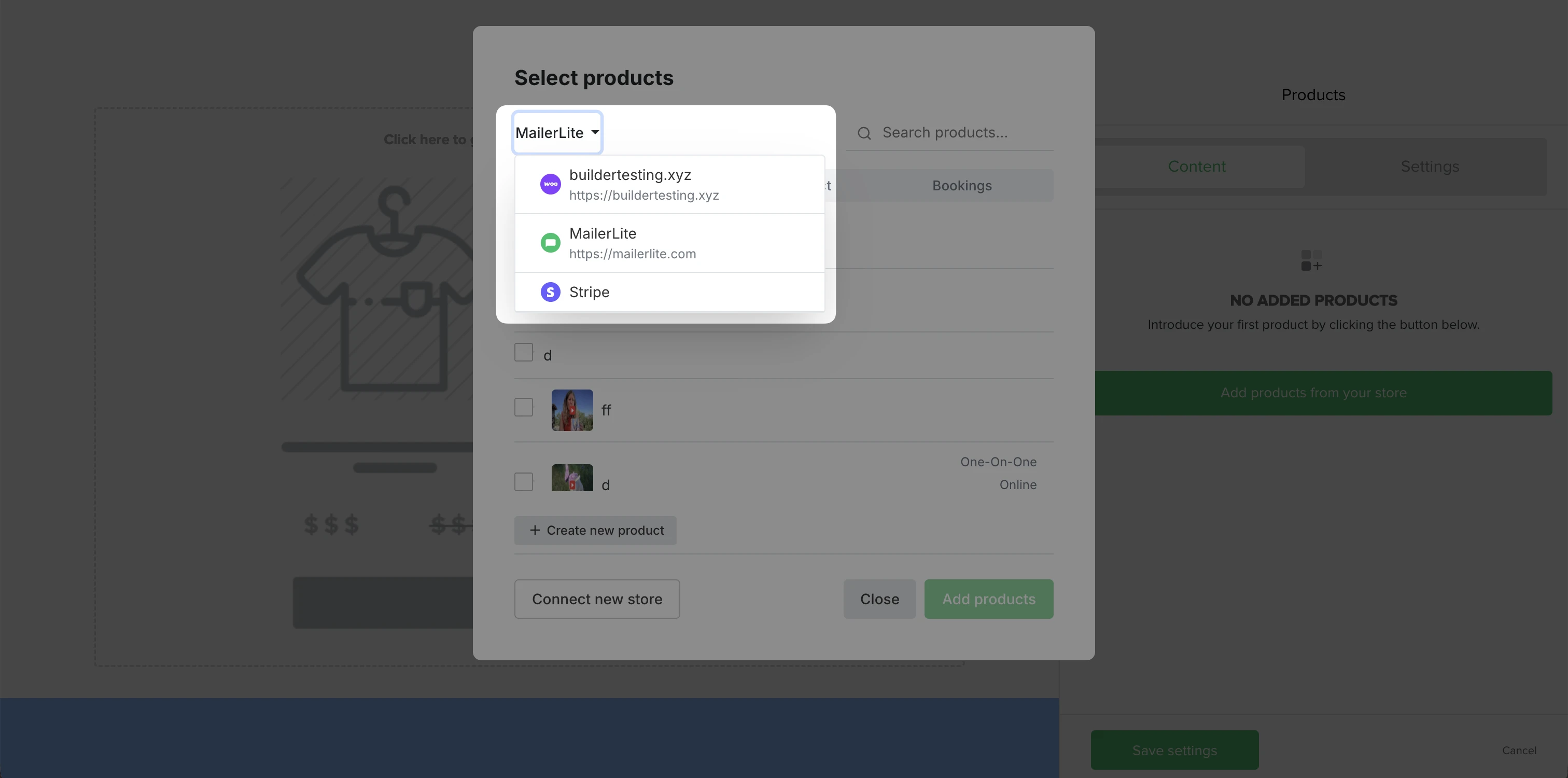
Select your products and click Add products.
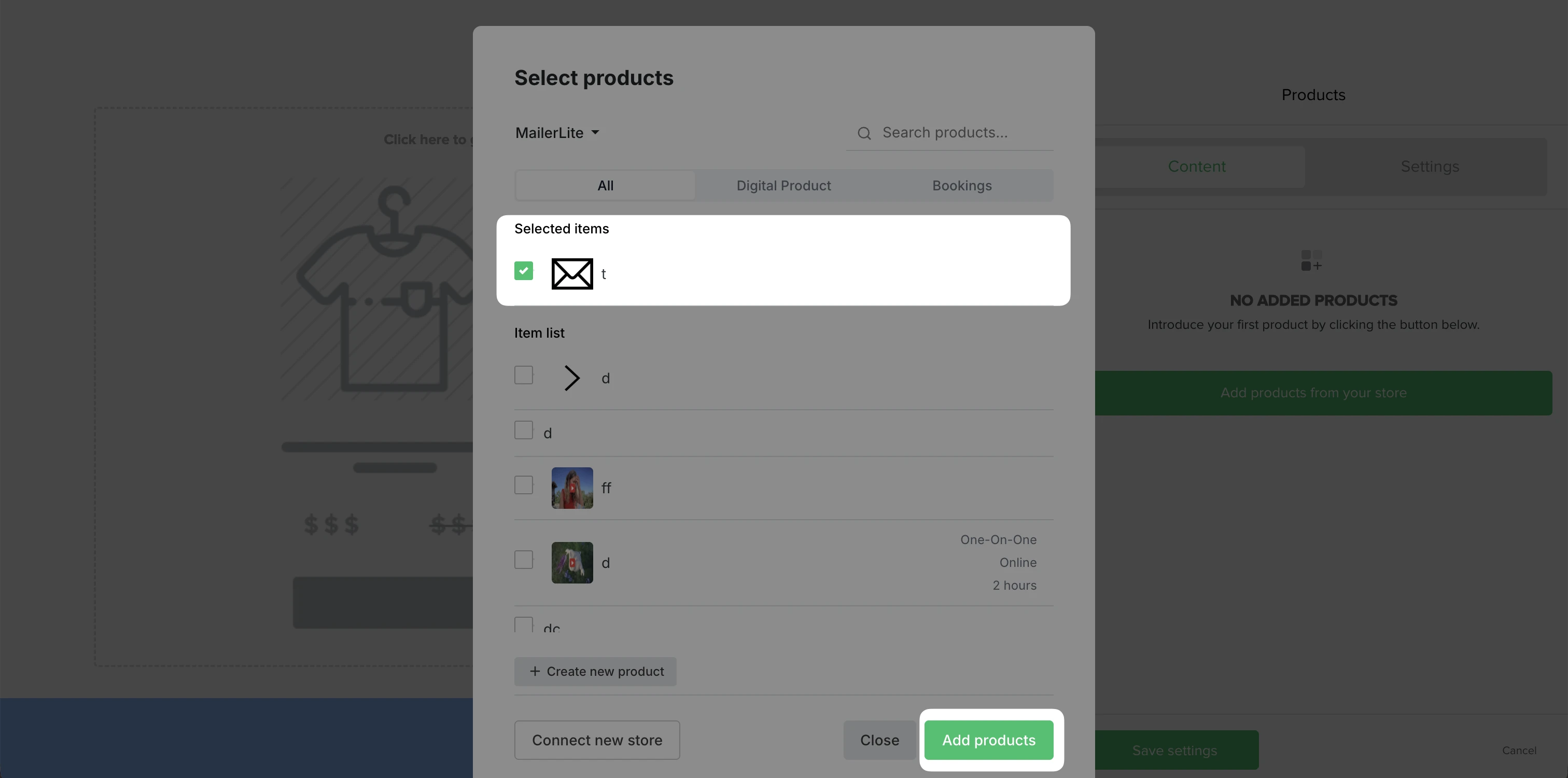
Adjust the block settings, such as image position, displayed details, and button text, then click Save settings.
When you’re done editing, click Save and update.
How to track orders from products in emails and sites
Orders and bookings appear in the Orders tab of campaigns, automation emails, landing pages, or websites.
To view orders from a campaign or site:
Open the Overview of your campaign, automation email, landing page, or website.
Click the Orders tab.
Total revenue in a campaign or automation report only includes revenue generated through MailerLite. To learn more, see How e-commerce tracking works.